How to Create Group Email Address in Gmail Without CC Chaos
Learn the real ways to create group email address in Gmail — from Contacts labels to Google Groups setup, with privacy controls that stop Reply All disasters.
Someone sends an HOA announcement to a pasted list of neighbors, someone hits Reply All with a personal complaint, and suddenly everyone can see everyone else's address. The next message goes out through BCC, which hides the recipients but breaks the shared conversation, so the organizer ends up forwarding replies and updating a spreadsheet by hand.
That mess usually gets described as a “Gmail group email” problem. The phrase hides an important distinction: a Google Contacts label is not a true group email address. One is a convenient list for a sender in Gmail. The other is a shared address with its own members, permissions, conversation history, and reply behavior.
Table of Contents
- Why Gmail Group Email Feels So Fragile
- Creating a Gmail Group Using Contacts Labels
- Setting Up a True Google Group Address
- Deciding Between Contacts Labels and Google Groups
- Fixing Common Gmail Group Setup Mistakes
- When a Third-Party Email List Makes More Sense
Why Gmail Group Email Feels So Fragile
The first failure usually looks harmless. A volunteer coordinator opens Gmail, adds a long string of addresses to CC, and sends a note about a meeting or neighborhood repair. The recipients can now see one another's personal addresses, and one reply can pull the entire list into a conversation nobody intended to host.
BCC seems like the obvious repair, but it creates a different problem. Recipients don't see the list, yet replies often return only to the sender or create an awkward chain of forwarded messages. The organizer becomes the human router for every question, correction, and “please remove me” request. The practical difference between CC and BCC email matters because privacy and participation aren't the same thing.

The word group hides two workflows
If you only need to send an announcement from your own Gmail account, you probably don't need a new mailbox-style address. A Google Contacts label lets you group recipients, type the label in Gmail's To field, and have Gmail expand it into the member addresses when you send. It's quick, but the list still behaves like a sender's address collection.
A Google Group, by contrast, has an actual group email address. Members can receive messages sent to that address, participate in conversations, and use the group as a continuing communication identity. That distinction becomes important when a board changes officers, when several volunteers need to answer questions, or when the group must preserve decisions beyond the original organizer's inbox.
Practical rule: If one person sends notices, start with Contacts. If the address must receive and distribute messages as a shared identity, create a Google Group.
The hidden trap is assuming that either option automatically solves privacy, reply behavior, and continuity. Neither does. You have to choose the right model first, then configure the settings that control who can post, who can see member addresses, and who can manage the list.
Creating a Gmail Group Using Contacts Labels
For a one-sender broadcast, Google Contacts labels are usually the cleanest starting point. You create the recipient set in Contacts, then use that label from Gmail. Gmail's official Contacts instructions describe the label workflow and make the system boundary clear.

Build the recipient label
- Open Google Contacts and select the contacts you want to include.
- Choose the option to apply a label, then create a label with a useful name such as “HOA Announcements” or “Book Club Members.”
- Add or remove contacts from that label as membership changes.
- Open Gmail and start a new message.
- In the To field, type the label name and select the matching suggestion from autocomplete.
The last step deserves more attention than it gets. Gmail expands the label only after you choose the correct suggestion. If you type a similar word and leave it as ordinary text, you haven't selected the recipient group you intended.
Know where membership lives
A Google Contacts label is not a Gmail inbox label. The two systems don't sync, so adding a label in Gmail won't create or update a recipient list in Contacts. Manage membership in Google Contacts, not in the Labels area of your Gmail mailbox.
This setup works well when:
- One person owns the message: An organizer sends notices, reminders, or updates.
- Replies can return privately: Recipients don't need to discuss the message with the whole list.
- The audience is familiar: The sender already knows who belongs in the recipient set.
- A shared address isn't required: Nobody needs to write to the group independently.
It doesn't create a standalone address that other people can use. It also doesn't establish group-level rules for posting, member visibility, or conversation archives. Treat it as a reusable recipient shortcut, not as a mailing list.
This walkthrough provides a visual reference for the Contacts-label process:
Before sending, expand the recipients or send a test message to yourself. Confirm that the intended contacts appear, and decide whether replies should go only to you or to a separate group address.
Setting Up a True Google Group Address
A real group address starts in Google Groups, not in the Gmail compose window. The group needs its own email address, selected membership, and permissions before anyone should rely on it for announcements or shared discussion.

Create the address and add the people
Open Google Groups, choose the option to create a group, and provide a recognizable group name. Select an available group email address, then add the initial members. Google's administrator guidance for creating a group covers the creation flow and notes that a new group may take a few minutes to become active.
Don't treat the creation screen as a formality. The address becomes the identity people will save, forward, and use after the current organizer leaves, so choose a name that describes the organization or purpose rather than a temporary event.
Set permissions before the first message
The useful controls are the ones that determine how messages enter and how much member information leaves the group. Review:
- Who can post: Limit posting to members, selected people, or approved senders when the list is announcement-focused.
- Who can view member email addresses: Restrict visibility when members shouldn't receive a directory of personal addresses.
- Who can contact group owners: Decide whether outside questions should reach the administrators.
- Who can join or invite members: Keep membership changes with the people responsible for the group.
These choices shape reply behavior. A discussion group can allow members to post, while a neighborhood announcement list may need tighter posting control. Privacy settings also deserve a deliberate decision, because a group address alone doesn't guarantee that individual member addresses stay hidden.
A shared address only becomes a reliable shared identity after the permissions match the way people actually communicate.
Wait for activation before testing delivery. Then send a message from an account that should be allowed to post and check whether members receive it, whether replies return to the group, and whether the conversation appears in the expected history. If delivery fails, inspect posting permissions and privacy settings before changing the recipient list.
The strongest reason to use a true Group is continuity. Google Groups dates back to February 2001, after Google acquired the Deja Usenet archive, and Google says conversation history remains available until the group is deleted. Google Groups' history and development help explain why the service can function as more than a delivery shortcut. For a volunteer board, the archive can preserve decisions when leadership changes instead of leaving the record inside one person's mailbox.
Deciding Between Contacts Labels and Google Groups
The right choice depends less on the number of recipients than on the sender model. Ask who needs to send, who needs to reply, and whether the group identity must survive a change in leadership.
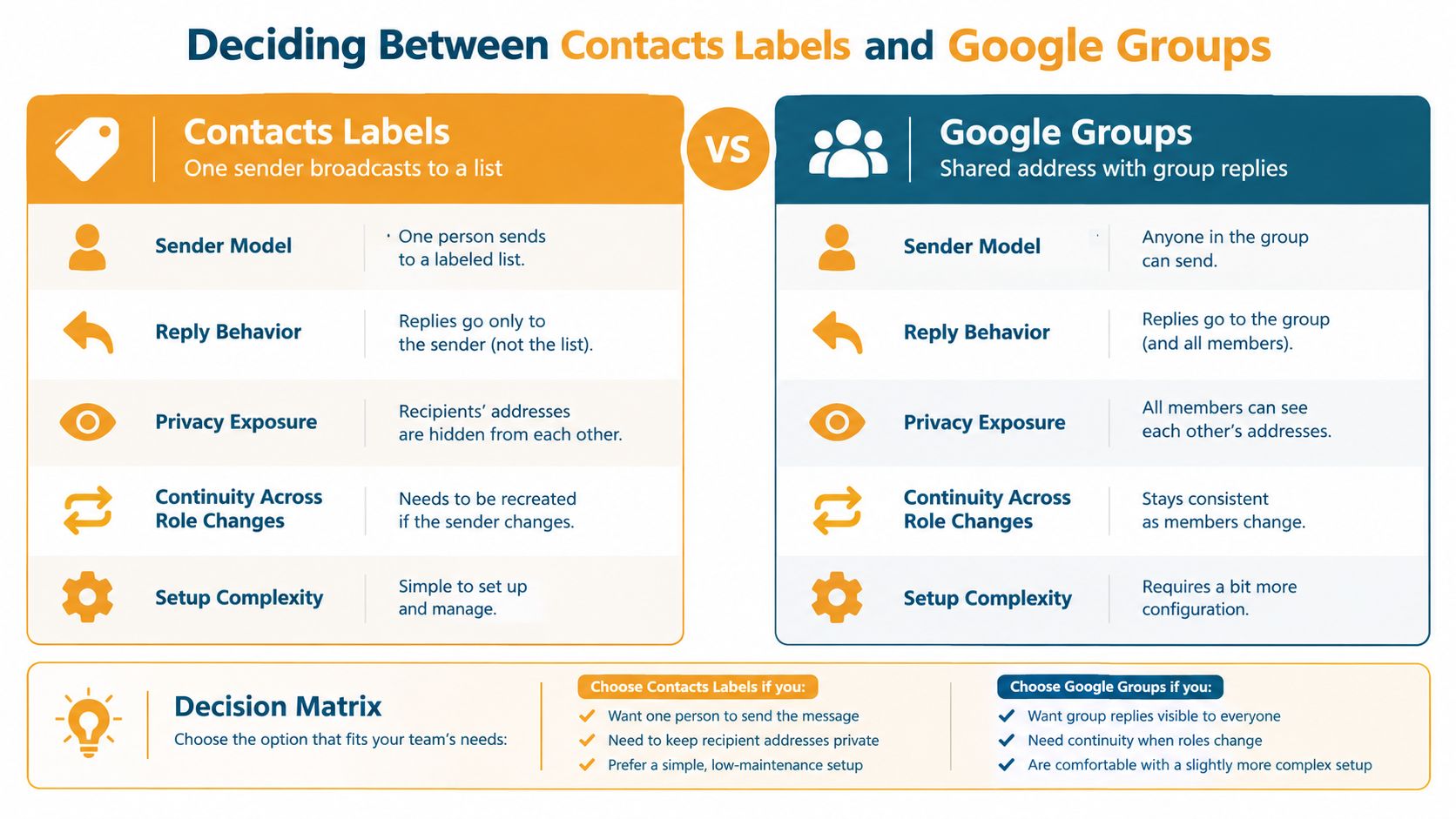
| Decision point | Contacts label | Google Group | |---|---|---| | Sender model | One Gmail user broadcasts to saved contacts | Multiple approved members can use a shared address | | Reply behavior | Replies follow normal Gmail recipient rules | Group settings can direct discussion through the group | | Privacy exposure | Recipient exposure depends on the message fields and reply choices | Member-address visibility can be controlled in group settings | | Continuity | The list belongs to the contact manager | The address and conversation history can outlast an organizer | | Setup effort | Lightweight and quick | Requires address creation, membership, activation, and permissions |
For a family update, a recurring club announcement, or an HOA reminder sent by one secretary, a Contacts label may be enough. It avoids creating another group identity when all you need is a reusable audience.
A true Google Group fits better when the address should accept incoming messages, when several board members need to participate, or when people must find an ongoing record of decisions. The added setup is justified when forwarding chains and private inboxes have already become the bottleneck.
Match the tool to the failure you need to prevent
- Exposed addresses: Choose the workflow whose privacy settings you can verify, rather than assuming CC or BCC will handle every reply.
- Reply-all cascades: Limit who can post when the list is for announcements, or define the group as a discussion space when replies are intentional.
- Leadership turnover: Use a persistent group identity when the next organizer shouldn't rebuild the list from an old spreadsheet.
- Low technical capacity: Keep Contacts labels for simple broadcasts. Use a Group only when someone will own its membership and permissions.
Don't choose Google Groups merely because the phrase “group email” sounds more official. Choose it when the group needs an address that belongs to the organization rather than to one person.
Fixing Common Gmail Group Setup Mistakes
Most failed setups aren't caused by difficult technology. They come from using one tool while expecting the behavior of the other. A Contacts label can speed up sending, but it doesn't create a shared address or establish group permissions.
One common mistake is treating a Gmail inbox label as a distribution list. It isn't. Another is assuming that BCC solves the entire privacy problem, even though it can leave recipients without a dependable way to reply to everyone.
Check the settings people actually experience
Use this verification list before announcing the new address:
- Address identity: Confirm that you created an actual Google Group email address, not only a Contacts label.
- Activation: Wait until the new group is active, then test delivery from an allowed sender.
- Posting rules: Verify who can send to the group and whether outside senders are accepted.
- Member visibility: Check who can view member email addresses, especially for neighborhood, family, or volunteer lists.
- Reply destination: Send a test message and inspect whether a reply reaches the intended audience.
- Ownership: Add a second responsible manager where appropriate, so the list doesn't depend on one inbox.
- Archive expectations: Decide whether the group conversation history should serve as the record of decisions.
Google's own documentation separates adding a group as an address from creating a group with an actual group email. That distinction is easy to miss because many guides describe only Contacts labels, then call the result a group address. The Google Groups guidance on adding and creating groups is the better reference when a tutorial leaves the address and permission model unclear.
Organizer's check: Send one harmless test, reply from a member account, and inspect the result as both a sender and a recipient.
Legacy advice also ages badly when product settings change. Google's current Groups documentation includes controls for member email visibility and contact with group owners, and its membership-management guidance signals that organizers should revisit old configurations instead of assuming yesterday's defaults still fit. Keep a short record of who owns the group, where membership is maintained, and what posting behavior the group permits. That is more useful than a forgotten spreadsheet.
If the list has already become difficult to maintain, review your email list management process before adding more recipients. The technical setup can't compensate for unclear ownership or an undefined reply policy.
When a Third-Party Email List Makes More Sense
Google's tools are reasonable when the group already works inside Google's ecosystem and someone is willing to manage the settings. They become less attractive when volunteers need a private shared address without accounts, apps, or a separate administrative routine.
An email-only service can provide one address that reaches the whole membership while hiding personal addresses. Members can use Gmail, Outlook, Yahoo, or another standard email client, and an organizer can add people through ordinary email workflows rather than asking everyone to learn Google Groups. A private email list is especially practical when the group wants simple, private email communication without turning routine messages into technical administration.
For a small HOA, family coordinator, or volunteer event team, the deciding question is straightforward: do you need Google's group controls and archive, or do you need a low-friction list that behaves like email from the start? If privacy, continuity, and easy member changes matter more than Google-specific administration, Listava is one email-first option to evaluate.
Listava provides a shared group email address, private delivery that hides member addresses, reply-to-group conversations, and member management through standard email, including simple CC additions and spreadsheet import. Visit Listava to see whether its email-only approach fits your group better than a Contacts label or Google Group.