Create Group Email List in Gmail Without the Hassle
Learn how to create group email list in Gmail using Google Contacts labels, fix reply and privacy issues, and choose a simpler email-only alternative.
You meant to send a simple update to the board, the club, or the family list. Instead, half the message ended up in an old CC chain, one former member still got it, two current members were missed, and the first reply triggered a reply-all spiral that buried the original announcement.
That's usually the moment people decide they need to create a group email list in Gmail.
The problem is that most Gmail tutorials stop at “make a label in Google Contacts” and call it done. That does help with repeat sending. But it doesn't answer the questions that cause trouble in real groups: Will everyone see each other's addresses? What happens when someone replies? Who maintains the list when leadership changes?
For a small, familiar group, Gmail can work fine. For anything involving privacy, rotating volunteers, or group discussion, the details matter a lot more than the setup screens.
Table of Contents
- Why Gmail Group Lists Still Trip Up Organizers
- Choosing the Right Way to Group Email in Gmail
- How to Create a Reusable Group With Google Contacts Labels
- Sending and Managing Your Group Without Breaking the Thread
- Fixing Common Problems With Gmail Group Lists
- A Simpler Path for Private Community Email
Why Gmail Group Lists Still Trip Up Organizers
An HOA board, a church committee, or a weekend cycling club usually starts the same way. Someone keeps a list in their inbox, someone else has a spreadsheet, and a third person forwards the “latest version” when a new member joins. It works until it doesn't.

The appeal of a group email list is obvious. One address, one send, everyone gets the message. Google has supported group-based email for a long time through Google Groups, and its help documentation shows that Gmail can display a group as a shared mailing object rather than a visible list of individually managed recipients. It also shows that group ownership and management are separate roles, which is why group delivery has become a standard pattern in Workspace environments since Gmail launched in 2004 in Google's help materials.
The hidden problems aren't in setup
Most organizers don't get stuck creating the list. They get stuck after the first real conversation.
If you send in To, people may see each other's addresses. If you send with BCC, you protect privacy, but replies usually go back only to you. If you use a personal Google Contacts label, it saves typing, but the list lives in one person's contact book. That's fine for a dinner party. It's brittle for a neighborhood association.
What breaks group email isn't usually sending. It's reply behavior, privacy, and list ownership.
That's why the usual “just use BCC” advice feels incomplete. It solves one problem and creates another. If you've ever had to explain why nobody saw an important reply because it came back only to the sender, you already know the trade-off. If you want a quick refresher on that choice, this guide on CC vs BCC in email is worth keeping handy.
What success actually looks like
A useful group email setup does three things well:
- Reaches the right people: No stale contacts, duplicates, or missing members.
- Handles replies predictably: Either replies go back to the whole group on purpose, or they don't.
- Protects privacy when needed: Especially for community lists where not everyone wants their address exposed.
If your current setup does only one of those three, it's probably why email still feels harder than it should.
Choosing the Right Way to Group Email in Gmail
There isn't one “Gmail group” method. There are four common ones, and they solve different problems. Picking the wrong one is why people end up rebuilding their process later.
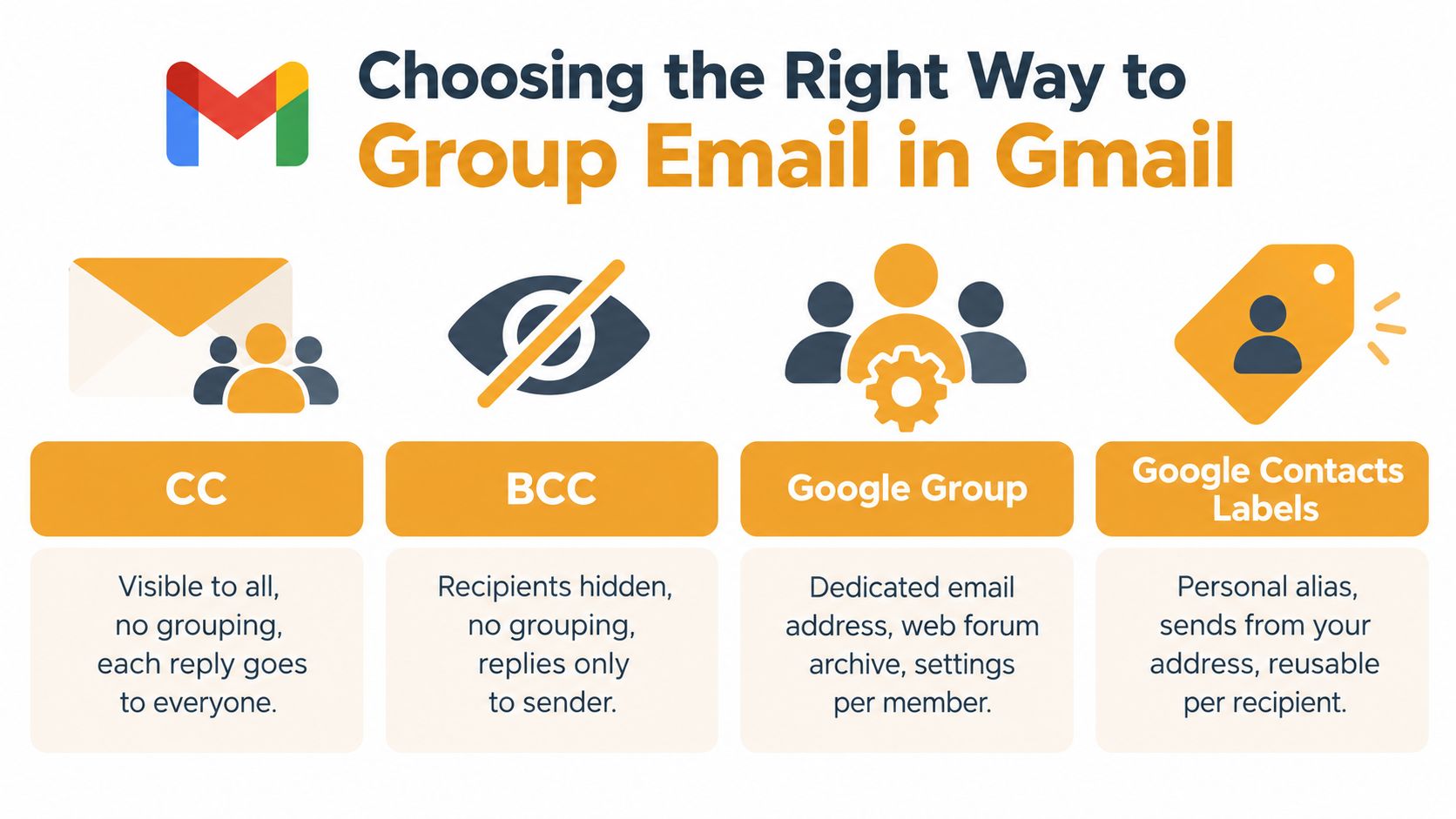
Gmail Group Email Options Compared
| Method | Privacy | Reply Behavior | Best For | |---|---|---|---| | CC | Low. Recipients can see each other | Replies can go to everyone | Small groups that already know each other | | BCC | Higher. Recipients are hidden | Replies usually return only to sender | One-way announcements | | Google Contacts label | Depends on how you send it | Works like a personal send shortcut, not a shared group address | Reusable personal lists | | Google Groups | More configurable | Reply routing can be configured at the group level | Ongoing group communication |
What each option actually feels like in use
CC is the fastest and messiest option. It's fine when the group is tiny, stable, and not private. It's a poor fit for member rosters that change often or for any list where exposed addresses create friction.
BCC fixes the exposure problem, which is why so many organizers fall back on it. But it turns a discussion into a broadcast. That's useful for announcements and reminders. It's weak for committees, clubs, and boards that need shared follow-up.
Google Contacts labels are the easiest way to create a group email list in Gmail for your own repeated use. You build the list in Google Contacts, then type the label name when composing. It's practical, but it's still your list. Other officers or volunteers don't automatically share it.
Google Groups is closer to a real group address. Google's own Gmail help discussions highlight something many tutorials skip. Reply routing can be configured differently depending on group settings, which matters if you want discussion to stay inside the group instead of scattering into private side threads.
If you need repeat sending, a label works. If you need group behavior, a label isn't enough.
A simple decision rule
Use this if you're deciding quickly:
- Choose CC when the list is small and everyone can see everyone.
- Choose BCC when privacy matters and replies don't need to stay communal.
- Choose a Contacts label when one organizer sends recurring messages from their own Gmail.
- Choose a shared-address tool or Google Groups when the list needs continuity beyond one inbox.
If you're comparing broader options beyond Gmail's built-ins, this overview of email list software helps frame where personal labels stop being enough.
How to Create a Reusable Group With Google Contacts Labels
If your goal is simple repeat sending from your own Gmail account, a Google Contacts label is the cleanest place to start. It's built in, quick to update, and doesn't require a separate admin interface.
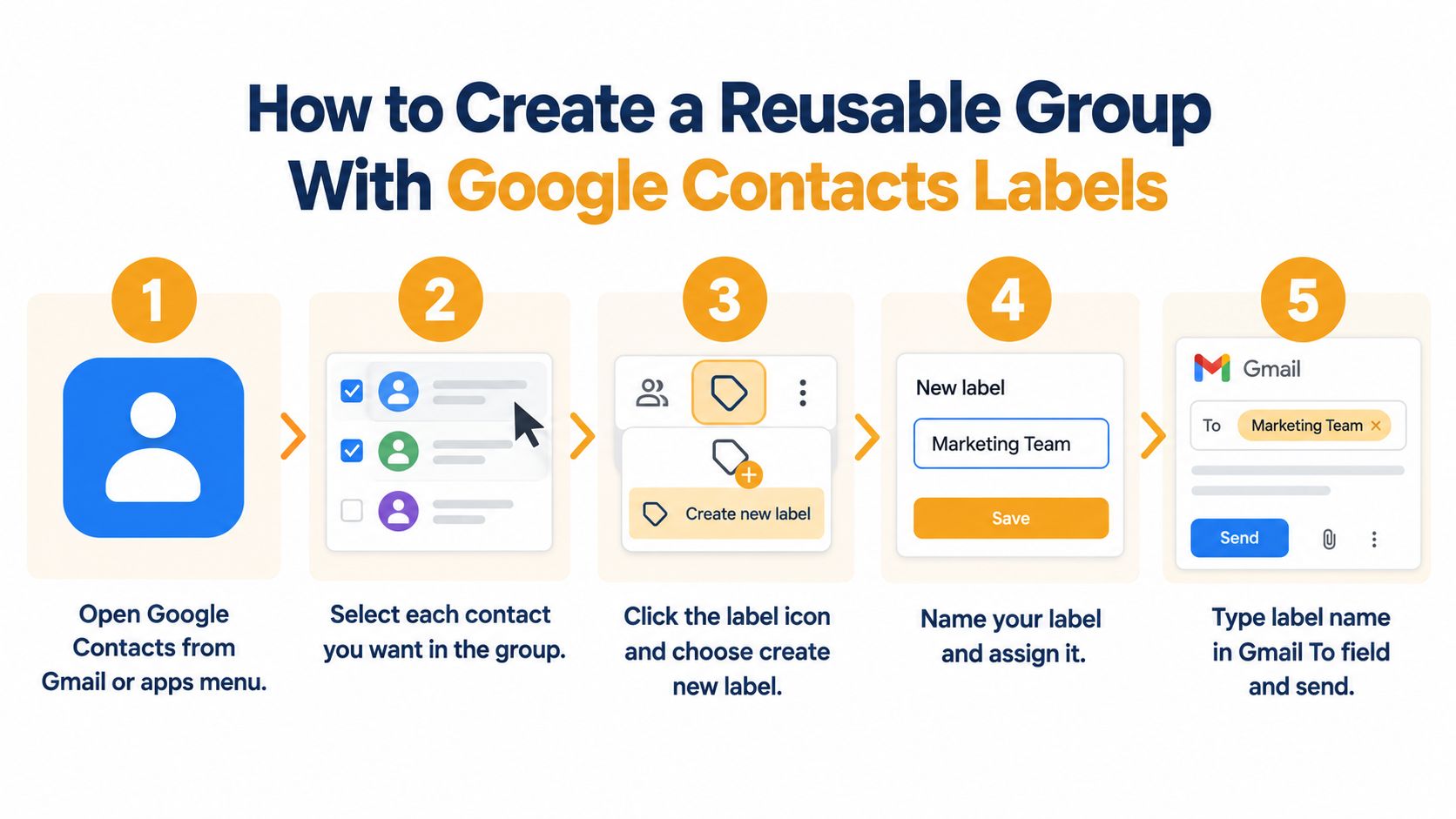
Build the label in Google Contacts
Google's documented workflow is straightforward in Google Contacts help.
- Open Google Contacts.
- Select the contacts you want in the group.
- Click Create label under Labels.
- Name the label something obvious, like “Board Members,” “Book Club,” or “Volunteer Leads.”
The naming matters more than people think. If you manage several overlapping groups, vague names like “Team” or “Updates” turn into mistakes later. Use names that still make sense when you see them in a hurry on a Tuesday night.
Use the label from Gmail
Once the label exists, open Gmail and click Compose. In the To field, start typing the label name. Gmail should auto-suggest it, and when you select it, Gmail expands it to the contacts attached to that label at send time.
That expansion is the key detail. This is not a native mailing-list object inside Gmail. It's a label-based distribution mechanism tied to your saved contacts.
Practical rule: A Contacts label is only as reliable as the contact list behind it.
If an address was never saved as a contact, the label can't reach it. If the wrong address is saved, the label repeats the mistake perfectly every time.
What to check before you trust it
A new label can look finished long before it's dependable. Before using it for an important notice, review these basics:
- Saved contacts only: Every recipient needs to exist as a contact, not just in an old message thread.
- No duplicates: The same person may appear under two addresses or two contact cards.
- Current emails: Labels don't clean stale addresses for you.
- Clear scope: Keep separate labels for board business, social updates, and public announcements.
A lot of volunteer-run lists go off course. Someone exports names from a spreadsheet, another person pastes a few addresses manually, and the label ends up half-maintained.
Understand the limits before they surprise you
A Contacts label is best understood as a sending shortcut. It does not create a shared group identity. It does not give you group-level reply settings. It does not solve turnover when the list “belongs” to one person's Google account.
For some groups, that's fine. A family reunion organizer or a club treasurer may only need a reusable address set. For anything more collaborative, this model starts showing strain.
A related operational wrinkle comes up when people shift from labels to actual Google Groups. Google's own help notes that newly created groups may take a few minutes to become active before messages are deliverable. That doesn't affect a basic Contacts label the same way, but it matters if you expect a newly created group address to work instantly for a same-minute send.
A better habit for maintenance
Use a simple routine before each recurring send:
- Scan for departures: Remove former members first.
- Add new people immediately: Don't leave “I'll add them later” on a sticky note.
- Send yourself a test: Especially for legal notices, dues reminders, or event logistics.
That routine sounds small. It prevents most of the “why didn't she get it?” conversations that eat up volunteer time.
Sending and Managing Your Group Without Breaking the Thread
Creating the label is the easy part. Daily use is where organizers either get a smooth system or end up back in email chaos.
Sending without exposing more than you intended
When you use a Google Contacts label in Gmail, think about the field before you think about the message.
If you place the label in To, recipients may be able to see the other addresses. That can be acceptable for a board, a committee, or a social group where everyone already knows each other. It's much less comfortable for neighborhood updates, faith communities, or any list with privacy-sensitive members.
If you place recipients in BCC, you protect those addresses. But you also change how the conversation works. Replies usually won't continue with the full group.
Protecting thread continuity
Many “create group email list in Gmail” tutorials stop too early. Sending and discussing are not the same task.
A Contacts label helps you address many people at once. It does not give you built-in, predictable reply-to-group behavior. Google Groups exists partly because group email often needs settings for how replies are routed, not just who receives the first message.
Send shortcuts are not conversation tools.
If your group expects discussion, decide that upfront. Don't assume a list that works for announcements will also work for back-and-forth planning.
For a quick walkthrough of Gmail-based group sending, this video is a decent visual companion:
Keeping the list usable over time
The best maintenance habits are boring, which is why they work.
- Remove people promptly: If someone leaves the board or club, update the label that day.
- Watch for split identities: Members often have a work email in one place and a personal email in another.
- Avoid manual paste-ins when possible: If you bypass the label and paste a one-off list, you've already created a second version of the truth.
Independent documentation on distribution list reporting shows that admins often judge list activity over rolling periods such as 90 days and use message-trace or archive-style workflows to see whether a group is active or abandoned, as discussed in this review of distribution group usage metrics. That's an enterprise example, but the lesson translates well: group email works better when someone treats it like an actual communication channel, not a pile of addresses.
When a shared address is cleaner
Once you need private membership, group-wide replies, and continuity beyond one organizer's account, a shared list address is usually easier to live with than a personal label. That can mean Google Groups for organizations comfortable with Google admin settings, or an email-only service like Listava, which provides one shared address that reaches the group, hides member addresses, and keeps participation inside normal email clients.
That's usually the turning point for HOAs and clubs. They don't need more dashboards. They need fewer accidental side effects.
Fixing Common Problems With Gmail Group Lists
Most Gmail group list problems come from a short list of causes. The useful way to troubleshoot them is by symptom, not by menu.
The email didn't reach everyone
If some people received the message and others didn't, start with the contacts behind the label.
Common causes include missing saved contacts, old addresses, and duplicates attached to the wrong person. Since the label depends on the contact set, delivery completeness depends on the quality of that set too.
Quick fix: Open Google Contacts, inspect every member in the label, and clean out outdated or duplicate entries before sending again.
The new group address isn't working yet
This issue applies when you created a Google Group, not just a Contacts label.
A newly created Google Group may take a few minutes to become active before messages are deliverable, according to the earlier Google Contacts and Groups guidance already discussed above. If you create the group and immediately test it, a short delay can look like a broken setup.
Quick fix: Wait a bit, then test again from a clean message.
Everyone can see everyone's email addresses
That usually means you sent through To or CC. Gmail didn't malfunction. It did exactly what those fields are designed to do.
A lot of mainstream guidance still treats BCC as the privacy workaround. That's true as far as exposure goes, but it doesn't solve the larger need for private discussion with group continuity.
Quick fix: If the message is a one-way announcement, use BCC next time. If the group needs private ongoing discussion, switch to a shared-address approach instead of forcing Gmail fields to do two jobs at once.
Replies are fragmented or coming only to one person
This is the classic BCC problem. Privacy improves, conversation breaks.
It also happens when organizers use a Contacts label and expect mailing-list behavior from what is really an address shortcut. Google's own group settings emphasize reply-routing for a reason. That setting matters.
Quick fix: Decide whether the list is for announcements or discussion. If it's for discussion, use a true group-address setup.
A simple contact hygiene checklist
Run this checklist before important sends:
- Check member status: Remove former members and add new ones.
- Check for duplicate cards: One person should not have multiple active entries unless that's intentional.
- Check naming consistency: Use recognisable names so you can spot mistakes fast.
- Check privacy expectations: Don't assume people are comfortable with visible addresses.
Most “Gmail is unreliable” complaints are really list-maintenance problems wearing a Gmail hat.
A Simpler Path for Private Community Email
For many groups, a Google Contacts label is enough. It's good for one organizer sending recurring updates from a personal Gmail account, especially when the group is small, familiar, and not sensitive about visible addresses.
The trouble starts when the group needs two things at once: privacy and conversation. BCC protects member addresses but weakens reply flow. A personal label makes sending easier but keeps ownership tied to one person's contacts. Over time, that creates extra volunteer labor and awkward handoffs.
That's where an email-only shared address can be the cleaner fix. Instead of asking non-technical organizers to learn group-admin settings or maintain personal contact labels forever, a shared list address gives the group one stable destination. Members can participate from ordinary email. The list continues even when officers rotate. Personal addresses stay protected.
If that's the problem you're solving, this guide to a private email list gets closer to the need than most Gmail tutorials do.
The practical question isn't just how to create a group email list in Gmail. It's whether Gmail's personal-label model matches the way your group communicates. Sometimes it does. Sometimes a true shared address saves everyone work.
If your group has outgrown CC chains and awkward BCC workarounds, Listava offers a shared email address that reaches every member while keeping personal addresses private. It's designed for clubs, HOAs, faith communities, and other organizers who want reply-to-group continuity without asking everyone to join an app or learn a dashboard.