Bulk Import Excel Guide: Upload Group Emails the Right Way
Learn how to bulk import Excel files into a group email list. Step-by-step guide for organizers on preparing spreadsheets, troubleshooting errors
You've spent an afternoon cleaning a membership spreadsheet. The names look consistent, the email column appears complete, and the workbook opens without warning. After the upload, the system reports that the list was accepted, so you move on to preparing the announcement.
Later, members tell you they never received it. The problem may not have been an obvious upload failure. Excel can change values while opening, converting, or exporting a file. A leading zero can disappear, a long identifier can become scientific notation, and regional date settings can reinterpret a value without making the spreadsheet look broken. Reliable bulk import Excel workflows are designed to detect those changes before they affect group communication.
Table of Contents
- When Your Import Looks Successful But the List Is Broken
- The Four-Stage Workflow for Reliable Excel Imports
- How Excel Silently Corrupts Your Data Before You Know It
- Building a Validation Checklist Before You Hit Send
- Privacy, Accessibility, and Inclusion in Your Import Process
- Troubleshooting the Three Most Common Import Failures
- Your Pre-Send Verification Routine
When Your Import Looks Successful But the List Is Broken
The import screen says “accepted,” yet a member later reports that a postal code is wrong or an invitation went to an old address. The upload completed because the file had a readable structure. That result says nothing about whether values match the original roster, whether the correct worksheet was used, or whether every intended address passed validation.
Neighborhood associations, faith communities, clubs, and family groups face this risk during ordinary spreadsheet edits. An organizer exports a roster, opens it in Excel, corrects one name, and saves the workbook. Excel can apply assumptions about numbers, dates, delimiters, or character encoding during that process. The file still looks familiar, while the stored values have changed.

The difference between accepted and accurate
Modern .XLSX files store workbook information as XML components inside a ZIP archive. Import software can read worksheets, cell values, shared strings, styles, and metadata without the Excel desktop application. Office 2007 introduced Office Open XML and made .XLSX the default workbook format, replacing the older binary .XLS structure. Adobe's explanation of XLS and XLSX formats gives useful background on the formats and their processing differences.
Capacity also changed. An .XLSX worksheet supports 1,048,576 rows, while Excel 97–2003 .XLS worksheets supported 65,536 rows. The larger limit helps with extensive rosters, yet it does not check field mapping, duplicate records, missing addresses, or rejected rows. Those checks remain part of the import process.
Practical rule: Treat the spreadsheet as a data source requiring inspection, not as a harmless attachment that is reliable because it opens normally.
Spreadsheet mistakes can remain hidden during review. A Dartmouth research review found errors in 94% of 88 audited spreadsheets across seven studies, while a separate operational spreadsheet audit found errors in approximately 0.9% to 1.8% of formula cells, depending on the definition used. The Dartmouth spreadsheet literature review explains why a small cell-level error rate can matter across a large import.
A reliable routine preserves the original workbook, controls Excel's interpretation of each field, previews the imported records, and records which rows were accepted or rejected. That turns bulk import into a deliverability-control step rather than a file-upload formality.
The Four-Stage Workflow for Reliable Excel Imports
A member import can appear complete while making unexpected changes to the records your delivery system receives. A four-stage workflow makes each conversion, field setting, and acceptance decision visible before the list is activated.
1. Export to CSV UTF-8
Select the worksheet containing the actual member list. Remove title rows, unused columns, merged cells, and notes that do not belong in the import. Keep one clear header row with consistent names such as email, first_name, and last_name.
Export the worksheet as CSV UTF-8. CSV gives many import systems a simpler structure to parse, while UTF-8 helps preserve names and other text containing non-English characters.
2. Reopen through Excel's import controls
Open the CSV through Excel's Data > From Text/CSV option. Choose UTF-8 encoding, then confirm whether the delimiter is a comma or semicolon.
A file can look neatly arranged after a double-click and still contain parsing errors. Explicitly setting these options exposes the decisions that affect column boundaries and text characters. Check several rows after reopening, especially records with punctuation, accented names, or empty fields.
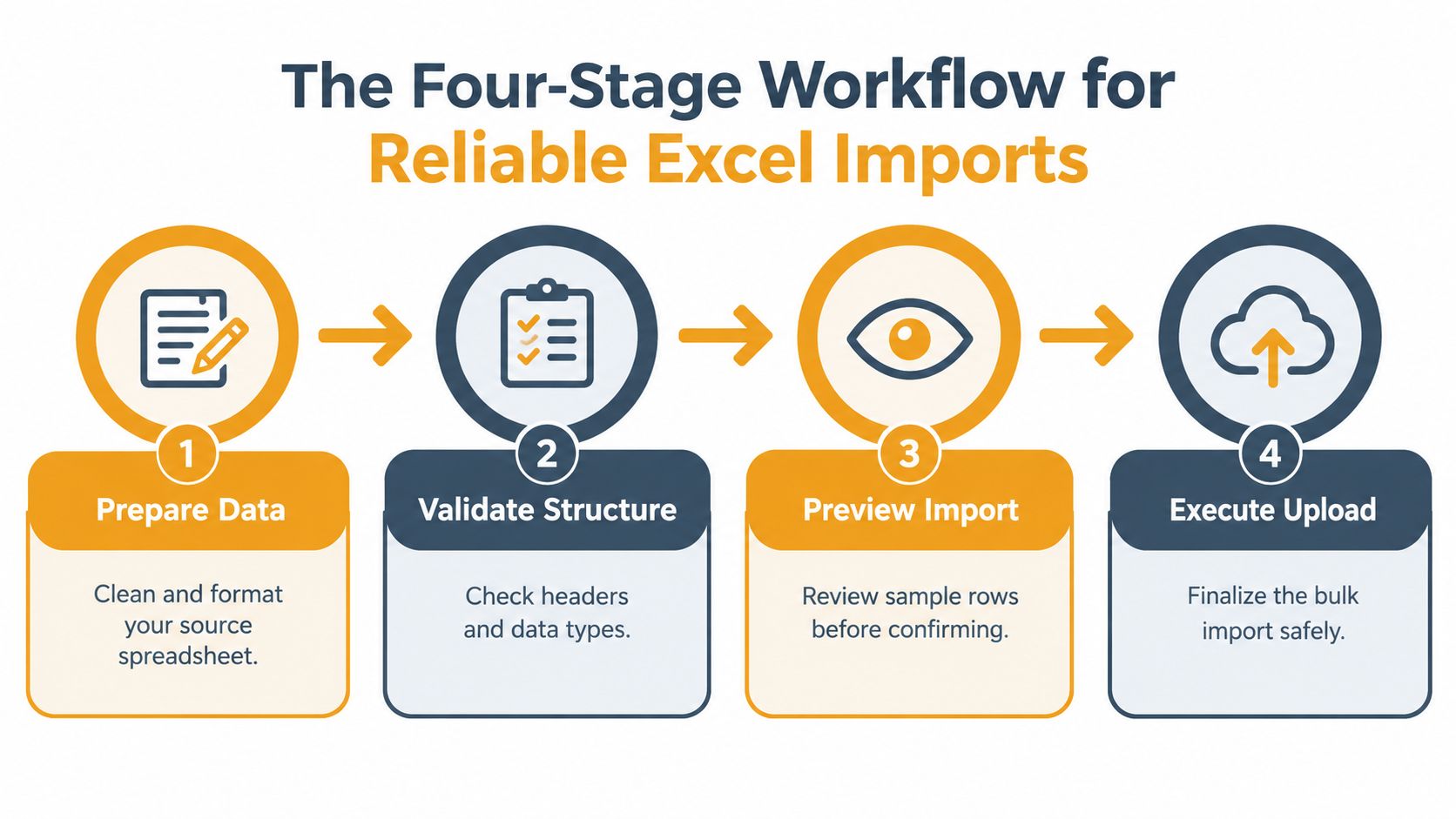
3. Set identifiers to Text
Before loading the data, set email addresses, postal codes, phone numbers, and member identifiers to Text. These fields identify people or locations, so Excel should preserve their characters rather than interpret them as numbers.
A postal code such as 00123 can become 123 during conversion. The New Jersey Department of Education uses this kind of example in its UTF-8 and spreadsheet import guidance, which recommends selecting Text when leading zeros must remain intact.
4. Review the acceptance report
The import report should show total rows, valid unique addresses, duplicates, invalid addresses, and skipped rows. Compare each category with the source file before activating the full list. An unexpected change in any category deserves investigation.
Build a preview into the routine. Review the first row, the last row, and several middle rows, then confirm that names, addresses, and identifiers still match the source. The aim is to keep every automatic decision visible to the organizer, from encoding choice to delimiter.
How Excel Silently Corrupts Your Data Before You Know It
A member list can upload without an error and still be wrong. Excel may change values before the receiving system ever sees them, turning a successful import into a deliverability problem.
Excel's automatic conversions suit ordinary calculations. They create risk when a column contains identifiers that only look numeric. A postal code such as 00123 may become 123. A phone number or member ID may appear as 3.14E+09 instead of its original 10-digit value. The workbook can still open normally, and the import can still report success, while the stored value no longer matches the approved list.
Values that look valid but changed
Dates cause another silent failure. A value entered under one regional convention can be interpreted under another. A date intended as 5 March may be read as 3 May when the software applies a different month-and-day order. The cell still contains a valid date, so a basic check may miss the changed meaning.
Names can also change during CSV handling. Diacritics and other non-English characters may become garbled when a file is saved or opened with the wrong encoding. The row remains populated, but the member's name no longer matches the source. That can affect matching, member communication, and manual review.
The highest-risk rows are often the ones that pass a superficial check. Rejected rows attract attention. Altered rows can enter the list without notice.
A quick detection routine
Compare the original workbook with the exact file you plan to import. Use visible before-and-after examples rather than relying on whether Excel displays a value neatly:
- Leading zeros: Check whether
00123remains00123, rather than becoming123. - Long values: Compare a source phone number with the exported value.
3.14E+09is a warning sign, not confirmation that the number survived. - Dates: Check several records against the source and confirm the intended regional order for day and month.
- Characters: Review names with accents and other non-English characters for garbling or replacement symbols.
- Row count: Confirm that the exported file contains the same intended data rows as the source worksheet.
For fields such as postal codes, phone numbers, and member IDs, preserving the original characters matters more than enabling numeric calculations. Set those fields to Text before editing or exporting, as noted in the New Jersey Department of Education spreadsheet guidance.
Check email addresses with the same care. Compare sample addresses directly with the source, including their punctuation and spelling, and inspect for spaces or altered characters. An upload that completes successfully is only ready for delivery when its records still represent what the organizer approved.
Building a Validation Checklist Before You Hit Send
Validation should happen before a record enters the active group. A recipient list is not ready merely because every row contains something in the email column.
Begin with a header row that uses a canonical field such as email. Then process each row consistently. Trim surrounding whitespace, reject blank required values, normalize capitalization for duplicate detection, and report malformed addresses with their row numbers instead of discarding them without notice.
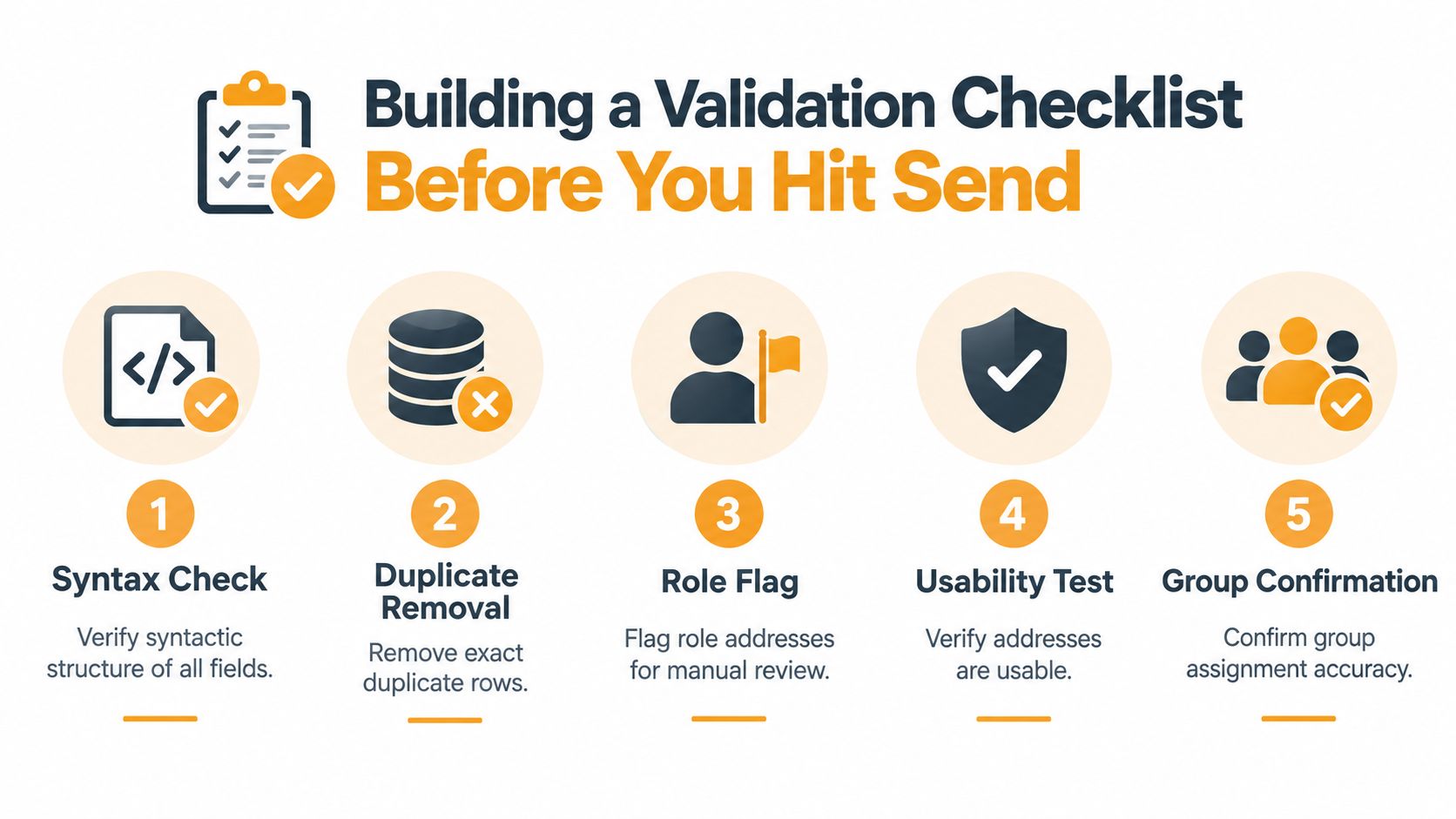
Five checks that belong in the report
-
Syntax check: Confirm that each address has a recognizable email structure. This catches missing domains, stray spaces, and obvious typing mistakes.
-
Duplicate removal: Compare addresses after trimming whitespace and normalizing case. Exact duplicates should not create repeated deliveries or inflate the apparent size of the group.
-
Role review: Flag addresses such as
info@oradmin@for manual review. They may be valid, but a shared role mailbox isn't always the right destination for a personal member announcement. -
Usability verification: Where lawful and supported by consent, verify that addresses are usable before sending group traffic. A useful operational target is a hard bounce rate below 2% per send, as described in email list hygiene guidance.
-
Group confirmation: Confirm that the imported rows belong to the intended group and worksheet. A perfectly formatted file can still be the wrong roster.
Read the report as a decision tool
Your acceptance report should make it easy to answer five questions:
| Report category | What the organizer should confirm | |---|---| | Total rows | Does this match the intended source roster? | | Valid unique addresses | Are these the people who should receive messages? | | Duplicates | Were repeats removed or set aside for review? | | Invalid addresses | Can the source spreadsheet be corrected? | | Skipped rows | Is every exclusion explained by a clear reason? |
After the import, send a controlled test to the organizer and a small confirmed subset. Inspect rejected addresses and delivery failures before activating the full list. Keep an audit record containing the source filename, timestamp, row counts, validation rules, and rejected-row reasons. That record lets a volunteer organizer reproduce the decision or undo it without rebuilding the list from memory.
Privacy, Accessibility, and Inclusion in Your Import Process
A clean import protects more than delivery performance. It also reduces the chance that a member's address is exposed, duplicated, or attached to the wrong group.
For a community organizer, privacy starts with the source file. Keep the original roster in a controlled location, avoid sending it around as an unprotected attachment, and import only the fields the group needs. A list that shares one group address can still create confusion if malformed or duplicated records lead to unexpected recipients, so validation supports privacy rather than sitting apart from it.
Accessibility belongs in the preparation workflow, not only in the final email. Many instructions assume a confident desktop Excel user who understands worksheets, delimiters, encoding, and column types. That excludes organizers with low vision, limited digital literacy, cognitive disabilities, or spreadsheet conventions shaped by another country.
Make the workbook easier to inspect
Use a logical table with descriptive headers and plain-language instructions. Don't rely on color alone to identify errors. Keep one clearly labeled email column, place required fields in predictable positions, and avoid decorative formatting that makes the source harder to read.
Public-sector Excel accessibility guidance identifies problems such as unclear headers, poor worksheet organization, missing document properties, and color-only instructions. Those issues matter during import because an organizer may not be able to tell whether a warning applies to a row, a column, or the entire file.
An inclusive import experience should provide:
- A plain-language template: Show acceptable headers and one correctly formatted example.
- A readable preview: Display sample rows without relying on color to communicate status.
- Exact error locations: Identify the row and field that need attention.
- A clear summary: State rows received, valid addresses, duplicates, blanks, and rejected entries.
- International support: Make UTF-8 and semicolon-delimited files part of the normal workflow, not an afterthought.
A service such as Listava supports email-based group communication, including bulk member addition from an Excel spreadsheet, while allowing members to participate through standard email clients. The practical principle is broader than any one tool: organizers should be able to understand what happened without needing a technical dashboard. See this guide to email list management for related operational practices.
Troubleshooting the Three Most Common Import Failures
Most failed imports become easier to diagnose when you stop treating the message as a general file error. Identify whether the problem is the worksheet, the delimiter, or the header row.
The wrong worksheet was exported
An Excel workbook may contain separate sheets for current members, former members, event guests, or notes. An importer can't know which one you intended if you export the wrong tab.
Open the workbook and verify the worksheet name before exporting. Check the first and last records against the roster you expect. If the file has multiple sheets, export only the intended worksheet to a new CSV rather than asking the receiving system to guess.
The delimiter is wrong
A CSV isn't always comma-separated. Some regional spreadsheet settings produce semicolon-delimited files. If the import shows a large number of malformed rows or places the entire line into one column, return to the import wizard and change the delimiter setting.
Open the file through Data > From Text/CSV, select UTF-8, and preview the columns. If the email, name, and other fields appear in separate columns, the delimiter is probably correct. If not, test the alternative delimiter before loading the data.
The first row isn't a header
A title such as “Spring Membership List” above the actual column labels can cause the importer to treat the title as the header row. The first actual data row may then be skipped, misclassified, or assigned to the wrong fields.
Make the first row a clean header row with names such as email, first_name, and last_name. Remove report titles and explanatory notes from above it. After exporting, open the CSV as text or through Excel's import preview and confirm that row one contains field names, not a person's information.
Once the structure is corrected, run the acceptance report again. Send a controlled test to yourself and a small confirmed subset, then inspect delivery failures before contacting the full group. Guidance on distribution list management can help you keep the communication workflow separate from the spreadsheet cleanup process.
Your Pre-Send Verification Routine
Before treating an import as complete, perform a short inspection that checks both the file and the recipient outcome. This routine is more reliable than trusting a green confirmation message.
Start at the boundaries. Check the first row to confirm that the headers match the receiving system, then inspect the last row to make sure the export wasn't truncated. Select several rows from the middle and compare names, email addresses, and identifiers directly with the original workbook.
The final review
Use this sequence:
- Compare row counts: The source worksheet and imported report should account for the same intended records.
- Inspect representative rows: Check the first, last, and randomly selected middle rows.
- Review categories: Understand every duplicate, blank, invalid address, and skipped row.
- Confirm privacy: Make sure the selected worksheet contains only the fields and members intended for this group.
- Run a controlled test: Send to the organizer and a small confirmed subset before the full list.

A rejection rate that is higher than your normal expectation deserves another pass through the source file, especially if the report shows malformed rows, unexpected duplicates, or a mismatch in totals. Don't focus only on rejected records. Review accepted rows for silent changes, including lost leading zeros, altered dates, scientific notation, and damaged characters.
The final safeguard is a record of what you imported and why. Save the source filename, timestamp, validation rules, row totals, and rejection reasons. When leadership changes or a volunteer needs to repeat the process, that history protects continuity and reduces the temptation to start over with an unverified spreadsheet.
For the sending stage, use this guide to sending email in bulk alongside your import checklist. The combination of controlled preparation, readable validation, privacy checks, and a small test protects both delivery and member trust.
If you're managing a community roster, Listava lets you add members from an Excel spreadsheet to an email-based group and communicate through standard email clients. Prepare the file with the validation routine above, then use Listava to keep group delivery and member participation simple.