How to Create Group Email Address
Learn how to create group email address lists for clubs and HOAs. Protect member privacy, stop reply-all chaos, and manage groups without IT skills.
You've collected everyone's email addresses, pasted them into a message, and now you're staring at the CC and BCC fields wondering which one will cause fewer complaints. That's how many neighborhood boards, volunteer teams, family groups, and hobby clubs begin. The first announcement goes out, replies scatter across private inboxes, somebody's address is exposed, and the organizer becomes the unofficial support desk.
A group email address fixes the underlying workflow, but creating the address is only the first step. The reliable approach is to choose the right type of list, set privacy and posting rules before inviting members, test delivery across the providers your group uses, and maintain the membership after launch.
Table of Contents
- The Hidden Costs of CC and BCC Workflows
- Setting Up Your Private Group Address
- Launch Readiness and Pre-Send Testing
- Comparing Group Email Platforms and Privacy Trade-offs
- Maintaining List Hygiene and Deliverability
- Building Inclusive and Accessible Communication
The Hidden Costs of CC and BCC Workflows
A volunteer committee often starts with a spreadsheet. The coordinator copies every address into CC for a planning message, then switches to BCC after someone objects to seeing the full list. Both choices solve one problem while creating another.
CC exposes personal addresses. Every recipient can usually see the other addresses, which may lead to privacy complaints, accidental forwarding, or unwanted contact. It also encourages reply-all behavior. A simple question about meeting snacks can become a long thread sent to the entire neighborhood.
BCC hides addresses but weakens the conversation. Recipients can't easily see who else received the message, and replies may go only to the sender. Members who should have seen an answer miss it, while the organizer manually forwards updates and tries to reconstruct the thread. The practical differences are laid out clearly in this guide to CC versus BCC email.
Practical rule: If the group needs an ongoing conversation, don't use BCC as a permanent mailing-list system.
A dedicated group address changes the routing model. Instead of placing every personal address in the message header, you send to one functional address, such as board@... or members@.... The service or platform distributes the message to approved members, while the privacy settings determine whether recipients can see one another and whether replies return to the group.
That distinction matters for more than convenience. Email distribution lists are an established feature in which a group of contacts can be addressed as a single recipient, making a list a delivery mechanism rather than a new mailbox. The pattern has supported centralized communication across teams and organizations for decades, and one published study examined 3.85 million messages and more than 315,000 distinct email addresses, illustrating the scale of email-based coordination and its network effects (email distribution list overview).
A group address also gives the organization a stable destination. When the treasurer changes or the chair steps down, the list can remain in place instead of living inside one person's inbox. That continuity is difficult to achieve with manually maintained CC and BCC drafts.
Setting Up Your Private Group Address
For a non-technical organizer, the smoothest setup starts with the platform that will own the list. Don't create an address in one system and assume another system will automatically manage its permissions, membership, and replies.
Choose an address people can understand
Use a functional name that explains the audience or purpose. members@, volunteers@, or board@ is easier to recognize than a personal name or an abbreviation known only to the founding committee. Keep the address stable even if the person responsible for sending messages changes.
Before adding members, decide whether the address is for announcements, discussion, or both. An announcements-only list should restrict posting to approved organizers. A discussion list needs a clear reply policy so members know whether their response reaches the whole group or only the sender.
Import members without exposing them
A dedicated email-only service can let an organizer add members through ordinary email tools, including simple CC entry or a bulk spreadsheet import. That matters when the membership already exists in Excel and people don't want to create accounts, download an app, or learn a new dashboard.
Set the privacy controls before importing the full list. Confirm that personal addresses aren't displayed to other members, determine who may post, and choose whether replies go to the group or the original sender. These settings affect behavior, not just appearance. A group can hide addresses while still exposing conversation content to everyone allowed to receive it.
The practical setup principles in this guide to private email lists are simple: define the purpose, add only the intended recipients, and test the actual message path before announcing the address.
Give members a clear operating rule
Tell people what the address is for and what happens when they reply. A short welcome message can say whether replies are shared, whether attachments are appropriate, and whom to contact for membership changes. That small explanation prevents the common assumption that every group address behaves like a private mailbox.
Launch Readiness and Pre-Send Testing
A newly created address isn't ready merely because the setup screen says it exists. Google warns that a new group can take a few minutes to become active, and messages sent too early may fail. Microsoft 365 creation can also depend on administrator settings, so an organizer may need IT assistance when group creation isn't enabled. The Google Groups setup guidance makes the propagation and policy issue visible, while Microsoft describes how group creation produces both a shared inbox and a group email address in its Outlook Groups documentation.
Use a small test group first
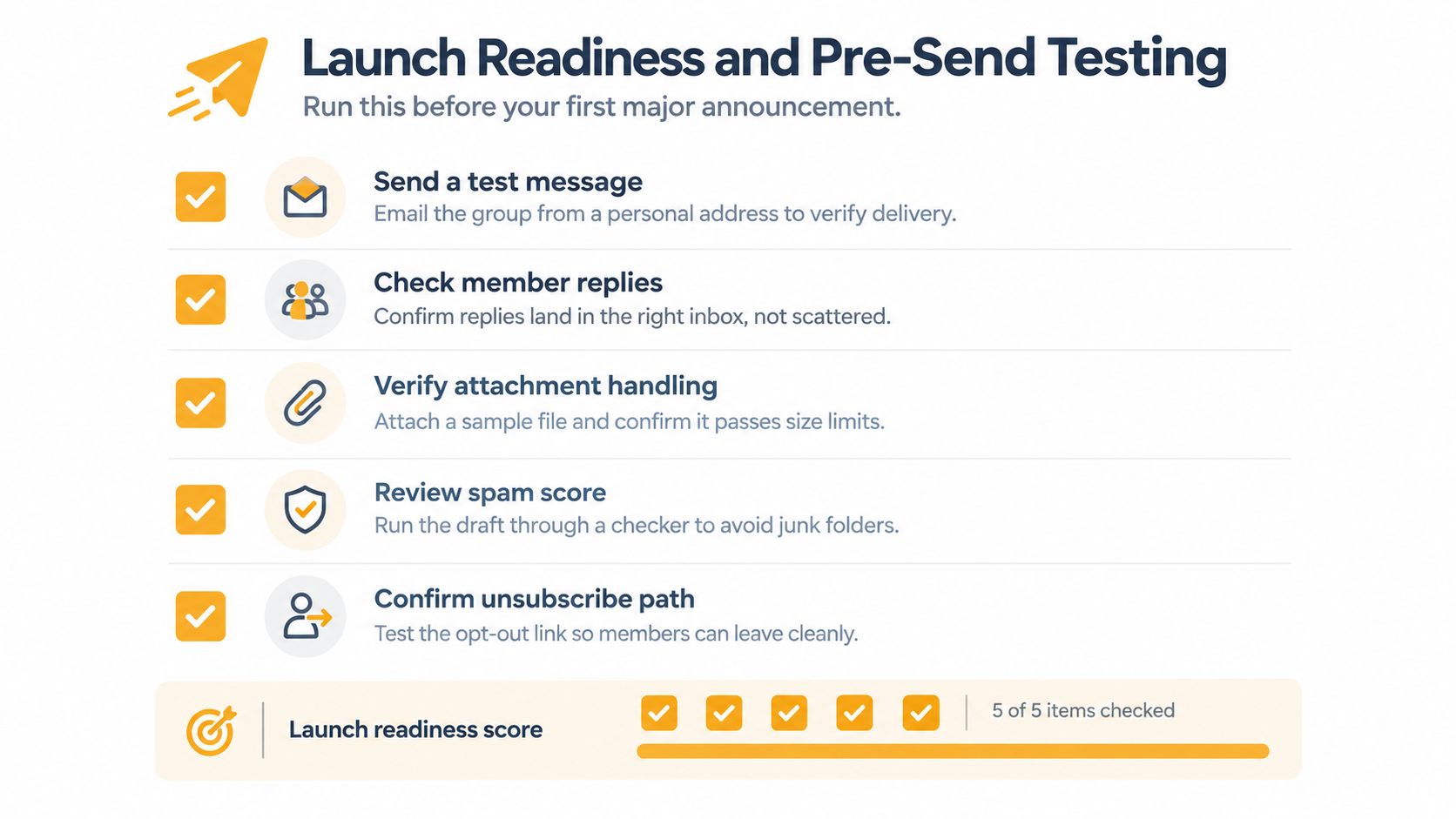
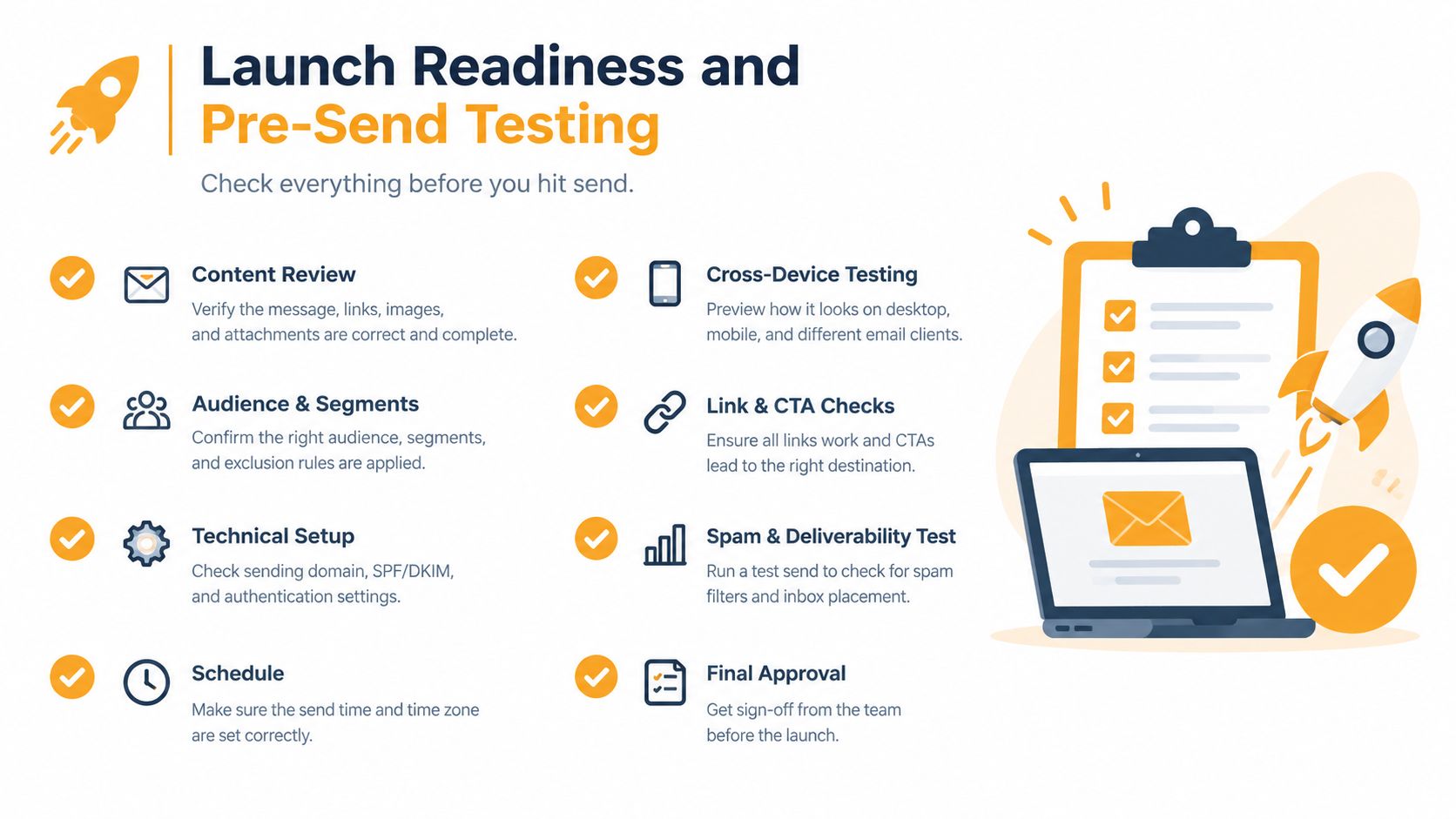
Don't make the first message a time-sensitive announcement. Add or designate test recipients using the providers your members use, such as Gmail, Outlook, and Yahoo. Send a plain-text message first, then test a normal formatted message and an attachment if the group will rely on files.
Check four separate outcomes:
- Delivery: Did every test inbox receive the message?
- Visibility: Can recipients see only what the privacy policy allows?
- Replies: Does a reply reach the intended audience?
- Presentation: Are the sender name, subject, links, and attachment readable?
A successful delivery to the organizer's inbox proves very little. Mixed-email groups expose differences in spam filtering, reply handling, and attachment policies that remain invisible in a single-provider test.
Before launch, test the workflow as a member, not just as the person who created it.
Wait until the address is active according to the platform's guidance before sending the announcement. If a message fails, don't immediately resend it to the entire list. Identify whether the address is still propagating, whether posting is restricted, whether the sender is authorized, or whether a recipient's provider rejected the message.
Test reply-all before members do it for you
Send a test message that asks one recipient to reply. Observe whether the response returns to the list, the sender, or both. Then test a second response, because some platforms apply different behavior depending on the sender's address and the list's posting policy.
Write the first real announcement with a direct subject, a clear action, and a reminder not to forward private information. If the group supports open posting, moderate the first few exchanges closely. Reply-all chaos usually begins with an unclear rule, not with a technical failure.
Comparing Group Email Platforms and Privacy Trade-offs
The right method depends on what members need to do, not just how quickly an organizer can create an address. A simple alias may forward messages efficiently but offer limited participation controls. Google Groups provides controls for who can find, join, view, and post to a group, along with delivery choices such as individual messages, digests, and summaries. Microsoft 365 Groups combine a group address with a shared inbox and may fit organizations already operating inside Microsoft 365.
A dedicated email-only service takes a different approach. It keeps participation in standard email clients and can avoid requiring every member to adopt an account or collaboration workspace. Listava is one example of this model, offering a shared address, member management, group replies, and address privacy for organizers who want routine communication to stay in email.
| Method | Member Accounts Required | Privacy Control | Best For | |---|---|---|---| | Simple email alias | Usually no separate account | Depends on the mail system and forwarding settings | One-way forwarding with limited discussion | | Google Groups | Members may use email, with access depending on group settings | Controls for discovery, joining, viewing, posting, and delivery mode | Google-centered communities with configurable participation | | Microsoft 365 Groups | Often tied to an organization's Microsoft environment | Shared inbox and group policies, with administrator involvement possible | Teams already using Outlook and Microsoft 365 | | Dedicated email-only service | No app or member dashboard required | List-level member privacy and posting controls | Volunteer groups that want email-only participation |
Privacy has two layers. Address privacy means members don't see one another's email addresses. Content privacy means only the intended people can find, view, or post to the group. A platform can protect the first while leaving the second weak if anyone can join or post.
Delivery mode also changes group behavior. Individual messages support timely discussion, while digest or summary modes reduce inbox volume but can delay responses. Review the operational differences in this email list hosting guide before choosing a platform.
Maintaining List Hygiene and Deliverability
A group address can work perfectly during setup and still fail months later. People change jobs, abandon inboxes, unsubscribe, or enter an address incorrectly. Without a named maintenance owner, those problems stay hidden until an important announcement produces bounces or reaches fewer members than expected.
One industry source estimates that 20% to 30% of distribution-list addresses can go bad each year, so schedule routine checks (distribution-list hygiene guidance). Treat that figure as a warning to verify records, not as permission to delete members automatically. A bounce may come from a temporary outage or full mailbox, while a failed address may be permanently invalid.
Use a repeatable maintenance routine
After an important send, review bounce notices while the details are fresh. Remove addresses that are clearly invalid, but contact members through another known channel when the reason is uncertain. Process unsubscribe requests promptly, record who approved membership changes, and keep that record where another organizer can understand it.
Hard bounces need quick attention because a distribution-list failure can affect delivery for the shared address, not only the invalid recipient. Review the provider's delivery guidance before the next send, and treat cleanup as protection for the group's reach rather than paperwork.
Assign at least two trusted organizers to maintain the list. Keep membership steps, posting rules, and account-recovery details in a shared location the committee can access. Before leadership changes, transfer ownership and confirm that the new organizers can send and review delivery notices. A list tied to one volunteer's inbox becomes a manual workaround as soon as that person leaves.
Building Inclusive and Accessible Communication
A reliable group address still fails its purpose if messages are difficult to read or understand. Community announcements compete with personal mail, work messages, and automated notifications, so make the important information visible immediately.
Use a specific subject line, put the date and action near the top, and keep one announcement focused on one decision. Prefer readable fonts, strong contrast, descriptive link text, and plain language. Don't rely on color alone to communicate urgency, and add text alternatives when an image carries essential information.
Accessibility also includes participation. Members may use Gmail, Outlook, Yahoo, Hotmail, phones, or older desktop clients. An email-only workflow lowers the need to learn another application, but organizers still need to test how formatting, attachments, and replies appear in the clients their community uses.
Protect privacy by default, restrict posting when discussion isn't necessary, and explain who receives replies. Review the membership after role changes, honor opt-outs, and keep the address independent from any one person's inbox. Those habits turn a group address from a forwarding trick into a dependable communication hub.
Listava provides email-based group communication for organizers who want one shared address to reach the whole membership while people continue using their normal inboxes. It supports private member management, group replies, spreadsheet imports, and email-only participation without requiring member accounts or an app. Visit Listava to set up a group address and test a cleaner workflow before your next major announcement.