Create Group Email Address Gmail How to Do It Right
Learn how to create group email address Gmail workflows that work, from contact labels to private lists, with steps, privacy tips and reply controls.
You're probably staring at the same messy group thread right now. One person used CC, another replied to everyone, two addresses bounced, and the organizer who started the list isn't even the one answering questions anymore. That's the problem behind the search for create group email address Gmail, because people don't want a trick, they want a group email setup that stays private, readable, and alive when roles change.
Gmail can help, but it helps in different ways. A Google Contacts label is a fast way to send to a reusable set of people, while a Google Group creates a more durable shared address with rules around posting and membership. If you pick the wrong model first, you end up rebuilding the list later, usually after the first reply-all mess.
Table of Contents
- Why Your Gmail Group Email Keeps Turning Into Chaos
- Choosing the Right Gmail Group Option for Your Needs
- How to Create a Group Email Address in Gmail Without the Guesswork
- Adding Members and Keeping Your List Accurate
- Privacy Reply Behavior and Everyday Management Tips
- Pick the Setup You Will Actually Stick With
Why Your Gmail Group Email Keeps Turning Into Chaos
A neighborhood board knows this pain well. Someone keeps the annual meeting list in a spreadsheet, another person copies names into CC, and every update creates one more version of the truth. The list works until it doesn't, usually when someone moves, a new volunteer takes over, or a reply lands in the wrong inbox.
The core issue is that CC and BCC solve different problems badly when a group needs to communicate regularly. CC exposes everyone's address, BCC hides addresses but weakens visibility and follow-up. If you want a clearer breakdown of that trade-off, this CC versus BCC guide is a useful companion.
What Gmail actually gives you
Inside Gmail, a contact label is not a mailing list in the traditional sense. Google's Contacts flow is simple, create a label, add contacts, then type that label name in Gmail's compose window to send to the whole set at once, but the group still lives as a personal contact label, not a shared inbox or standalone distribution object. Google also keeps contact labels separate from Gmail labels, which matters because many people confuse the two and expect the email system to behave like a group manager when it really behaves like an address book.
A label is fine when you need a quick send to many people. It's not fine when you need a persistent, private group address that outlives one organizer's inbox.
That distinction is the whole game. If you need a one-person shortcut for recurring announcements, a label can work. If you need a shared address, controlled replies, and continuity when the organizer changes, you need a different model.
Choosing the Right Gmail Group Option for Your Needs
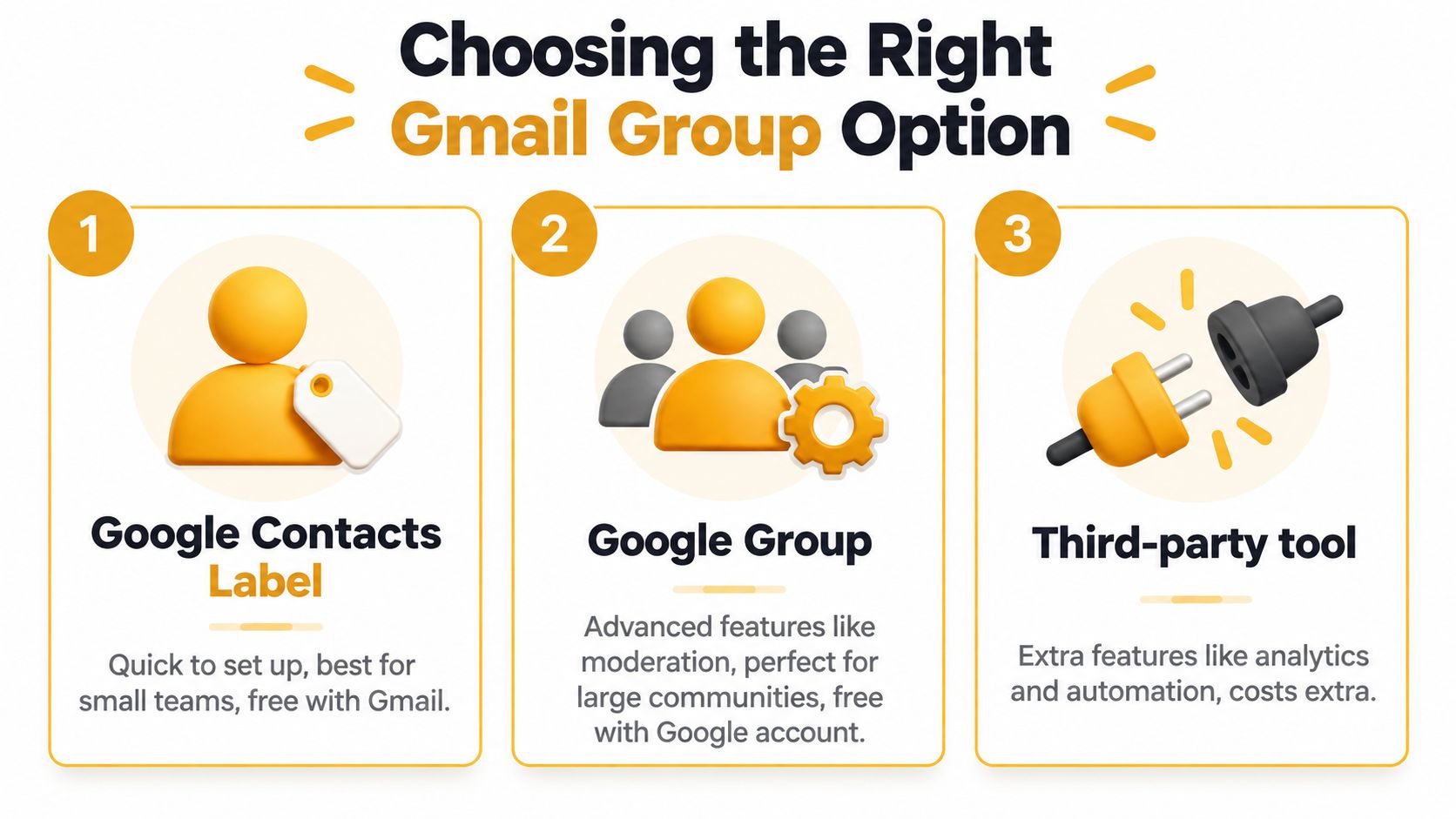
The wrong setup usually comes from choosing by habit instead of by job. A family update list, a volunteer mailing list, and a club discussion address are not the same thing, even if they all start with Gmail. One is a send shortcut, one is a managed group, and one is a tool built outside Gmail for more structured communication.
Compare the options before you build
| Method | Best For | Privacy and Replies | Maintenance | |---|---|---|---| | Google Contacts label | Small, personal send lists | Recipients are expanded at send time, replies behave like normal email | Low at first, but tied to one organizer's contacts | | Google Group | Shared group address, ongoing discussion, role turnover | Better control over who can post, view, and join, with reply behavior managed by group settings | Moderate, because membership and permissions need oversight | | Third-party tool | Teams that want extra workflow features | Usually offers more control over delivery and conversation flow | Depends on the product and the admin setup |
If you only need to send the same announcement to the same people from your own inbox, a Contacts label is enough. If you need a real group address that other people can use, Google Groups is the native path Google documents for creating a group email with a named address and posting rules. If you want a more email-only organizer experience outside Google's group admin flow, that's where tools like Listava come into the conversation as another option for a private shared address.
What to choose in real life
- Choose Contacts labels when the list is small, stable, and owned by one person.
- Choose Google Groups when privacy, reply control, and continuity matter more than simplicity.
- Choose a third-party tool when you want email-only participation without managing a dashboard-heavy workflow.
The practical mistake is building a label when you needed a shared address. That's why so many “group email” tutorials disappoint, they stop at the easy send step and never ask who owns the list next year.
How to Create a Group Email Address in Gmail Without the Guesswork

The cleanest way to think about this is to separate sending to a group from creating a shared group address. Gmail can do both, but not in the same way. Google Contacts gives you a reusable label, while Google Groups gives you an actual group address with more structure around membership and posting.
Path A, use a Google Contacts label
Open Google Contacts, create a label, and add the people you want in that group. Then go back to Gmail, start a new message, and type the label name in the To field so Gmail expands it for you at send time, which is the workflow Google documents for group sending through contacts labels.
That path is fast and familiar, which is why it works for families, clubs, and small internal lists. It does not create a shared inbox, and it does not turn the label into a persistent group address that others can manage independently. Google's help pages make the separation clear, the label is a personal organizer tool, not a shared distribution list object.
Path B, create a Google Group address
If you need a true group address, go to Google Groups, create the group name and email address, then choose visibility and posting permissions before adding members. In Google Workspace, the group can use the organization's domain, while free accounts use an @googlegroups.com address. Google also notes that a new group may take a few minutes to become active.
This is the route to choose when you want a real shared address, not a contact shortcut. It's also the better fit when you need people other than the original organizer to keep the list running.
For a more workflow-oriented comparison of mailing-list style setup, this Google group mailing list guide is a helpful reference.
If the address has to survive a move, a role change, or a forgotten password, use a real group address. If it only has to save time on sending, a Contacts label is enough.
The point is to decide first, then click. The setup is easy once the goal is clear.
Adding Members and Keeping Your List Accurate
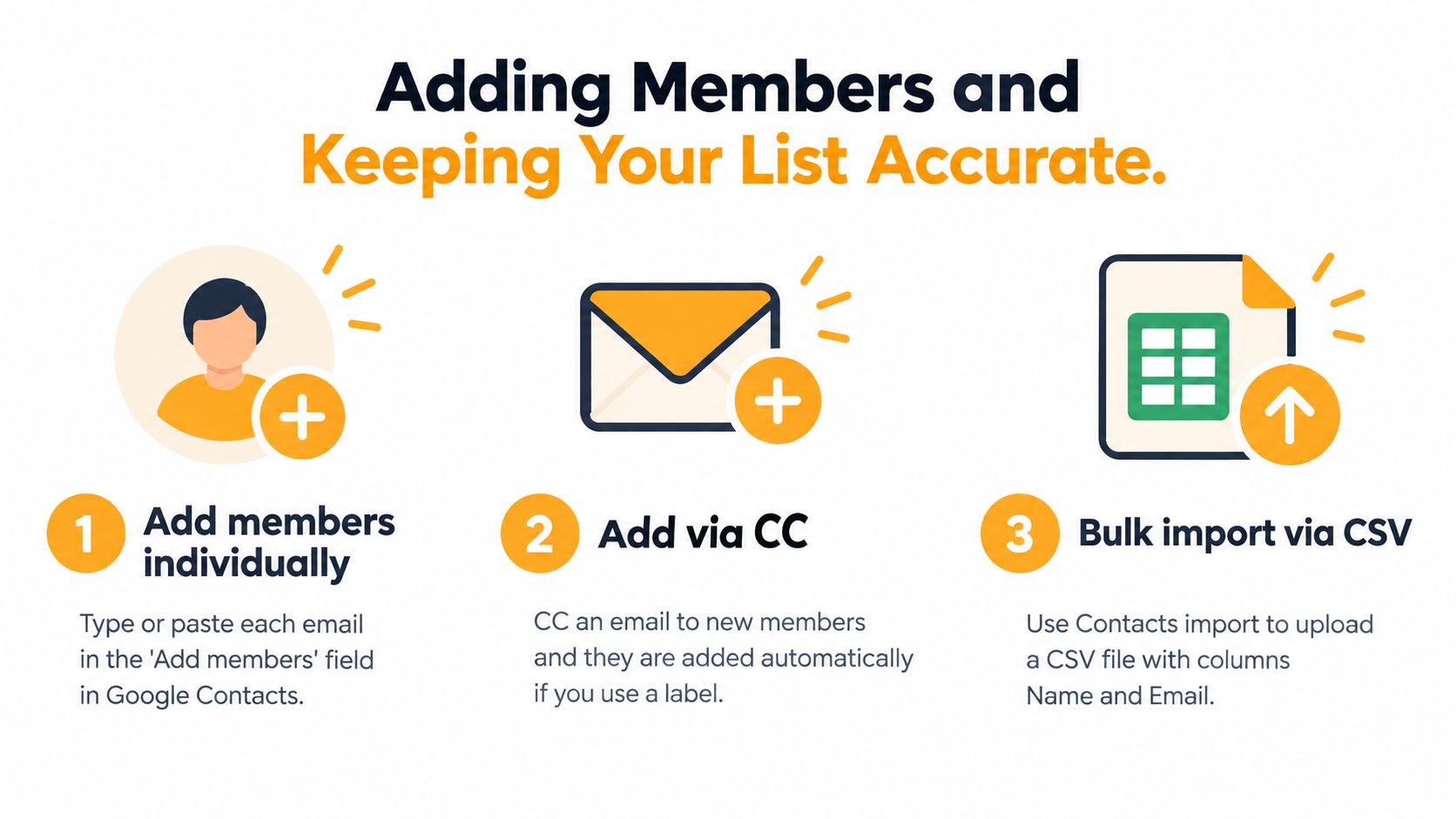
Most lists don't fail at creation. They fail six weeks later when a new neighbor joins, someone's inbox changes, or one address was typed wrong and nobody noticed. That's why the work is member management, not the first setup screen.
Add people in the way your group actually grows
For a small circle, adding people one by one in Google Contacts or Google Groups is fine. For a larger HOA or club, bulk import is cleaner, and a CSV-based import is the practical way to avoid retyping every address by hand. Google Groups also supports different delivery preferences, including every message, daily digest, or abridged summary, which gives members more control over how much mail lands in their inbox.
Practical rule: set posting permissions early. If you wait until after the list is active, you'll spend more time cleaning up noise and reply-all confusion.
The same goes for list hygiene. If someone moves, update the list immediately. If an import looks off, test it before announcing the address to the whole group. A simple test send tells you who receives mail and how replies behave, which is a lot better than learning it during a real meeting announcement.
Simple ways to keep the list clean
- Use a single source of truth: Keep the group owner and membership list documented so the list doesn't live only in one inbox.
- Test after changes: Send a real message after adding members or changing permissions, then check who received it.
- Trim stale contacts: Remove bounced or outdated addresses when people move or leave.
- Use digest options when needed: If the group talks often, summary delivery can reduce inbox clutter.
For more day-to-day organizing habits, this email list management guide fits well with the same workflow mindset.
The goal isn't perfection. It's a list that keeps working without unpaid IT labor every time the roster changes.
Privacy Reply Behavior and Everyday Management Tips

Privacy problems usually show up before technical problems do. A parent committee doesn't care what the list is called if every address is exposed, and a volunteer team doesn't want replies to scatter across ten inboxes. That's why the right setup has to handle both address privacy and reply behavior.
Keep addresses hidden without breaking conversation
A plain CC email exposes everybody. A BCC email hides the recipient list, but it can also make discussion feel disconnected because recipients don't always see the same context. A properly configured group address does better when the system is set up to preserve the conversation while protecting members' identities.
Google's groups help documentation shows that reply behavior is managed through group settings, and that replying in Google Groups commonly uses Reply all. Gmail also threads messages when they share the same recipients, senders, or subject as a prior message, include a matching reference header, or arrive within one week of a prior message. That's useful because it keeps group communication readable, but only if the group is configured with that behavior in mind.
Private by default is the right starting point for neighborhood, faith, and club lists. You can always open the conversation later, but you can't un-expose addresses after the fact.
Keep the list from disappearing with one person
Write down who owns the list, how members are added, and what happens when that person steps away. Use a name that makes sense to other organizers, not just the person who created it. If the group is for a board or committee, store the ownership note where the next volunteer can find it quickly.
The same habit applies to turnover. A list that lives only in one person's Gmail account is fragile. A list with a documented owner, clear permissions, and a group address is much easier to hand off.
Pick the Setup You Will Actually Stick With
The right answer depends on what you need the group to do. If you only need to send occasional updates to a small, stable set of people, a Google Contacts label is quick and perfectly serviceable. If you need privacy, controlled replies, and continuity through organizer turnover, a true group address is worth the extra setup.
Use a short checklist before you launch anything:
- Confirm the limit you're working within: Google's consumer Gmail sending limits and recipient caps matter when a list grows larger.
- Test the reply flow: Send a real message and see whether the group behaves the way you expect.
- Hide addresses where it matters: Don't rely on CC when privacy is part of the job.
- Document ownership: Make sure the list can survive a move, a resignation, or a forgotten password.
- Pick the simplest workable model: Don't build a complex system if all you need is a reusable send list.
That's the practical answer to create group email address Gmail. Don't start by asking how to click the buttons, start by deciding whether you need a shortcut, a shared address, or a more private list that members can use without apps or accounts.
If you want a cleaner way to run a private group email without living in CC and BCC workarounds, take a look at Listava. It's built for organizers who need a shared address, simple member management, and replies that stay with the group instead of getting lost in one person's inbox.