Create Group Mailing List in Gmail Without the Hassle
Learn how to create group mailing list in Gmail with labels, Google Groups, and privacy tips to avoid reply-all chaos and manage members easily.
You've sent the same neighborhood update three times because the old CC list keeps losing someone. Then a resident replies to everyone, another person's address is exposed, and the next volunteer inherits a spreadsheet nobody trusts. If you're coordinating an HOA, club, family, or community project, the problem isn't sending one group email. It's maintaining a reusable list that protects privacy, keeps replies manageable, and doesn't disappear when the organizer changes.
Gmail gives you three practical paths. You can use a Google Contacts label as a personal shortcut, create a shared list with Google Groups, or use a private email list service when ownership and privacy matter more than staying entirely inside Google. The right choice depends on who needs to manage the list, how recipients should reply, and whether the list must outlive one person's inbox.
Table of Contents
- Why Your Current Group Email Method Breaks Down
- Choosing the Right Way to Create a Group Mailing List in Gmail
- How to Build and Use a Gmail Contacts Label for Group Mailing
- How to Set Up a True Shared List With Google Groups
- Best Practices for Privacy Bulk Imports and Reply Handling
- Keep Your Group List Reliable as It Grows
Why Your Current Group Email Method Breaks Down
The familiar failure starts with a well-intentioned announcement. An HOA volunteer copies the resident spreadsheet into Gmail, adds everyone to CC, and sends a message about a meeting. One recipient replies with a question, another replies to that response, and soon the entire neighborhood is sorting through a thread that was meant to reach only the organizer.
CC creates visibility, but it also exposes every address to every recipient. BCC hides addresses, yet it can make conversations awkward because recipients can't see who else received the message, and replies often go only to the sender. Neither method creates a managed membership record. You're still rebuilding the audience from memory, a spreadsheet, or an old sent message.
Stale lists cause a different kind of trouble. Someone moves away, changes an email address, joins a committee, or asks to stop receiving updates. If the list lives in a spreadsheet or a volunteer's contacts, the change may never reach the next send. Leadership turnover makes the problem worse because the outgoing organizer may leave with the only current version.
Practical rule: A group address should be treated as shared infrastructure, not as a clever way to paste several recipients into one message.
A reusable list solves more than typing. It gives you a stable membership process, predictable reply behavior, and a clear answer to who can update the audience. Gmail can handle that well for smaller, personal groups, but the simple Contacts label and Google Groups solve different problems. A private list service adds another option when you need continuity without asking every member to create an account or learn a new application.
Choosing the Right Way to Create a Group Mailing List in Gmail
Choose the method before you add contacts. A Contacts label works when one person sends routine messages to a stable audience. Google Groups fits a club, committee, or organization where more than one person needs control. A private list service becomes relevant when you need address privacy, simple member additions, and continuity beyond a single Google account.
Google Groups has been part of Google's ecosystem since February 12, 2001, after Google acquired Deja News and its Usenet archive. The inherited archive was later expanded to include messages dating back to May 11, 1981, giving the service an unusually long history among Google-connected group discussion tools. Google Groups history and evolution
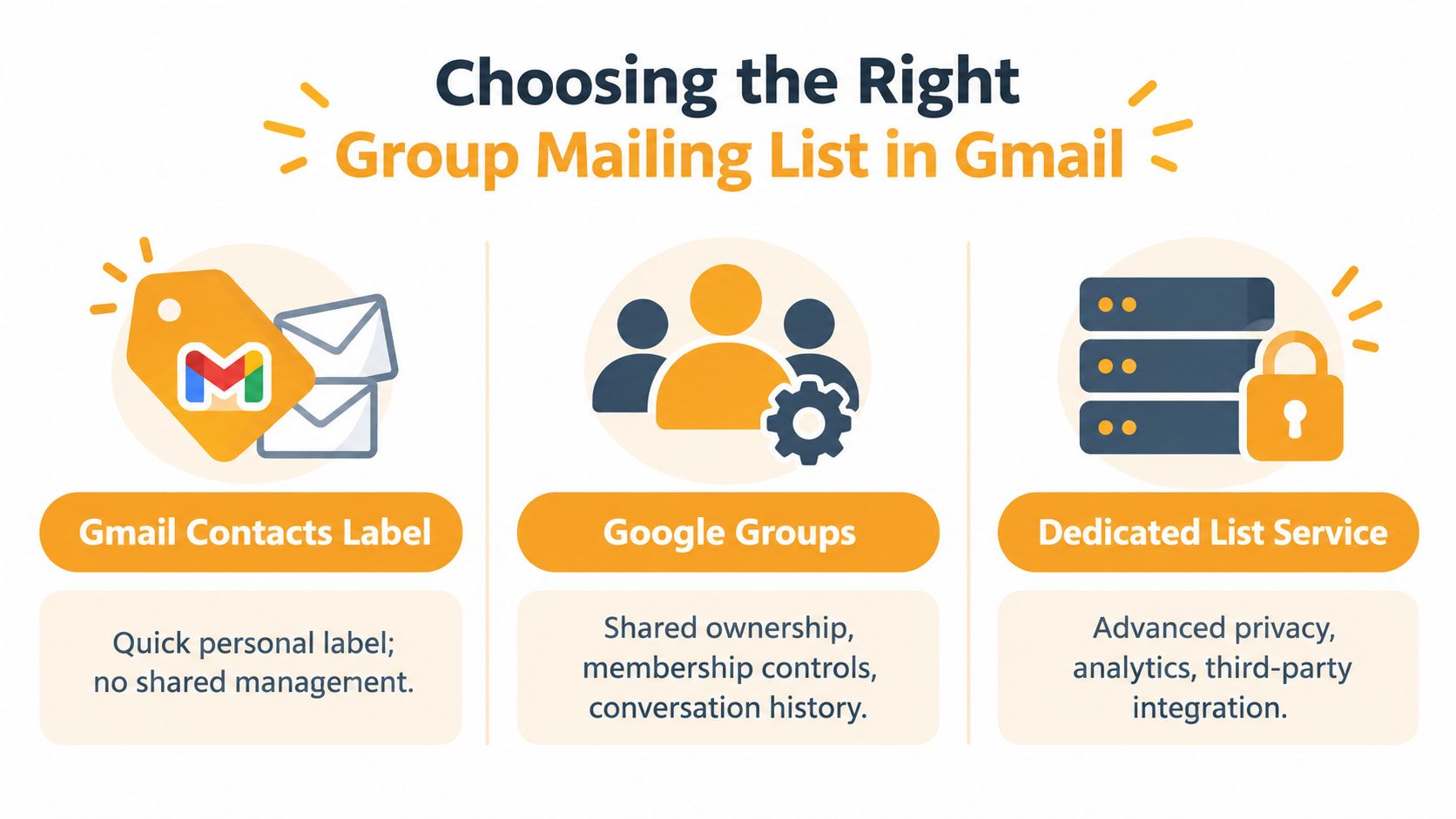
| Method | Best For | Privacy and Replies | Maintenance | |---|---|---|---| | Gmail Contacts Label | A personal list for family, friends, or a small working group | Uses ordinary Gmail recipient fields, so you control To, CC, and BCC for each send | You maintain the label from your own Google Contacts | | Google Groups | Clubs, committees, teams, and organizations with shared responsibility | Offers membership controls and optional conversation history | Owners and managers can share administration | | Dedicated List Service | Groups that need a private shared address and continuity across organizers | Designed to preserve group replies while hiding member addresses | Membership can be managed independently of one person's inbox |
The key distinction is ownership. A Contacts label is an address-book shortcut, not a shared mailing list. Other organizers can't automatically use or maintain your personal label. Google Groups provides a group address, permissions, and history, while a dedicated service may keep routine participation inside standard email without requiring members to use Google Groups.
If you're comparing hosted options for a group that needs a private shared address, review email list hosting options before deciding. For a family announcement list, the label method is usually enough. For an HOA with changing volunteers, shared management matters more than quick setup.
How to Build and Use a Gmail Contacts Label for Group Mailing
The quickest way to create a group mailing list in Gmail is to build it in Google Contacts, not in the Gmail Compose window. Start at Google Contacts, create a descriptive label, and add the people who should receive future messages.
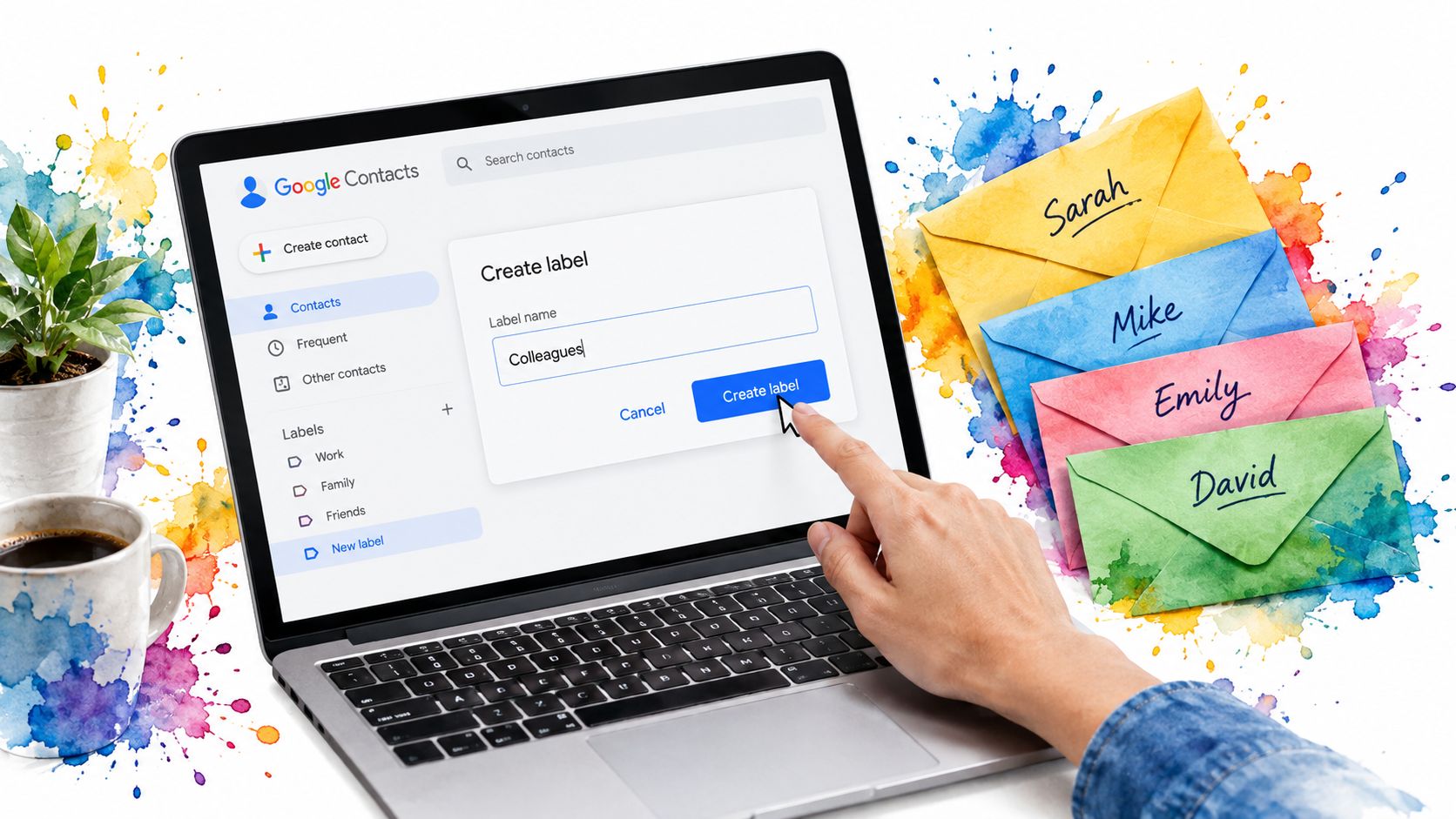
Create the label first
Open Google Contacts with the same Google account you use for Gmail. In the labels area, create a name that describes both the audience and its purpose, such as “Neighborhood Updates,” “Book Club Members,” or “Family Announcements.” Avoid vague names such as “Group,” because you'll eventually have several lists and need to recognize the correct one quickly.
Add existing contacts by selecting them and applying the label. For a new person, create the contact first, then assign the same label. If your list currently lives in a spreadsheet, clean the file before importing it. Remove blank rows, check that each address belongs to the intended audience, and use consistent contact details so duplicate entries don't inflate the group.
Send from Gmail
Open Compose and type the label name in the recipient field. Gmail expands the label into its individual contacts, which means the address book remains the source of truth for future sends. If you add or remove someone from the label later, future messages reflect that change without rebuilding the recipient list. Google's instructions for using contact labels in Gmail
Before sending, inspect the expanded recipients. A label can be correct while one contact still contains an old address, and Gmail's normal compose settings still determine whether people see one another or can reply to the whole audience.
A clean label is more valuable than a large label. Keep separate audiences for announcements, committee work, and sensitive discussions instead of forcing every recipient into one oversized group.
For a visual walkthrough of the workflow, this video shows how Gmail contact groups operate:
The limitation is important. A label belongs to your Google Contacts, so it doesn't provide shared ownership, moderation, or an independent group address. It's excellent for a personal recurring send. It's fragile when the list needs to survive a change in leadership.
How to Set Up a True Shared List With Google Groups
A Contacts label works well when one person sends recurring messages. Use Google Groups when the address needs to outlast that organizer, support shared administration, or give the group a place for ongoing conversation. A committee, neighborhood association, or club can keep the same group address while different volunteers manage membership and posting.

Google's setup flow covers three practical tasks: create the group, set its permissions, and add members. A new group may need a short wait before delivery works, so create it before an urgent announcement rather than minutes beforehand. Follow Google's group creation guidance while choosing the group address and initial settings.
Configure ownership and posting
Give at least two trusted people owner access when the group represents an organization. Set clear rules for who can add or remove members, who may post, and whether outside senders are accepted. For an HOA, residents might receive messages while only board members can post. A hobby club may allow wider posting if discussion is part of the group's purpose.
Group history separates this setup from a private Contacts shortcut. Owners and managers can enable history so members read and respond online, by email, or through both routes. Someone who turns off email notifications can still review posts in the archive. Google's documentation on group history and administration
Preserve accountability
Shared administration matters when volunteers change roles. Google Groups logs can show group creation and deletion, member additions, removals, and bans, along with the person responsible and the timing. That record is more dependable than asking an outgoing coordinator which spreadsheet is current.
Google Groups still needs deliberate settings review, and some members may prefer ordinary email to a web archive. For privacy-sensitive work, a private list service may offer stronger control over member data and continuity outside one person's Google account. Use Groups when shared permissions, history, and a stable address solve the problem. Use a Contacts label for a personal shortcut, not as a substitute for group governance.
Best Practices for Privacy Bulk Imports and Reply Handling
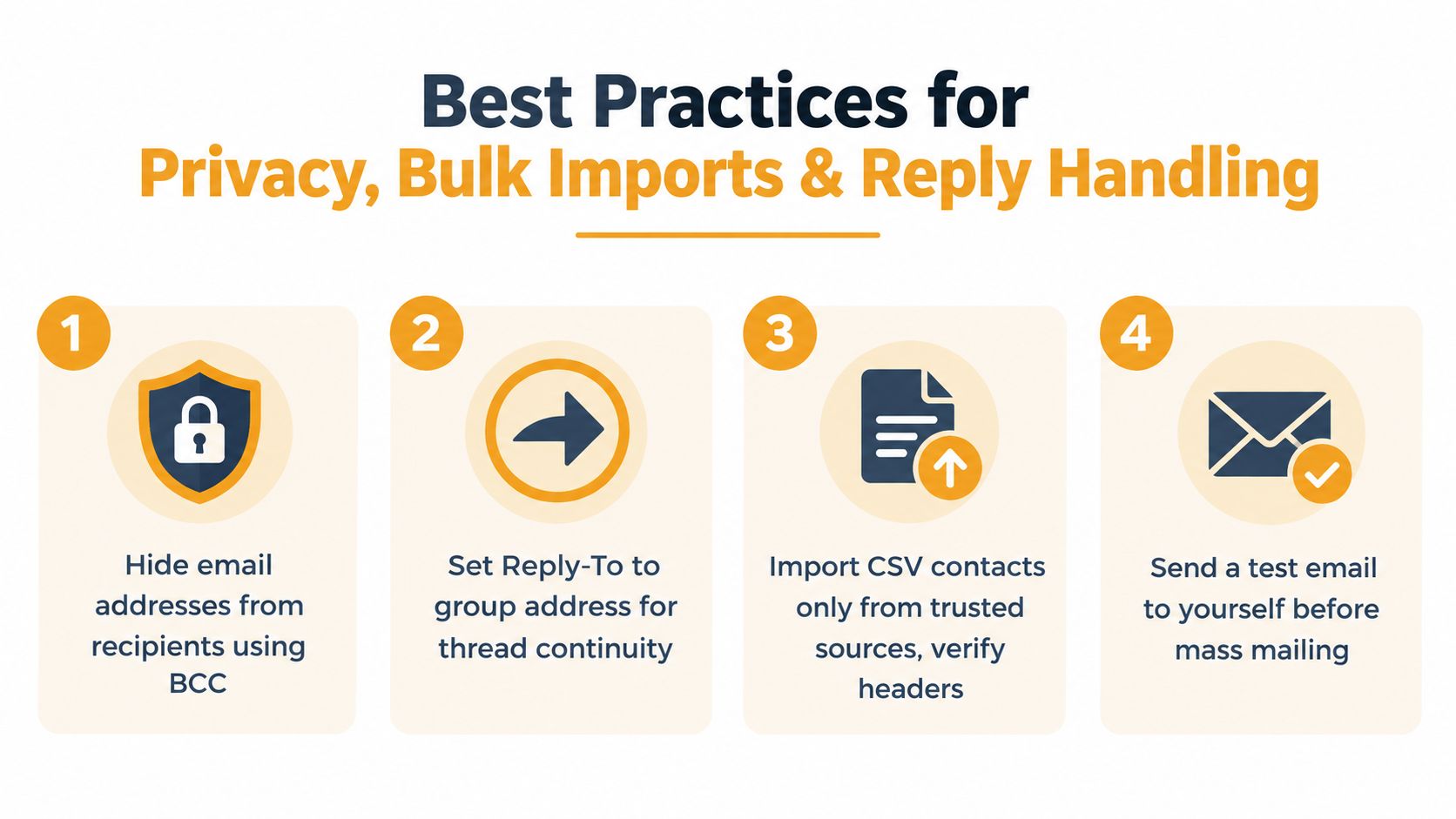
A working list can still create problems if recipients don't know who will see their address or where replies will go. Set the recipient field according to the relationship. Use visible recipients for a genuine group discussion, BCC for a private announcement to people who don't know one another, and a group address when you need replies to return to the shared conversation.
For a broader explanation of the trade-offs, see this guide to CC and BCC email behavior. The important point is that privacy and conversation continuity can pull in opposite directions when you use ordinary Gmail fields.
Prepare imports before they reach Contacts
If you're moving addresses from Excel or another spreadsheet, import only a file you trust. Check the column headers, remove accidental personal notes, and confirm that each row belongs in the intended group. Don't treat an import as a substitute for consent or list governance. A technically clean file can still contain people who shouldn't receive the announcement.
Send a test message to yourself before a large delivery. Check the subject, links, attachments, recipient expansion, and reply destination. For an HOA, test whether a resident's reply should reach the board only or the full membership. For a club, decide whether discussion belongs in the group thread or should return privately to the organizer.
Respect Gmail's sending limits
Google states that one message sent from consumer Gmail is limited to 500 recipients per day, while Google Workspace accounts are limited to 2,000 recipients per day. Large sends to too many addresses can trigger temporary sending blocks or abuse detection. Gmail recipient limit guidance
That makes segmentation a practical safeguard, not just an organizational preference:
- Split audiences: Use separate labels for residents, board members, volunteers, or event registrants.
- Verify counts: Expand the group before sending and confirm that the audience matches the purpose.
- Avoid repeated blasts: Don't keep resending the same message to an unchanged list if recipients haven't asked for it.
- Watch BCC patterns: A large BCC-heavy send can resemble bulk mail behavior, especially when the message is repeated.
If the list has become a regular publication or a large operational channel, Gmail's basic compose window may no longer provide enough control. At that point, privacy, moderation, unsubscribe handling, and continuity deserve their own system rather than more manual work.
Keep Your Group List Reliable as It Grows
Choose a Contacts label when you are the main sender and the audience is small and familiar. Choose Google Groups when several people need shared ownership, membership controls, or searchable conversation history. A private list service fits groups that want to use Gmail, Outlook, Yahoo, or another email client while keeping the group address independent of one organizer's inbox.
A Contacts label is a personal shortcut, not a shared list. Google Groups provides shared management inside Google's ecosystem, but setup includes a short activation wait before messages can be delivered. Create it before the first important announcement, rather than treating it as an instant alias.
Keep maintenance consistent. Review membership when leadership changes, remove people who no longer belong, check addresses after role changes, and send a test before important announcements. Recipients should know that the right people receive messages, private addresses remain protected, and replies reach the intended audience.
For a repeatable process, email list management guidance can help define ownership and upkeep rules. Avoid returning to a spreadsheet that only one volunteer understands.
Listava provides a private group email address that reaches every member, supports adding members by CC or spreadsheet import, and works with standard email clients without member accounts or app downloads. If your HOA, club, faith community, or family group has outgrown personal Gmail labels, visit Listava to assess its privacy and continuity model.