How to Schedule an Email in Gmail, Outlook, and Yahoo
Learn how to schedule an email in Gmail, Outlook, and Yahoo with clear steps, timing tips, and group-friendly advice for HOAs, clubs, and families.
You've just finished writing the neighborhood association reminder, but it's already late in the evening. Send it now and you may wake people up. Leave it in Drafts and there's a good chance you'll forget it before the meeting. Scheduling an email separates the time you write from the time your group receives it, which makes it useful for far more than individual productivity.
The practical challenge is choosing a time that works for real people, not just the sender. A club may include members in several time zones. A volunteer list may contain people who read messages only during the day. A family announcement may need to arrive predictably without creating a late-night interruption. This guide covers the click path in Gmail, Outlook, and Yahoo, then deals with time zones, fairness, timing tests, accessibility, and the checks that prevent a queued message from becoming an avoidable mistake.
Table of Contents
- Why Scheduling Matters for Group Senders
- How to Schedule an Email in Gmail, Outlook, and Yahoo
- Handling Time Zones Without Off-by-Hour Mistakes
- What Timing Data Actually Tells You
- Fairness and Coordination in Mixed-Zone Groups
- A Pre-Send Checklist and What to Do When Something Goes Wrong
- Building a Steady Group Sending Habit
Why Scheduling Matters for Group Senders
A group organizer may finish a message at the least suitable time for everyone else. A board meeting ends late, so the chair writes the follow-up immediately. The details are correct, yet an evening delivery can make members feel expected to respond at once. Waiting until morning avoids that interruption, but the organizer may be commuting, caring for family, or forget.
Schedule an email when the message is ready, while choosing a delivery time that respects the group's routine. The distinction helps with meeting reminders, event instructions, maintenance notices, club updates, and volunteer requests. You can prepare the announcement when convenient and give recipients a predictable opportunity to read, respond, or act.
Email has become a significant part of knowledge work. A McKinsey Global Institute analysis summarized by Flicked estimated that knowledge workers spend about 28% of their workweek managing email and other communications, or roughly 11 hours in a 40-hour week. Scheduled delivery can reduce the pressure to monitor the inbox constantly, while placing a message within a sensible working period.
Group timing is different from personal timing
A one-to-one message allows a reasonable guess about one recipient's routine. Group messages require a compromise. One person may be starting work, another may be asleep, and a third may check email only between activities. The sender's convenient time is rarely the group's convenient time.
Local associations can usually use the organizer's local time, state the time zone clearly, and keep routine announcements consistent. More care is needed when recipients are spread across several hours, or when the message concerns a vote, registration, payment, or deadline. Consider accessibility too. A predictable daytime arrival gives people who rely on assistive technology, shared devices, or limited connectivity a fairer chance to receive and act on the message.
Practical rule: Schedule for the group's likely reading window, not the moment you happen to finish typing.
Recipient management matters as much as delivery timing. A shared address can avoid repeatedly maintaining a long list of visible recipients and can keep replies within the intended conversation. For example, organizers can review guidance on a shared group address in Outlook. Before scheduling, confirm who receives the message, where replies go, and whether the chosen time works across the group's locations.
How to Schedule an Email in Gmail, Outlook, and Yahoo
The basic process is similar across the major clients: write the message, check the recipients and attachments, open the control beside Send, choose a date and time, then confirm that the message was queued. The labels differ slightly, so it's worth knowing where each client stores the scheduled copy.
Gmail
- Open Gmail and click Compose.
- Write the message and add the recipients, subject, body, and attachments.
- Click the small arrow beside Send.
- Choose Schedule send.
- Pick one of the suggested times or select Pick date & time for a custom slot.
- Confirm the date, time, and time zone shown by Gmail.
The message should appear under Scheduled in the left-hand navigation. Open it before delivery if you need to review or cancel it. In practice, canceling a scheduled Gmail message returns it to a draft, which lets you correct the text, recipients, or attachment before setting a new delivery time.
Outlook on the web
- Open Outlook and select New mail.
- Compose the message and check the sender, recipients, subject, and files.
- Click the dropdown arrow next to Send.
- Select Schedule send.
- Choose a suggested time or set a custom date and time.
- Confirm the scheduled delivery.
Outlook places the queued message in Drafts until it sends, although the exact display can vary by account version. Open the draft to review or change it. Some Outlook versions also offer an option that prevents earlier delivery, which is useful when a message must not go out before a specific moment.
Yahoo Mail
- Open Yahoo Mail and click Compose.
- Prepare the message, recipients, subject, and any attachments.
- Click the arrow beside Send.
- Choose Schedule delivery.
- Select the date and time.
- Confirm the schedule and look for the queued message in the relevant scheduled or draft area.
Yahoo's wording may differ from Gmail and Outlook, but the control remains beside the main send button. If you can't find the message after scheduling, search the mailbox folders before assuming it failed. A practical scheduling workflow from MailGenius recommends confirming the queued copy, checking the timestamp, and verifying the recipients and attachments before relying on the send.
Quick comparison of scheduling controls in Gmail, Outlook, and Yahoo
| Client | Where to find the control | Where the queued message lives | Notable quirk | |---|---|---|---| | Gmail | Arrow beside Send, then Schedule send | Scheduled | Canceling usually returns the message to Drafts | | Outlook on the web | Arrow beside Send, then Schedule send | Usually Drafts | Some versions can prevent earlier delivery | | Yahoo Mail | Arrow beside Send, then Schedule delivery | Scheduled or draft area, depending on account view | Folder labels can vary |
The click path is only half the job. Before you close the window, open the queued message and confirm that it exists, has the intended time, and contains the correct version of the message.
Handling Time Zones Without Off-by-Hour Mistakes
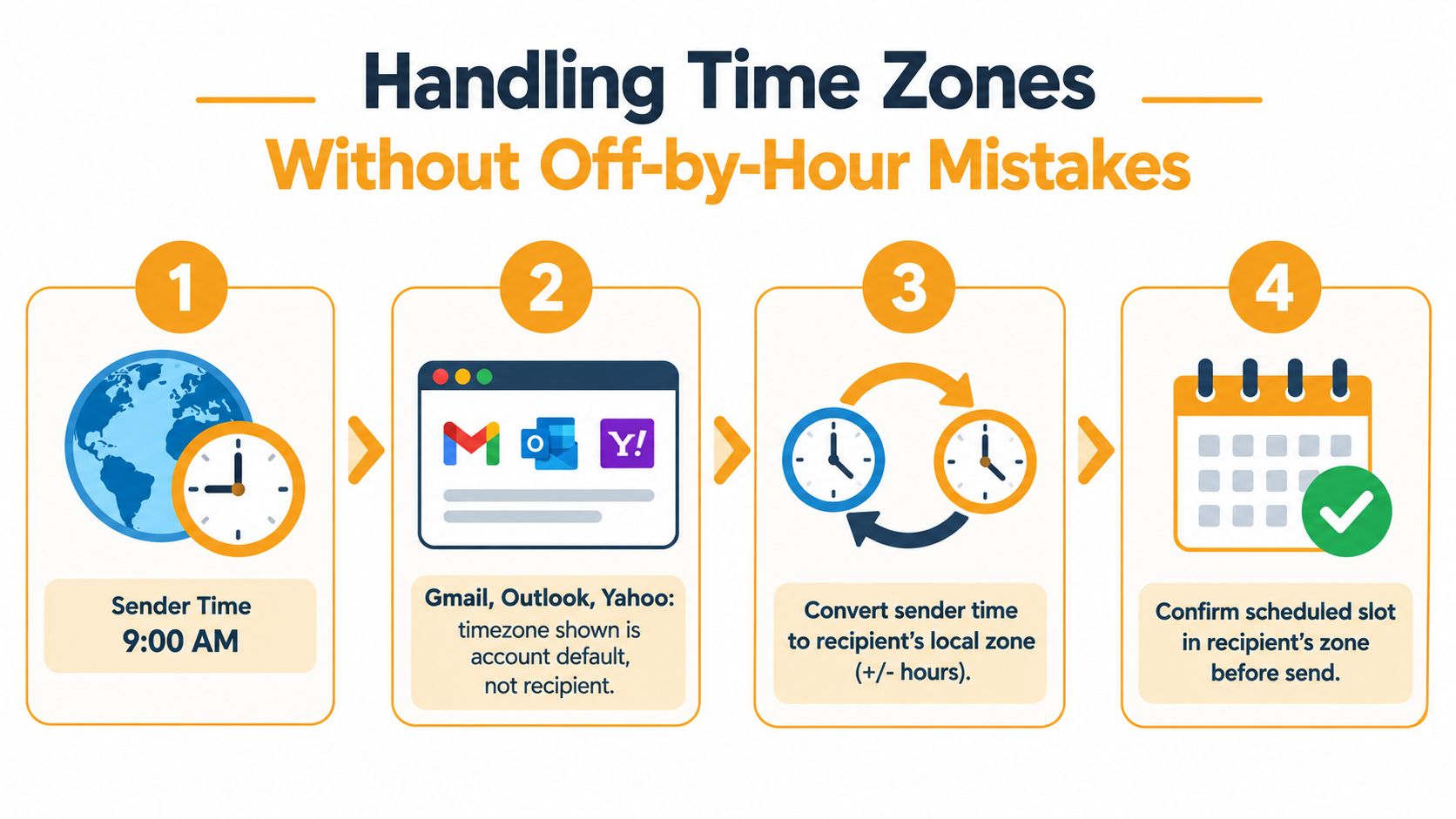
The timestamp shown when you schedule a message usually reflects the sender's account or device time zone, not every recipient's local time. That creates a common group error: an organizer chooses a morning delivery for members nearby, while people several hours away receive it much earlier or later.
Start with the recipient's desired local time. Then convert that time to the zone used by the account that will schedule the message. For example, if the group agrees that an announcement should arrive at a particular local morning hour, the organizer in another zone must enter the converted sender time, not type the same clock time.
A repeatable conversion routine
- Name the target zone. Write the intended recipient-local time in the planning note, calendar entry, or subject line.
- Check the sender zone. Confirm the time zone used by Gmail, Outlook, or Yahoo, especially after travel or an account change.
- Convert before clicking. Use a trusted time-zone converter or a calendar that displays both locations.
- Inspect the queued message. Make sure the displayed timestamp matches the intended delivery after conversion.
- Record the rule. For a shared list, document whose time zone controls routine announcements.
Daylight-saving changes deserve their own check. A conversion that was correct for one month can be wrong after a regional clock change. The same applies when an organizer travels and the laptop or phone changes its local setting. Don't rely on memory. Recheck the account clock before a time-sensitive send.
The risk increases as a group spreads across more of the clock. Available guidance on email timing and time zones suggests that timing differences are often modest, but time-zone effects become materially important when recipients span six or more hours. For routine notices, one fair compromise may be enough. For urgent or high-stakes messages, consider regional delivery or a follow-up that gives every member a reasonable chance to act.
A shared group address should follow the same rule. Schedule from the agreed group inbox or sender identity, record the target zone, and avoid assuming that the group address somehow adjusts delivery for each person.
What Timing Data Actually Tells You
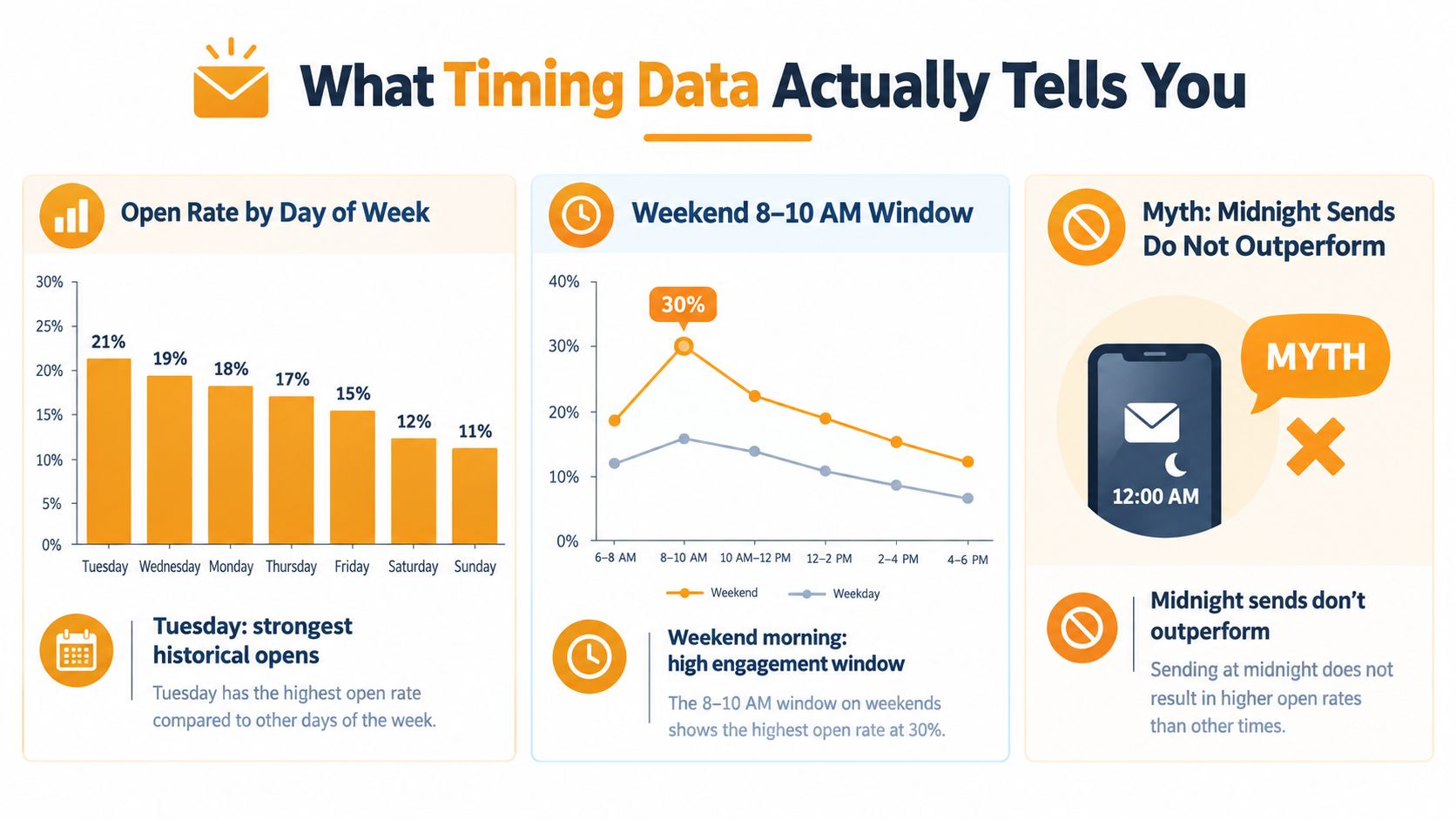
Timing benchmarks give group organizers a starting point, not a universal rule. An analysis of more than 20 million emails found Tuesday strongest for opens, followed by Monday and Wednesday. Use that pattern to choose an initial test, then adjust for your recipients' routines, time zones, industry, and message type.
Weekend results require context. Research reported by Axios HQ and summarized in Fortune's email open-rate coverage found that internal emails sent on Sunday afternoon had a 94% open rate, compared with 86% for Sunday evening messages. Weekend messages made up only about 2% of emails in the measured week and were often essential communications. Recipients may have opened them because the information mattered, rather than because the send time was unusually effective.
Measure action, not just attention
An open shows mailbox activity. It does not show that someone understood the announcement, replied, registered, attended, or completed the requested task. Apple Mail Privacy Protection can also inflate open measurements, so clicks, replies, attendance actions, and completed registrations provide stronger signals for a group organizer.
A benchmark covering 3.6 million campaigns places the median open rate at 43.46%, with a 2.09% click rate, according to Prospeo's email timing benchmark. Treat those figures as context, not a promise. List quality, message clarity, sender reputation, and audience habits may matter more than the selected hour.
Test two recipient-local windows instead of searching for a universally perfect day. Keep the subject, content, sender, and list quality as similar as possible, then compare replies or completed actions. Repeat the comparison across two or three comparable sends, and keep the window that produces more useful participation.
Record the reason for each message. A meeting reminder, social invitation, and urgent closure notice may each have a different reading pattern. Timing should support the email's purpose, not compensate for a vague subject line or an outdated list. For a practical starting point, use this guide to the best time to send an email, then let your group's own behavior determine the routine.
Fairness and Coordination in Mixed-Zone Groups
A single delivery time can't be equally convenient for everyone. That's not a technical failure. It's a coordination decision that should be made openly, especially when the sender is acting for a club, congregation, neighborhood, or family rather than for a personal inbox.

For routine announcements, use the organizer's local zone if most members are nearby. Tell the group what that means, and keep the pattern consistent. Predictability often matters more than chasing a small difference in open rates. Members learn when notices arrive and can plan when to check them.
Urgent requests need a different standard. Don't schedule a vote, safety instruction, or short registration window for a time when a large part of the group is likely asleep. Send early enough to create a fair response period, and use a reminder when the deadline matters.
Decide whether one send is enough
One message works well when the announcement is informational and no immediate response is expected. A staggered regional send may be justified when local timing affects participation, such as an event registration or a time-sensitive volunteer shift. If you do stagger delivery, explain the arrangement so early recipients don't assume later members were excluded.
Fairness rule: Choose the simplest schedule that gives every member a reasonable opportunity to read and act.
Adopt a few rules and write them down:
- Routine notices: Use the organizer's agreed local time and state the zone.
- Mixed-zone groups: Avoid treating one region's convenient hour as a universal default.
- Urgent matters: Provide enough response time for sleeping or offline members.
- High-stakes actions: Use an early announcement, a reminder, or regional delivery when timing affects access.
- Shared addresses: Schedule from the group identity and preserve a clear Reply-To path.
The goal isn't to make every inbox receive the message simultaneously. It's to make the decision understandable, repeatable, and fair.
A Pre-Send Checklist and What to Do When Something Goes Wrong
A scheduled message deserves the same review as a live send. The difference is that it may leave while you're away from your computer, so a small mistake can continue unnoticed until recipients report it.
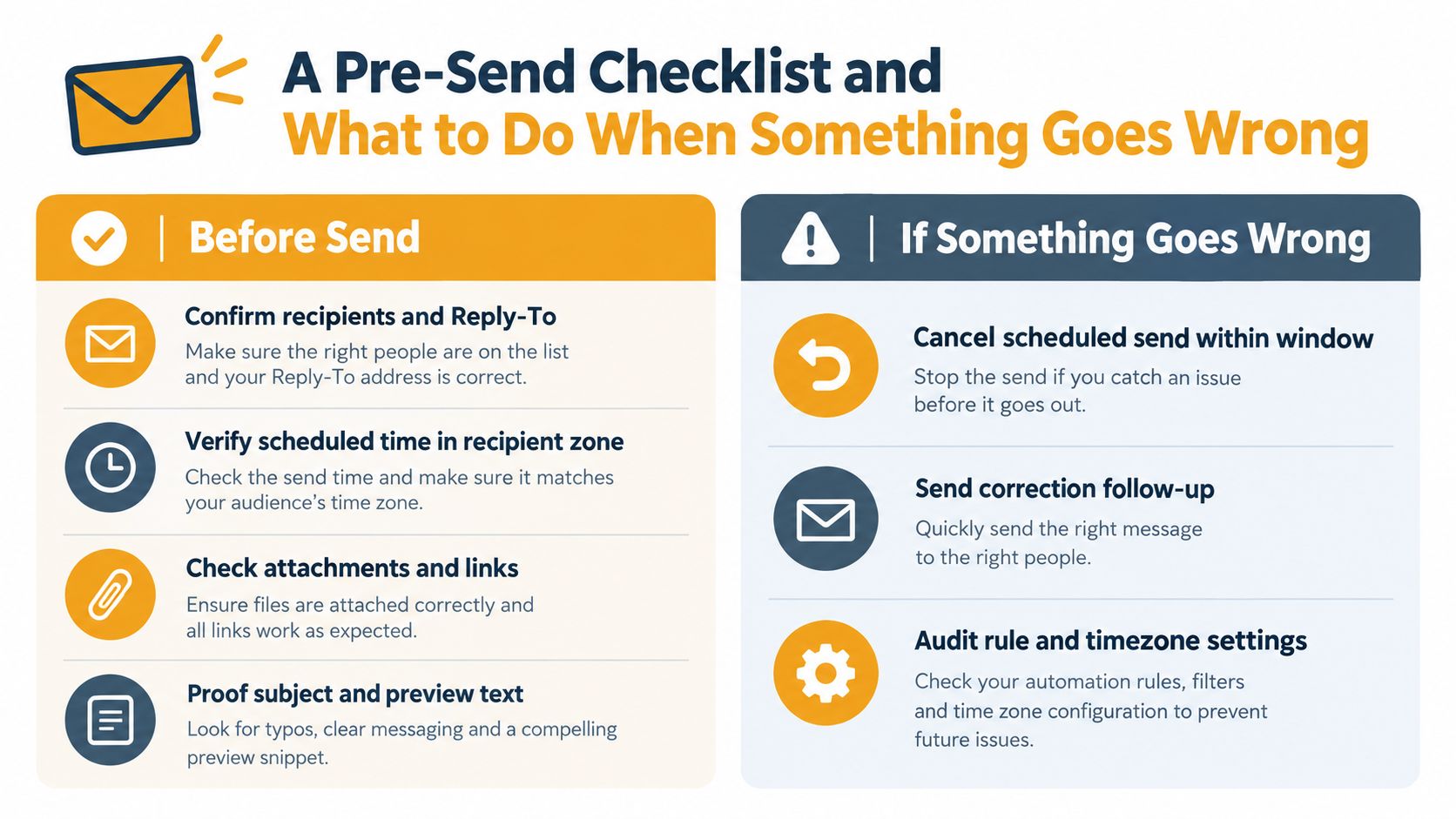
Use this checklist before confirming the queue:
- Recipients: Confirm the group address, exclusions, and Reply-To behavior.
- Time: Check the scheduled timestamp in the intended recipient zone.
- Content: Read the subject, first paragraph, links, and call to action aloud.
- Attachments: Open each file and confirm that the correct version is attached.
- Privacy: Keep personal addresses out of visible recipient fields when they shouldn't be shared.
- Test: Send a test to an organizer when the message contains sensitive information or unusual formatting.
- Queue: Reopen the Scheduled or Drafts area and verify that the message is waiting there.
Accessibility belongs in this review, not as an afterthought. A 2025 email accessibility audit summarized by FutureCoworker reported serious or critical accessibility problems in 99.89% of tested HTML emails, with only about 488 of 443,585 messages avoiding those issues. Use a meaningful subject, readable text, strong contrast, sensible headings, and a plain-text alternative where appropriate. Scheduling an inaccessible message only makes the problem arrive on time.
If the message changes
Open the queued message, cancel it, edit the returned draft, and schedule it again. Don't assume that changing a calendar reminder or editing a source document will change the copy already waiting in the mail client.
If an attachment is wrong, cancel before delivery and replace it. If the message has already gone out, send a correction that clearly identifies what changed. A follow-up is better than hoping recipients notice an edited file elsewhere.
A bounce or missed queue execution calls for a quick check of the recipient address, sender account, attachment size, and scheduling settings. Keep the original subject recognizable so members can connect the correction to the first message. For broader mailbox hygiene, use this safe senders list guidance to help recipients recognize legitimate group mail.
Building a Steady Group Sending Habit
Scheduling works best as part of a dependable communication routine. Use consistent delivery windows for routine announcements, keep reminders tied to the event rather than the organizer's workday, and review the member list so old addresses don't wait in the queue.
Readable formatting and privacy also build trust. Members are more likely to act on a message when the subject is clear, the text is easy to read, and personal addresses aren't exposed. A predictable process protects both the organizer and the group.
This week, choose a recipient-local window, test it against a second reasonable window, and save the pre-send checklist beside your group notes. Then use the same time-zone and review habits for every scheduled announcement.
If you need a simpler way to reach a group from Gmail, Outlook, or Yahoo, Listava provides one shared email address for private group delivery, managed through ordinary email without requiring member accounts or an extra app. Set up a dependable group address, protect member privacy, and make scheduled announcements easier to coordinate.