Announcement Email Format: A Practical Guide for Groups
Learn the announcement email format step by step, from subject line and call to action to accessibility and privacy for group lists.
You're sitting at your kitchen table on a Sunday night, staring at a blank email. The book club moved rooms, the pool is closing for repairs, or your treasurer just resigned, and forty people need to hear about it before Tuesday. You know what happened. You don't know how to say it so nobody misses the date, replies to the wrong person, or calls you confused. A reliable announcement email format solves that problem before you type a word.
Table of Contents
- The Six Parts of an Announcement Email
- How to Write the Subject Line, Preview and Greeting
- How to Build the Body, Call to Action and Signature
- Three Announcements Worth Copying
- Making the Announcement Readable for Every Member
- Privacy and Deliverability Checks Before You Send
- Measuring Whether the Announcement Worked
- Send Your First Announcement This Week
The Six Parts of an Announcement Email
Think of a good announcement like a notice pinned to a clubhouse door. A passerby reads the headline first, then the time and place, then what to do, then who to ask if something's unclear. Your reader scans email the same way, in the same order, usually in a few seconds.
The parts build on each other. The subject line earns the open, the preview text confirms the message matters, the greeting names who's included, the body delivers the decision, the call to action gives one clear next move, and the signature points to a real person. A pool closure, a meeting change, and a leadership change all use these six parts. Only the wording changes.
| Part | Job it does | Good example | Common mistake | |---|---|---|---| | Subject line | Tells the reader what changed | Pool closed June 14-16 for resurfacing | Vague labels such as Update | | Preview text | Adds the fact the subject leaves out | Reply by Friday if you need a locker | Repeating the subject word for word | | Greeting | Names who the message is for | Hello Maple Court residents, | Generic Dear Sir or Madam | | Body | Gives the event or decision and its details | The water will be off Tuesday, 9 a.m. to 1 p.m. | Burying the date in the third paragraph | | Call to action | Says the one thing to do next | Reply YES by Friday | Several competing requests in one message | | Signature | Identifies the sender and a human contact | Name, role and reply contact | No way to reach a person |
Before you send, check every message against that sequence. Could a stranger tell what happened, what they must do, and by when without rereading?
How to Write the Subject Line, Preview and Greeting
Readers see three things first: a recognizable From name, a clear Reply-To address, and your subject. That header pattern is old. The Computer History Museum account of early networked email notes that the early SNDMSG program used memo-like fields such as "To," "Subject," and "cc," the same pattern announcements still use. Treat those fields as identification, not decoration.
- Name the event, date, and change. Write "Pool closed June 14-16 for resurfacing," not "Update." Vague subjects get skipped.
- Keep it short. Stay under about 50 characters so the full line shows on phones.
- Skip false urgency. Avoid all caps and alarm words unless there's a real deadline. Readers stop trusting them.
- Make preview text add a fact. If the subject gives the date, the preview gives the reply deadline. Don't repeat the subject or your first sentence.
- Greet the actual group. "Hello Maple Court residents," tells people they're in the right place. "Dear Sir or Madam" tells them nothing.
If you want more subject ideas before you draft, browse these interesting subject lines for emails for patterns you can adapt.
Subject, preview, and greeting together should answer three questions: who's writing, what changed, and do I need to act?
How to Build the Body, Call to Action and Signature
The body works best as a build, top to bottom, most important first. Here's the sequence in visual form before we walk through it.
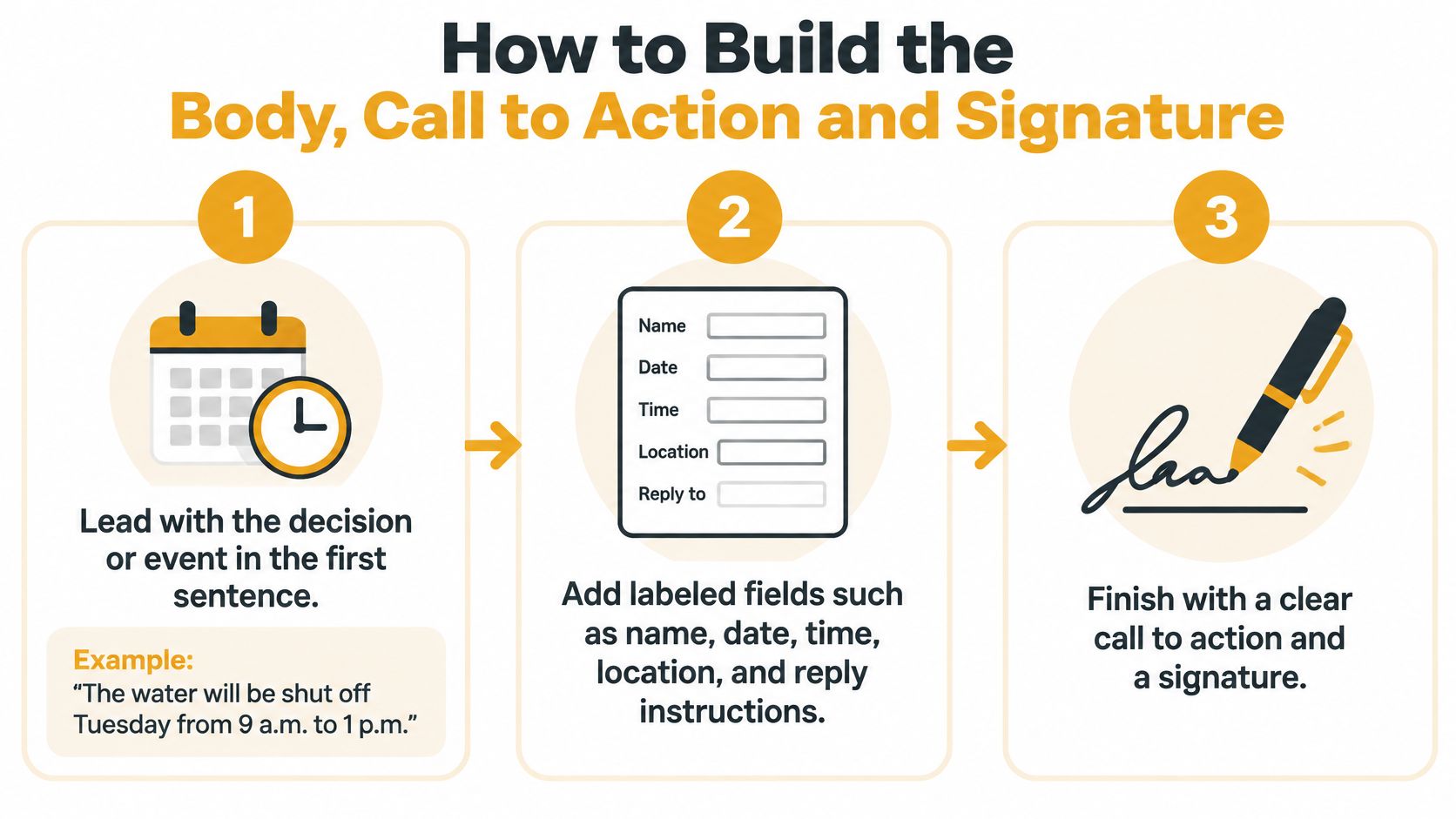
- Lead with the decision. Put it in the first sentence: "The water will be shut off Tuesday from 9 a.m. to 1 p.m." The common slip is warming up with background while the date waits in paragraph three.
- Add labeled fields. Use When, Where, and Action required so readers can scan for the detail they need instead of reading every line.
- Give background after the essentials. Two or three short sentences explain why. Readers who only need the logistics can stop earlier, and that's fine.
- Write one call to action. "Reply YES by Friday" works because there's one action, one method, and one deadline. Stacking three requests means people pick none.
- State where replies go. Say plainly whether a reply reaches the whole group or only the organizer. People write differently when forty neighbors will read it, and they should know before they hit send.
- Sign as a person. Give your name, your role, and a way to reach a human. "The Committee" answers no questions.
- Close with a footer. Every email sent through Listava must include clear unsubscribe instructions, and yours should too, wherever you send from.
The Finished Body at a Glance
A finished body puts the essentials in roughly the first 80 words, asks for one action, and names one contact. If you squint at it and can't spot the date, it isn't done.
Three Announcements Worth Copying
Different situations change the urgency, not the structure. These three designs show how the same parts flex.
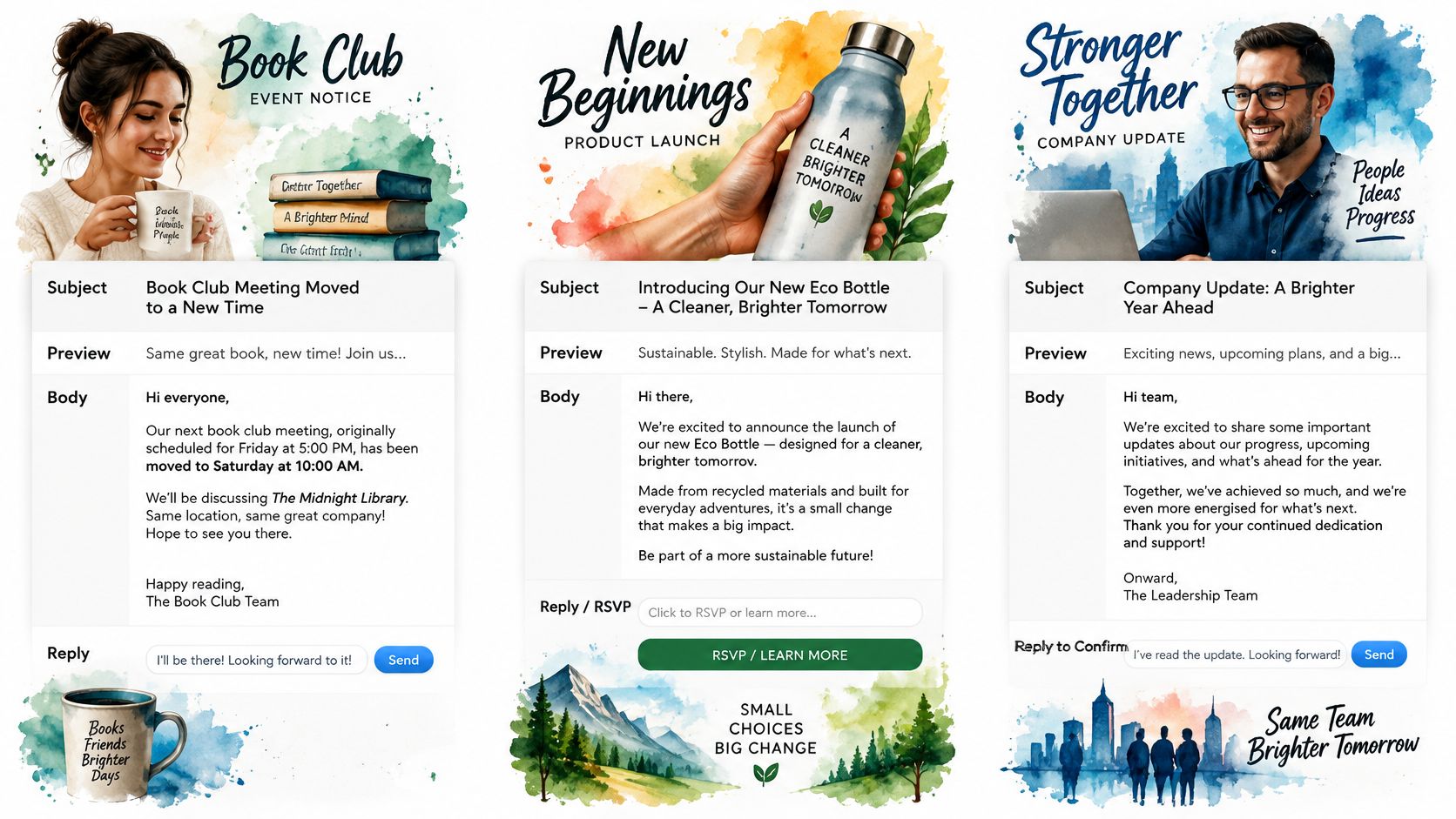
A Book Club Moves Its Meeting
The organizer worries members will show up at the old room. Her subject reads "Book club moves to Room B, March 12," her preview adds "Reply to confirm you got this," and her body lists When, Where, and what to bring. She cuts the paragraph about how the room booking fell through. Nobody needs it.
An HOA Treasurer Steps Down
The board worries about confusion over dues. The message leads with the change, introduces the new treasurer by name and role, and states clearly what stays the same: same mailing address, same due date. Members' addresses stay hidden because the notice goes to the group address, not a CC list.
Writing changes like this in plain, member-first wording matters, and the customer language tips from HeyNews are a useful reference for phrasing announcements the way recipients talk.
A Congregation Loses Power
The coordinator has minutes, not hours. The subject is short, the first sentence gives the action ("No evening service tonight"), and the second says where updates will appear. Background about the outage comes last, if at all. The video below walks through building a notice under that kind of time pressure.
All three make the next step obvious within two sentences. That's the habit worth copying.
Making the Announcement Readable for Every Member
Readability isn't polish. It's whether the message works for a member on an old phone, another using a screen reader, and another who zooms text up large. Independent deliverability reporting summarized by Unspam's email deliverability statistics found that 15% of tested emails failed at least one accessibility check, commonly because of invisible or low-contrast text.
Run these plain checks:
- Use real headings and order. Structure the message so it still makes sense read aloud, top to bottom.
- Write meaningful link text. "Read the schedule" helps. "Click here" doesn't.
- Keep essentials as live text. Never put the date only inside a banner image. Add alt text when an image carries information, and mark decorative images as decorative.
- Choose contrast and size generously. Large, high-contrast text serves mixed-age groups better than elegant pale gray.
- Use labeled fields and short paragraphs. When, Where, and Action required let every reader find operations fast.
Put the decision, deadline, and response method first, background below. Our email accessibility guidelines cover these checks in more depth.
Say an older member's mail app won't load your branded template. A plain, clear message still reaches her, and she replies. That's the trade-off: a plain message is often acted on more reliably than a beautiful one.
Privacy and Deliverability Checks Before You Send
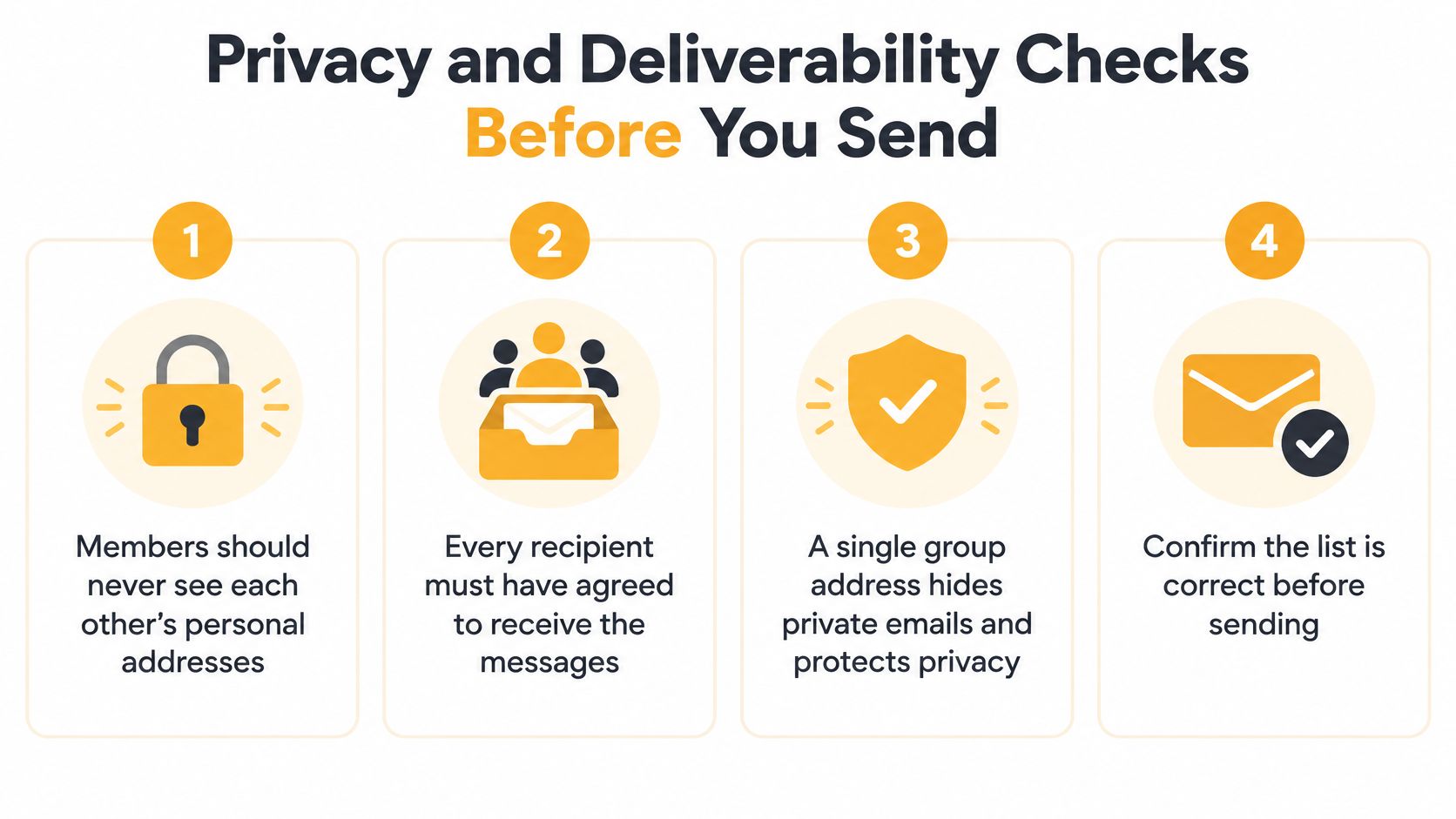
Good writing can't rescue a message that never arrives. Start with privacy: all recipients must have explicitly consented to receive emails sent through Listava, members should never see each other's personal addresses, and members' emails are never shared or sold. A single group address hides personal addresses and keeps replies inside the group. Tell members how their information is handled, and review our notes on email list privacy if you're unsure what to say.
This checklist covers the pre-send ground in order.
Validity's 2023 Email Deliverability Benchmark measured deliverability at approximately 86% across Microsoft, AOL, Gmail, and Yahoo, with average bounce rates of about 1.5% for permission-based programs. SPF authorizes your sending servers, DKIM signs messages against alteration, and DMARC sets the receiver policy. If spam placement is already a problem, it helps to protect inbox placement with Mailbeam by working through authentication and list hygiene before your next send.
| Situation | Requirement | Why it matters | |---|---|---| | Routine notices under 5,000 messages a day | Stable From address and a plain-text alternative | Keeps everyday updates reliable | | Approaching 5,000 messages to Gmail personal accounts within 24 hours | SPF, DKIM and DMARC in place | Gmail treats the sender as bulk and requires authentication | | Over 5,000 daily messages to Outlook or Hotmail consumer addresses | Same authentication, enforced since May 5, 2025 | Microsoft applies comparable enforcement to consumer domains | | Crisis notice to a large, grown list | Authenticated domain, tested on a small group first | Sudden volume spikes can be filtered | | Member asks to stop | Working unsubscribe or opt-out line | Keeps the list permission-based and compliant |
Before sending, confirm the authenticated domain, include a plain-text version, test on a small group, verify the opt-out works, and check earlier bounces. View the message with images off, in dark mode, zoomed to 200 percent, and tab through every link by keyboard. Skip this, and your crisis notice may sit in spam while a neighbor waits for word.
Measuring Whether the Announcement Worked
A notice pinned to the clubhouse door can be clear and still go unread. Email works the same way: an open count offers a clue, not proof that members saw or understood the announcement. Privacy tools can register an open without a person reading the message, so use open-rate benchmarks as context rather than a target.
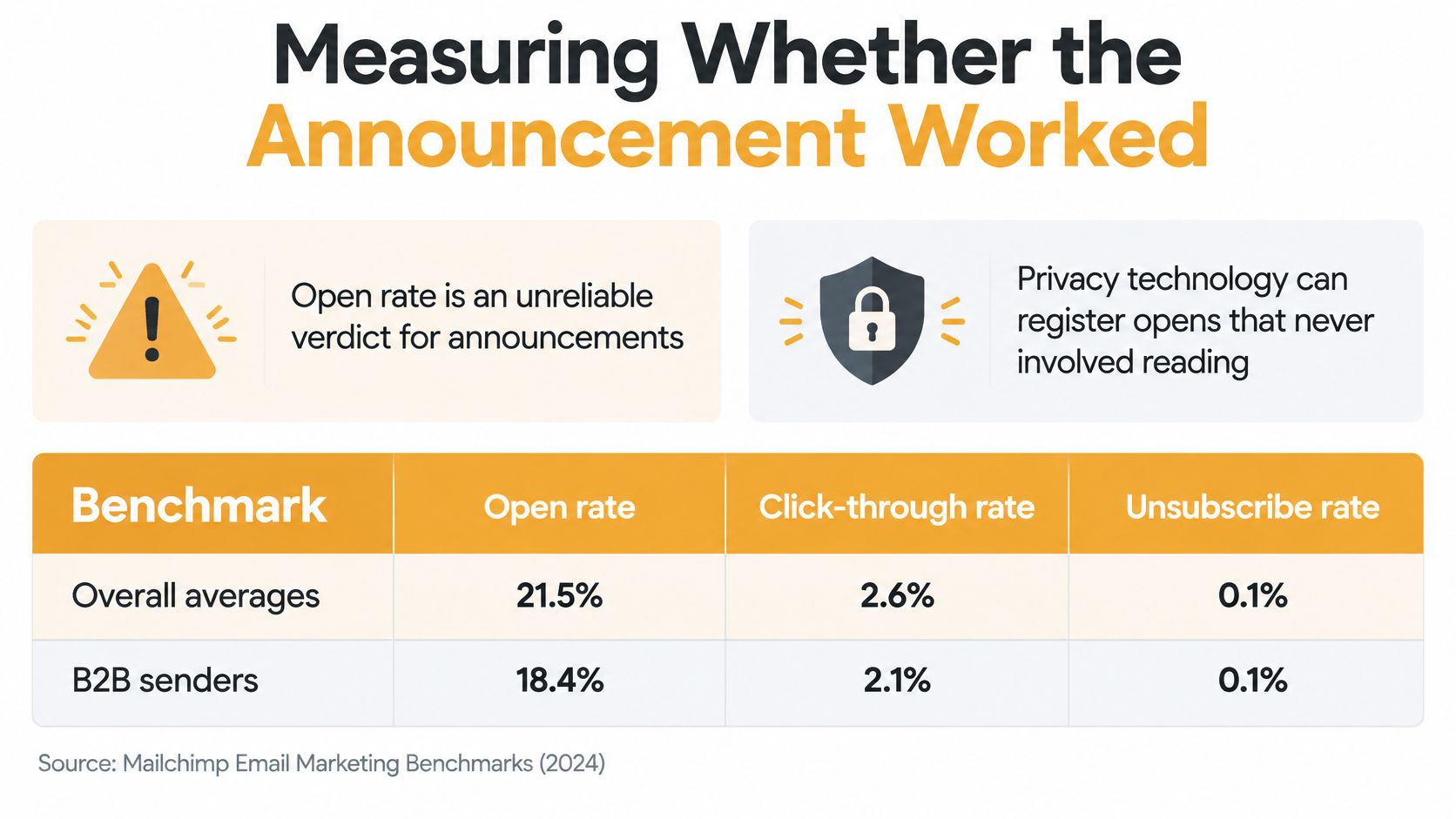
The 2025 GDMA International Email Benchmark reported by MailerLite covered 63 countries and reported a 32.40% average confirmed open rate and a 2.91% click-through rate. Treat those figures as a broad reference, not a scorecard for a neighborhood, family, or other small group.
| Benchmark | Year | Average open rate | Click rate | |---|---|---|---| | GDMA International Email Benchmark | 2025 | 32.40% confirmed opens | 2.91% click-through |
Measure the result the announcement was meant to produce: replies compared with group size, confirmations, registrations, attendance, or completed actions. For example, a congregation coordinator can use communication templates and KPIs for churches to track outcomes from one announcement to the next. Choose the measure before sending, then compare similar announcements rather than treating an open count as a verdict.
For a mixed-age group, a reply or attendance count may be more useful than an open rate. Ask the practical question: did the people who needed to act do so by the deadline?
Send Your First Announcement This Week
You don't need a new system to start. You need one message, built in order.
- Pick the single decision or event. One announcement, one piece of news.
- Draft the top three lines. Subject, preview, and first sentence carry the message.
- Add the fields. Fill in When, Where, and Action required.
- Run the pre-send checks. Privacy, authentication, plain-text version, working opt-out.
- Test small, then send. Send to a few members first, fix what's confusing, then release it.
Be honest about the tool, too. A CC or BCC suits a small, short-lived group, and plenty of Listava's own articles say when CC, BCC, Google Groups, or a Facebook group is good enough. A group address suits long-lived lists with turnover and privacy needs because it stays with the group when a board member moves away. If you go that route, creating a group takes about thirty seconds, members are added by CC'ing them, and prospective users can schedule a demo first.
Copy this template and save it:
- Subject: [Event or change, date]
- Preview: [Missing fact, such as reply deadline]
- Greeting: Hello [Group name],
- First line: [Decision or event, with time and place]
- When: [Date and time] / Where: [Place]
- Action required: [One response method and deadline]
- Signature: [Name, role, human contact]
- Footer: [Opt-out line]
Send one announcement this week using it, then keep it as your base for the next.
If your group has outgrown CC lists and copied spreadsheets, Listava gives you one private group address that reaches every member through the email they already use, with no accounts or apps to learn. Set up your list, send your first announcement with the format above, and let replies stay inside the group where they belong.