Gmail Email Group Distribution List Setup Guide
Build a reliable gmail email group distribution list with practical steps, privacy tips, and label vs Google Groups guidance for community organizers.
You've inherited the neighborhood email list because you were willing to help. Now every announcement starts the same way: search old messages, copy addresses, wonder who was left out, and decide whether to use CC or BCC. A simple reminder about a meeting turns into a reply-all chain, while a private announcement leaves everyone guessing who else received it.
Gmail can handle a gmail email group distribution list, but it gives you three very different ways to do it. You can use a Google Contacts label, manually add recipients with CC or BCC, or create a Google Group with its own address. Those options look similar from the sender's side, but they behave very differently when members reply, leaders change, addresses go stale, or privacy matters.
I've managed community lists for clubs, volunteer teams, and neighborhood groups. The lesson is straightforward: choose the communication model before you add members. A label is convenient, CC and BCC are familiar but fragile, and Google Groups adds real controls while still leaving some important gaps. This guide to email distribution lists will help you choose the least painful option for the group you run.
Table of Contents
- What This Guide Will Help You Do
- Your Three Real Options Inside Gmail
- Setting Up a Google Contacts Label List
- Building a Google Group as a Distribution List
- Privacy Trade-Offs Gmail Cannot Fully Solve
- When a Dedicated List Service Is the Better Fit
- Your Next Step as the List Organizer
What This Guide Will Help You Do
A distribution list isn't just a shortcut for filling the To field. It determines who can send, who can reply, who can see addresses, and what happens when the organizer leaves. Those decisions matter whether you're coordinating an HOA, a book club, a faith community, an extended family, or a volunteer team.
The first question is whether your group needs announcements or conversation. An announcement list might send meeting dates, maintenance notices, event reminders, or schedule changes. Members may never need to reply to one another. In that case, a Google Contacts label can be perfectly adequate if one trusted person owns the process.
A discussion list behaves differently. Members may need to ask questions, share updates, or respond to the whole group. Sending the same message to many people isn't enough. You need predictable reply behavior, a way to remove departed members, and someone other than one volunteer who can maintain the list.
Practical rule: If the list lives only in one person's Contacts, the group has a continuity problem, even when every address is correct today.
Gmail's three options create different responsibilities:
- Google Contacts label: Fast and familiar, but personal. The list belongs to one account and has no central moderation.
- Manual CC or BCC: Useful for occasional messages, but every send requires recipient decisions. CC exposes addresses, while BCC hides them and disrupts group discussion.
- Google Group: Provides a shared address and administrative settings for posting, moderation, and membership. It takes more setup, but it's the only Gmail-native option designed for an ongoing group workflow.
Before you import an address spreadsheet or add dozens of contacts, decide whether members should communicate with one another. Then decide whether the list must survive a change in leadership. Those two answers usually identify the right tool faster than any Gmail tutorial.
A group that sends occasional, one-way notices can start with a label. A group that expects regular replies should usually use Google Groups or a dedicated service. If members need private addresses and continuous conversation at the same time, Gmail's built-in choices don't fully solve the problem.
Your Three Real Options Inside Gmail
The simplest option is a Google Contacts label. You create a named group in Contacts, add people to it, and type the label name in Gmail when composing a message. It's a good fit for a personal reminder list or a small announcement group managed by one organizer. It doesn't create a shared address, moderation queue, or durable administrative record.
Manual CC and BCC work for occasional messages. CC keeps replies visible to the recipients, but it also displays every address and makes accidental Reply All behavior easy. BCC protects the recipient list, but members can't naturally reply to the full group because they can't see the group address. The sender becomes the traffic controller, whether they intended to take on that job or not.
A Google Group creates a group address and exposes separate controls for posting, moderation, member visibility, and management. Google's guidance recommends moderating messages from non-members when internet-wide posting is enabled, because unrestricted posting increases spam and impersonation exposure. The setup is more involved, but it gives a club or committee a shared home instead of storing the entire list in one volunteer's address book.
| Option | Best For | Privacy Level | Discussion Support | |---|---|---|---| | Google Contacts label | Personal or announcement-only lists | Low unless recipients are placed in BCC | Weak | | Manual CC | Occasional messages to people who already know one another | Low | Possible, but uncontrolled | | Manual BCC | Private one-way announcements | Higher for recipient addresses | Poor | | Google Group | Ongoing organizational communication | Configurable, but requires careful settings | Stronger, with moderation controls |
My recommendation is blunt. Use a Contacts label for a simple list you alone operate. Use BCC for a private announcement when replies aren't part of the plan. Use a Google Group when several people need to send or manage messages.
Don't use a label or BCC workflow for a group that expects private, two-way conversation. That's where organizers start forwarding replies, explaining who should respond, and rebuilding the list every time leadership changes.
Setting Up a Google Contacts Label List
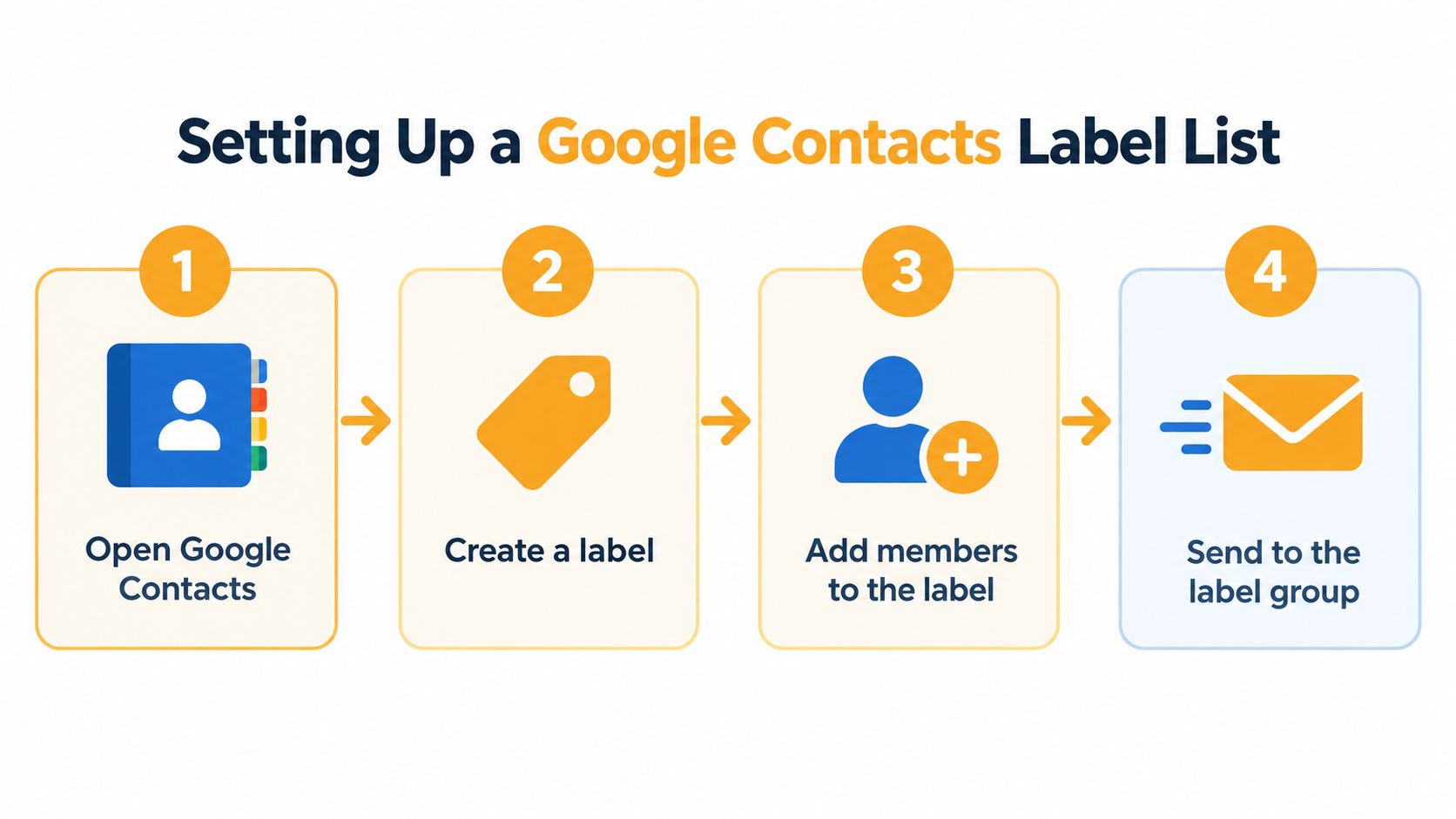
A Contacts label is the quickest way to create a Gmail distribution list without introducing another service. It works from Google Contacts and stays connected to the Gmail account that created it.
Build the label carefully
Open Google Contacts while signed in to the same Google account you use for Gmail. Select Create label, give it a descriptive name such as “Oak Street HOA Announcements” or “Tuesday Walking Club,” and save it.
Add existing contacts by selecting them, choosing the label icon, and applying the new label. You can also create contacts individually. If your members are in a spreadsheet, import the file into Google Contacts first, then assign the imported records to the label.
Don't treat the import as a clerical afterthought. Normalize addresses before you add them. Remove spaces, obvious duplicates, stale accounts, and entries that contain a person's name but no usable email address. A clean list saves you from chasing delivery failures later.
Send a controlled test
Open Gmail, start a message, and type the label name in the recipient field. Gmail should offer the label and expand it into individual addresses. Before sending to everyone, use a low-stakes test with yourself and one trusted member.
Check the recipient field before sending. If the recipients don't know one another, use BCC. If the group is an internal team that already expects visible recipients, CC may be acceptable, but make that choice deliberately.
Keep a simple membership record outside the label. Note who approved each addition, when addresses were checked, and who should be removed when a member leaves. Google Contacts labels don't provide moderation, shared ownership, or a group archive. If your account is unavailable, the next organizer may not know where the list lives.
A label is a useful sending shortcut. It isn't a governance system.
Review the label whenever the group changes. Remove a departed member promptly, update changed addresses, and send a test after major edits. The list will work well for straightforward announcements, but it starts to break when several organizers need access or members expect a reliable reply-to-group workflow.
Building a Google Group as a Distribution List
A Google Group is the closest Gmail-native option to a managed distribution list. It gives the group its own address, lets administrators define posting rules, and separates membership from one organizer's personal Contacts.
Start at Google Groups, create the group, choose a clear address, and add the initial members. Write a short description that states the purpose and identifies whether the group is announcement-only or intended for discussion.
Configure permissions before inviting everyone
Open the group's settings and work through posting permissions rather than accepting the defaults. Enable email posting to the group address, then choose who may post. For an announcement list, allow only owners or managers. For a discussion list, allow members to post and send messages from non-members to moderation.
Google separates several permissions that organizers often confuse:
- Posting permission: Who can send a message to the group.
- Posting as the group: Who may use the group identity when sending.
- Moderation permission: Who can approve or reject held messages.
- Member visibility: Whether members can see the membership list.
- Reply behavior: Whether replies return to the sender, the group, or both.
Assign at least two owners or managers. A single administrator is a predictable failure point when that person moves, loses access, or stops volunteering. Keep a written handoff note with the group address, owners, posting policy, moderation instructions, and removal process.
Google recommends moderating non-member posts when posting from the internet is enabled. That control matters because an open group address can attract spam or impersonation attempts. Don't confuse administrator privileges with moderation behavior either. Google notes that messages sent by administrators to moderated groups are not moderated.
Run the acceptance test
Don't declare the group finished after the settings page looks correct. Send one message from a member account and confirm delivery. Then send an unauthorized message from an external address and verify that it reaches moderation rather than the entire group.
Test the details that cause real trouble:
- Confirm that members receive the message.
- Reply from a member account and check whether the reply reaches the intended audience.
- Submit a non-member message and confirm its moderation route.
- Test an attachment and decide whether links should replace large files.
- Remove a departed member and verify that future messages no longer reach that address.
Google Workspace documents a 25 MB maximum message size for group mail, including attachments in its administrator FAQ. Set a lower working limit for your community and send links to large files instead of making every recipient download an attachment.
This walkthrough shows the kind of group communication Google Groups can support in practice:
Google Groups is a substantial improvement over a personal label, but it isn't a complete answer to private community conversation. You still need to configure member visibility, explain reply behavior, and protect private threads from forwarding.
Privacy Trade-Offs Gmail Cannot Fully Solve
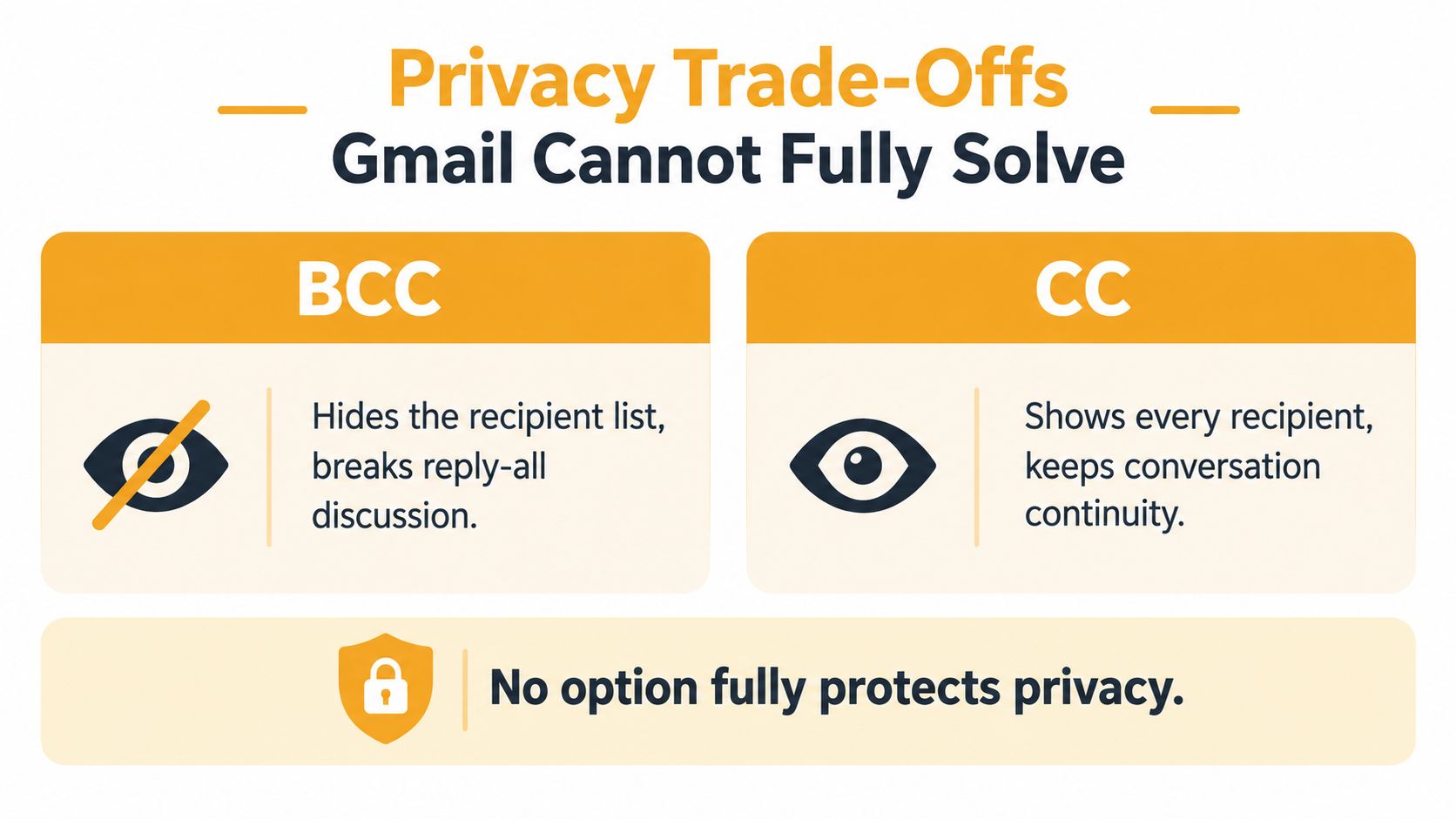
BCC is often presented as the privacy answer. It isn't. BCC hides the recipient list and prevents ordinary Reply All participation, so it suits a one-way announcement. The moment members need to speak to one another, the organizer becomes the only visible connection between them.
CC makes the opposite bargain. Everyone can see the addresses, and replies can remain in one thread, but one careless click exposes the entire group to a reply-all cascade. That can reveal personal addresses to people who never agreed to share them and can turn a routine message into a noisy, confusing conversation.
Privacy has a lifecycle
The recipient field is only one part of privacy. Ask what happens when a new member joins. Can that person see earlier messages? Should they? Does the organizer need to forward context manually, or does the group retain a history that new members can access?
Departure creates another problem. Removing an address from a label stops future sends from that account, but it doesn't control copies already stored in members' inboxes. A Google Group gives you stronger membership management, yet the organizer still needs a clear rule for archives, forwarded messages, and private replies.
Leadership changes expose the continuity issue. If the list is built from one organizer's Contacts, the new coordinator may inherit neither the addresses nor the history. If a group has several managers, the handoff is more manageable, but administrators still need to document who handles moderation and where sensitive decisions belong.
A member can also forward a private thread outside the group. No Gmail setting can make a recipient unable to copy or forward a message after delivery. You can reduce accidental exposure through clear subject lines, private-reply guidance, and restricted membership visibility, but technology won't replace a simple group policy.
BCC protects the address field. It doesn't protect the conversation.
The threaded email discussion guide is useful when you need to explain why replies should go to the group, to the sender, or to a smaller decision-making team. Write that rule down before the first disagreement. People follow a visible process more reliably than an instruction buried in an old message.
When a Dedicated List Service Is the Better Fit
Gmail is usually enough for announcements. It becomes the wrong tool when your group needs regular two-way discussion, address privacy, leadership continuity, or accessible participation at the same time.
That combination is where the trade-offs stack up. BCC hides addresses but fragments replies. CC preserves the thread but exposes addresses. A Contacts label saves time but lives with one organizer. Google Groups offers moderation and shared administration, but it still asks someone to understand and maintain several separate privacy and posting controls.
A dedicated list service changes the operating model. Members send to one shared address, replies can return to the group by default, and the service can hide personal addresses from other members. Members can continue using Gmail, Outlook, Yahoo, Hotmail, or another standard email client without downloading an app or creating a separate account.
For example, Listava provides a shared group address, member management through CC or spreadsheet import, reply-to-group behavior, address hiding, and accessibility features such as large fonts and high contrast. Its list continues independently of one volunteer's inbox, which makes it relevant when an HOA board, club committee, or family coordinator changes.

Use a clear handoff test
Consider moving beyond Gmail when several of these statements are true:
- Members need conversation: People regularly reply to one another rather than merely receive notices.
- Addresses are sensitive: The group includes residents, clients, volunteers, or family members who shouldn't see one another's personal addresses.
- The organizer may change: The list must survive an annual election, staff transition, or rotating volunteer role.
- Accessibility matters: Some members need larger text, stronger contrast, simpler controls, or a predictable email-only workflow.
- Maintenance consumes time: You're repeatedly fixing reply mistakes, removing stale addresses, or explaining how to participate.
Google Groups remains a reasonable choice when your organization already administers Google Workspace and someone can own the settings. A personal label remains reasonable for a short, one-way list. The Google Groups alternative comparison is worth reviewing when your group needs continuity and privacy without asking every member to learn another account system.
The right moment to switch isn't determined by member count. It arrives when the organizer spends more effort preventing email problems than communicating with the group.
Your Next Step as the List Organizer
Make three decisions today.
If the list sends one-way announcements, create or clean up a Google Contacts label. Use BCC when recipients shouldn't see one another, and keep a current membership record outside your personal inbox.
If members need to reply to one another, create a Google Group and configure posting, moderation, reply behavior, and member visibility before inviting everyone. Assign two managers and test both an authorized message and an unauthorized one.
If the list needs private conversation that survives leadership changes, don't force Gmail's CC and BCC choices to do a job they weren't designed to do. Choose a managed group service that keeps the shared address, membership, and reply workflow separate from any one volunteer's account.
The most important next step is not adding another address. Send a test message, reply to it as a member, remove a test member, and confirm exactly what happens. That small exercise will reveal whether your current setup is a distribution shortcut or a dependable group system.
Listava gives community organizers a shared email address, private member delivery, and reply-to-group conversations without requiring member accounts or a separate app. If your Gmail workflow is breaking under reply-all confusion, privacy concerns, or volunteer turnover, visit Listava and evaluate it against your group's needs.