How to Group Email Addresses Into One List
Learn how to group email addresses into one private list so replies stay in the group and personal addresses stay hidden.
You're trying to send a pool-gate update, but the neighborhood spreadsheet has old addresses, the last thread has newer ones, and nobody knows which list is current. You paste the recipients into CC, send the note, and get a Reply All thanking you. Then Harold asks why his personal address is visible to the whole street.
Learning how to group email addresses starts with a choice about access, not just convenience. Who can see the membership list? Who can send to everyone? Can the least technical member participate without learning another app? The right setup answers those questions before the next important notice goes out.
Table of Contents
- Pick One Group Address Instead of CC
- Build the Group Address From a Clean Roster
- Protect Privacy and Keep Mail Out of Spam
- Include Members Who Will Not Install an App
- Repair the Failures That Split a List
- Send the Next Notice From One Address
Pick One Group Address Instead of CC
CC, BCC, and a single group address solve different problems. CC makes the recipients visible. BCC conceals them but usually turns a conversation into separate replies to the organizer. A properly configured group address provides a reusable destination while keeping the underlying roster private.
Choose by message flow, not by which field is easiest to fill.
CC, BCC, or one group address
| Method | Who sees addresses | Where replies go | Use it when | |---|---|---|---| | CC the whole list | Every recipient on the message | Reply All reaches everyone | A one-time note among people who already email each other | | BCC the whole list | Only the sender sees the BCC roster | Usually only the original sender | A one-way announcement with no discussion | | Single group address | Members see the group address, not the roster | Back to the group, when configured for discussion | Recurring HOA, club, family, faith, or volunteer mail |
CC is enough for a one-time lunch arrangement among people who already share their addresses. It's a poor default for a neighborhood roster: the thank-you replies can bury the water-shutoff notice, and everyone receives everyone else's contact details.
BCC is useful for a private announcement that doesn't need discussion. It's less useful when members need to coordinate rides or answer a question together, because they can't see who else received the message and their replies usually reach only you.
Practical rule: Use CC for an already-connected conversation, BCC for a private broadcast, and a managed group address for recurring participation.
The privacy risk isn't hypothetical. The UK Information Commissioner's Office reports that incorrect BCC use has remained among the top 10 non-cybersecurity breach categories, with nearly 1,000 incidents reported since 2019.
Gmail contact labels and personal Outlook contact lists save typing, but they aren't necessarily private distribution systems. When they expand into To or CC, recipients can see the addresses. For recurring community mail, choose the group-address row and verify both roster visibility and reply routing before relying on it.
Build the Group Address From a Clean Roster
Don't build the new list from whoever happens to appear in an old thread. Start with a private roster you can maintain, then create the destination members will use.
The workflow should keep membership records separate from everyday conversation.
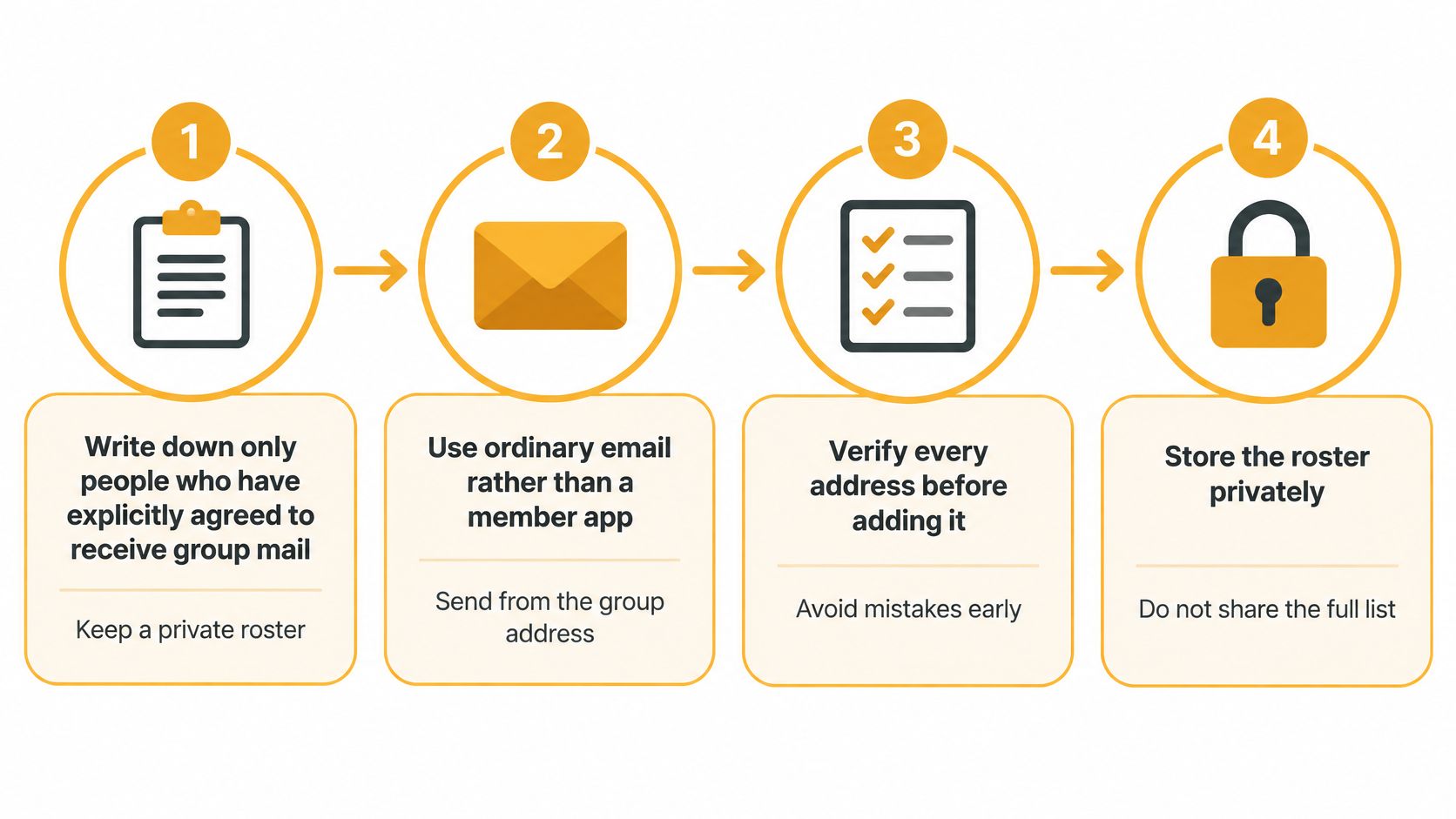
Prepare the membership record
-
Record explicit agreement. Write down only people who have agreed to receive this group's mail. Keep a private note of when and how they agreed, such as an email request or a membership form. Knowing someone's address isn't permission to add them to every committee or neighborhood discussion. Our policy requires explicit consent from every recipient.
-
Put the raw addresses in a spreadsheet. Give names and addresses separate columns, trim spaces, remove exact duplicates, and correct cells containing a display name instead of a usable address. Lowercase the domain portion, but leave the part before the at-sign unchanged unless you know the mailbox provider treats it as case-insensitive. Keep uncertain entries out of the active import until their owners confirm them.
-
Create an address that belongs to the group, not the current organizer. Choose a recognizable name and record who is responsible for administration. Decide whether members may post directly or whether announcements need approval. The list should stay available when a board member moves away, rather than disappearing inside that person's inbox.
Import, welcome, and test
-
Import the cleaned membership sheet into the group's member-management process. Don't paste the roster into an ordinary To or CC message to announce the new arrangement. Our Excel bulk-import guide explains the spreadsheet workflow. Add a late joiner through the same membership process so you don't create a second, unofficial recipient list.
-
Send a short welcome. Name the group's purpose, explain who may post, and make leaving straightforward. A useful welcome can say:
Welcome message: Send neighborhood updates to the group address shown above. Messages reach the members, and replies return to the group without displaying the membership roster. To leave, follow the unsubscribe instructions included with each message.
Don't promise that members can't disclose their own addresses in signatures or forward a message outside the group. A hidden roster protects the membership list, not everything a participant chooses to share.
-
Pilot the setup with test recipients on Gmail, Outlook, and Yahoo before inviting everyone into an active discussion. Send a message, reply from a receiving inbox, and inspect where that reply arrives. Check the visible recipient fields too. The test is complete when the reply reaches the intended group and nobody receives the private roster.
You now have a single maintained destination instead of a fresh addressing task for every notice. Stop testing only when that return message lands where members expect it.
Protect Privacy and Keep Mail Out of Spam
Aim for a hard-bounce rate below 1%, and treat a rate consistently above 2% as a warning about list quality and sender reputation, using the benchmarks described by Acoustic's email metrics guidance. A hidden roster doesn't establish that the addresses work or that receiving providers will accept the mail.
After each send, read the delivery outcomes. Remove permanent failures from active delivery immediately, honor opt-outs, and investigate repeated temporary failures rather than repeatedly sending the same message.
Use privacy and delivery as separate checks.
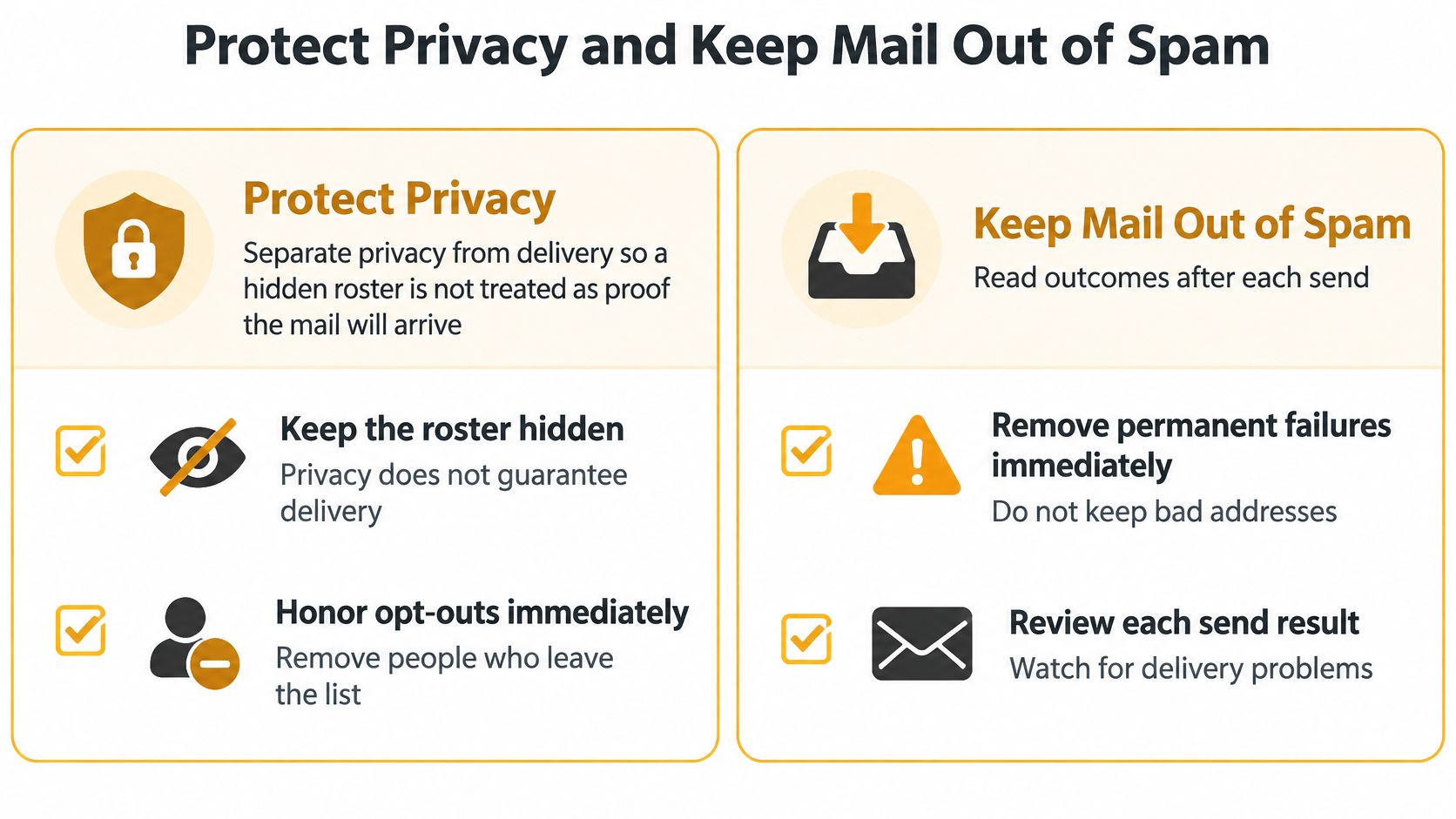
Keep the roster accountable
A syntactically valid address still needs permission. Preserve consent records separately from the recipient list, and mark entries as active, bounced, unsubscribed, or awaiting confirmation.
Watch for duplicate aliases, stale addresses after a role change, and spreadsheet cells that mix names with addresses. Don't automatically merge different addresses just because their names look alike; a household may deliberately use separate mailboxes.
Our policy is that members' email addresses are never shared or sold. For the organizer's side of that responsibility, the email-list privacy guide explains how to avoid exposing the roster during routine work.
Keep the sender recognizable
Use a stable From identity instead of switching between volunteers' personal mailboxes. If you manage the sending domain, have its administrator verify authentication rather than improvising changes during an urgent announcement.
Gmail's sender guidelines require SPF or DKIM for all senders, and SPF, DKIM, and DMARC for bulk senders, defined as those sending 5,000 or more messages daily to personal Gmail accounts. A small neighborhood list may sit well below that threshold, but authentication still helps receivers distinguish legitimate messages from forged mail.
Every message needs a visible way to leave. Our policy requires clear unsubscribe instructions on every email; don't make members find an old welcome or explain their reasons publicly.
Before the next announcement, check:
- Consented roster: Every active member agreed to receive the mail.
- Bounces cleared: Permanent failures aren't still receiving attempts.
- Replies verified: Discussion replies reach the intended group.
- Exit visible: Unsubscribe instructions appear on the message.
Include Members Who Will Not Install an App
The member who refuses one more login is not a setup problem to route around. Access belongs in the design from the start. In its 2025 adults' media-use report, Ofcom found that 21% of people over 65 in the UK had no internet access at home, compared with 2% of households in the highest socioeconomic group.
A group address cannot fix a missing connection. Keep a phone tree or printed notice running for members who need it, and let a paper roster help the coordinator confirm details without asking anyone to open a dashboard.

Make ordinary email enough
A typical family has tried shared calendars, chat invitations, and shared folders, yet updates still reach only the relatives who learned each tool. The useful change is an email-only route through Gmail, Outlook, Yahoo, or Hotmail: no member account, no password, no app to install. Members receive messages in the inbox they already open and reply the way they always have.
Comfort with one skill does not imply the next. Reading a message, navigating an online service, and spotting a phishing attempt are separate abilities, so never assume someone who reads mail confidently can also manage invitations, notification settings, or account recovery.
Format matters as much as the tool. We set our messages in large fonts and high contrast so every member can read them, and you should write the same way: plain type, short paragraphs, the group address near the top, a subject that says what the mail is about, and the key details in the body rather than locked inside an attachment.
Communicating with people you already know shouldn't require software anyone has to be taught.
For a member who prefers a demonstration, a short walkthrough alongside written instructions works better than either alone.
Give the coordinator words to use
Keep the joining routine conversational. The coordinator asks for the address the person regularly checks and their explicit agreement to receive mail, then adds it privately. A simple ask covers it: “Send me the email address you read every day and confirm you want in, and I'll handle the rest.” Every recipient must have explicitly consented, so a relative forwarding someone else's address does not count as that person's yes.
Leaving should be just as plain. Point members to the unsubscribe instructions on every message, or let them send the coordinator a removal request directly. Process it promptly; a departure is not a group conversation.
Success is not a completed training session. It is the least technical member sending a note to the group address, getting a reply, and knowing exactly what to do next.
Repair the Failures That Split a List
A reply-all flood and a missed notice need different fixes. The first calls for checking how the message was addressed. The second calls for checking delivery and the member's actual subscription, not immediately sending another copy to everyone.
Our neighborhood HOA's original problems included messages landing in spam, a neighbor missing a meeting notice, and addresses copied by hand from a spreadsheet. Those are operational faults to isolate, not reasons to make every member learn a new interface.
Group email failures and the fix
| What members report | Usual cause | Change to make | |---|---|---| | Reply-all pile-up | Roster still pasted in CC | Send only to the group address | | Someone missed the notice | Spam folder or a hand-copied stale address | Check spam once, then remove hard bounces | | Personal addresses leaked | CC, or forwarding a message that reveals a BCC roster | Deliver only through the group address | | Conversation died after one email | BCC replies returned only to the sender | Route replies back to the group | | List vanished after a leader left | Roster lived in one personal inbox | Keep the group address outside any one inbox | | Duplicates and more bounces | Aliases and display names imported as addresses | Dedupe the sheet before the next import | | People cannot leave | No unsubscribe line on the message | Put clear unsubscribe instructions on every send |
A group address won't eliminate conversation volume. If members deliberately reply to the group, everyone still receives those messages. Removing a pasted CC roster fixes accidental recipient handling; an announcement-only posting policy addresses a discussion that shouldn't have started.
For a missed message, ask the member to check spam once and confirm the address they use. The safe-senders guide can help with mailbox-side filtering, but a safe-sender entry won't repair a nonexistent address or override an unsubscribe.
Change the cause, not the whole system
A BCC recipient doesn't ordinarily receive the hidden roster, so forwarding their received copy doesn't magically expose it. Exposure can happen when the sender forwards a sent copy containing recipient details, or someone copies those details into the message body. Check what was disclosed before announcing that the system leaked addresses.
Likewise, a conversation that stops after the opening message may have a routing problem rather than an uninterested membership. Send a controlled test and correct the reply destination before asking everyone to try again.
Troubleshooting habit: Match the complaint to a delivery record or message header before changing settings.
Fix the row matching the latest complaint before adding new members. For duplicate imports, bounce spikes, or missing exit instructions, pause the next send and complete the roster and delivery checks rather than multiplying the problem.
Send the Next Notice From One Address
Set up the group before the next real announcement, not during another reply-all weekend. A recurring family, faith, hobby, or neighborhood list needs a different arrangement from a one-time note among friends. Keep CC or BCC where they're sufficient; don't introduce a managed list just to schedule lunch.
Your sequence for this week
-
Confirm the active membership. Resolve uncertain consent and outstanding delivery failures before moving addresses into the new arrangement.
-
Import the cleaned spreadsheet into the group, not an ordinary recipient field. With Listava, creating a group takes about thirty seconds, an existing Excel list can be imported in under thirty seconds, and individual additions use its CC-based membership workflow. That setup action is distinct from sending a routine notice with the whole roster exposed.
-
Send the welcome before the urgent update. Give members the destination they'll use, the posting expectations, and clear leaving instructions.
-
Have a member send a test reply. Confirm the result from a receiving inbox rather than relying only on your sent folder.
-
Address the notice to the group alone. Apply the consent, bounce, reply-routing, and unsubscribe check before sending the pool, reunion, or meeting update.
Members shouldn't need accounts to participate. Their job is to read and reply in their usual inbox; the organizer's job is to maintain a dependable membership process behind that simple address.
Listava offers one group email address with private member-address handling and replies that return to the group, without requiring members to install an app or create accounts. Visit Listava to set up your group, bring over your consented roster, and test it before your next notice.