How to Set Up Email List in Outlook the Right Way
Learn how to set up email list in Outlook with clear steps for contact groups, Microsoft 365 Groups, bulk import, and reply settings that protect privacy.
You've inherited the neighborhood mailing list, the next meeting announcement is ready, and the addresses are scattered across an old spreadsheet and somebody else's sent messages. You want a dependable way to reach everyone without turning a routine update into another reply-all cleanup job.
Learning how to set up an email list in Outlook starts with choosing the right kind of list. The buttons matter, but so do the decisions about who maintains membership, where replies go, and what happens when the current organizer hands over the job.
Table of Contents
- The Reply-All Problem Outlook Wasn't Designed to Fix
- Building a Contact Group in Classic Outlook
- Setting Up Lists in Outlook on the Web and Microsoft 365
- Bulk Importing Members From an Excel Spreadsheet
- Reply Settings That Protect Every Member
- When Outlook Alone Is Not Enough
- Your Organizer Checklist Before Going Live
The Reply-All Problem Outlook Wasn't Designed to Fix
Someone pastes the membership into Cc, sends the meeting reminder, and gets an immediate reply-all about parking. Another resident asks to be removed. Before the meeting starts, the organizer is answering list-management questions instead of preparing the agenda.
That's an illustrative situation, not an argument against email. The mistake is treating a collection of addresses as though it already has rules for privacy, discussion, and administration.
Know what you're creating
An Outlook contact list, also called a contact group in classic Outlook, lets you use a saved name instead of repeatedly assembling recipients. It's an address-book shortcut, not automatically a shared communication service.
The practical distinction is who controls that shortcut. If the secretary creates it in their own Outlook contacts, the treasurer doesn't automatically get a synchronized membership record. Sending them a copy doesn't establish a shared source of truth.
Before choosing a setup, answer these questions:
- Purpose: Are you sending announcements, inviting discussion, or doing both?
- Privacy: Have members agreed to share their addresses with the group?
- Responsibility: Who approves membership changes and handles removal requests?
- Continuity: Who takes over when the organizer leaves?
Your answers matter more than whether the menu says list or group. For the address-visibility decision, review the practical differences between Cc and Bcc before sending a live announcement.
Pick the right Outlook route
Use a classic Outlook contact group for a reusable desktop recipient list. Use a web contact list when you work in Outlook.com or Outlook on the web. Consider a Microsoft 365 Group when your organization needs a shared group address and collaboration rather than a personal shortcut.
Practical rule: Choose the communication rules before adding the members. A neatly named list won't fix an unsuitable reply workflow.
My recommendation is straightforward: a personal list is reasonable for an organizer-managed announcement audience. If several volunteers must maintain membership or members need private group discussion, evaluate a shared setup before investing time in individual address books.
Building a Contact Group in Classic Outlook
A contact group lives inside one person's Outlook profile, which is exactly why the build deserves care. If the secretary's laptop holds the only copy, your announcement list effectively belongs to that laptop. Build it so a successor could pick it up and keep sending.
In classic Outlook, start in People, not in a new email message. Microsoft documents the classic workflow as creating a contact group from Contacts or address-book entries, naming it, adding members, and saving it with Save & Close in its contact-group instructions.
Keep the difference between composing a message and managing the group in mind as you work.
Create and name the group
- Open People. Check that you're working in the intended Outlook account and contact folder.
- Choose Home > New Contact Group. Don't confuse this with creating a Microsoft 365 Group.
- Enter a distinctive name. Use something like
HOA-Board-Currentrather than a vague label such asNew Group. A clear name tells the next organizer what the list is for. - Select Add Members. Choose recipients from Outlook Contacts, the address book, or the available new-email-contact option.
- Confirm with OK. Review the membership before selecting Save & Close.
Handle unfamiliar senders carefully. An address sitting in an incoming message is not automatically a usable contact record. Save and verify the contact before relying on it for recurring group communication.
I'd keep organizational contacts separate from unrelated personal contacts wherever practical. That gives the next organizer a clearer handover and reduces the chance that a family address gets mixed into a board announcement.
If you prefer to follow along visually, this short video walkthrough shows the People > New Contact Group > Add Members > Save & Close sequence in classic Outlook.
Verify the saved recipients
Compose an internal test message and enter the saved group name. Expand the recipients if you need to inspect the individual addresses, then compare them with your approved membership record.
Check the addresses themselves. A correctly spelled display name can still hide an obsolete mailbox underneath.
- Confirm membership: Include current participants and exclude former members.
- Check ownership: Record which account and contact folder contain the group, so the list can be found if you step down.
- Verify delivery: Ask your internal test recipients to confirm receipt before using the list for important notices.
Saving the group completes the address-book work. It doesn't settle privacy, reply handling, or shared administration. Decide who may send to the group, where replies land, and who else holds a copy of the membership before the first real announcement goes out.
Setting Up Lists in Outlook on the Web and Microsoft 365
Browser-based Outlook uses different labels from classic Outlook. Microsoft's documented path for Outlook.com and Outlook on the web is People > New Contact > New Contact List, followed by naming the list, adding email addresses, and choosing Save or Create, as described in its web contact-list guide.
Use a personal contact list for a sending shortcut
Open People in the account you intend to use for group messages. Choose the contact-list creation option, enter a recognizable name, and add the approved addresses.
Review the membership before saving. When somebody leaves, edit the list, remove the address, and save the change rather than merely deleting that person from a draft message.
The visual below summarizes the general process. Follow your interface's actual labels, especially New Contact List, rather than assuming every Outlook version says New Contact Group.
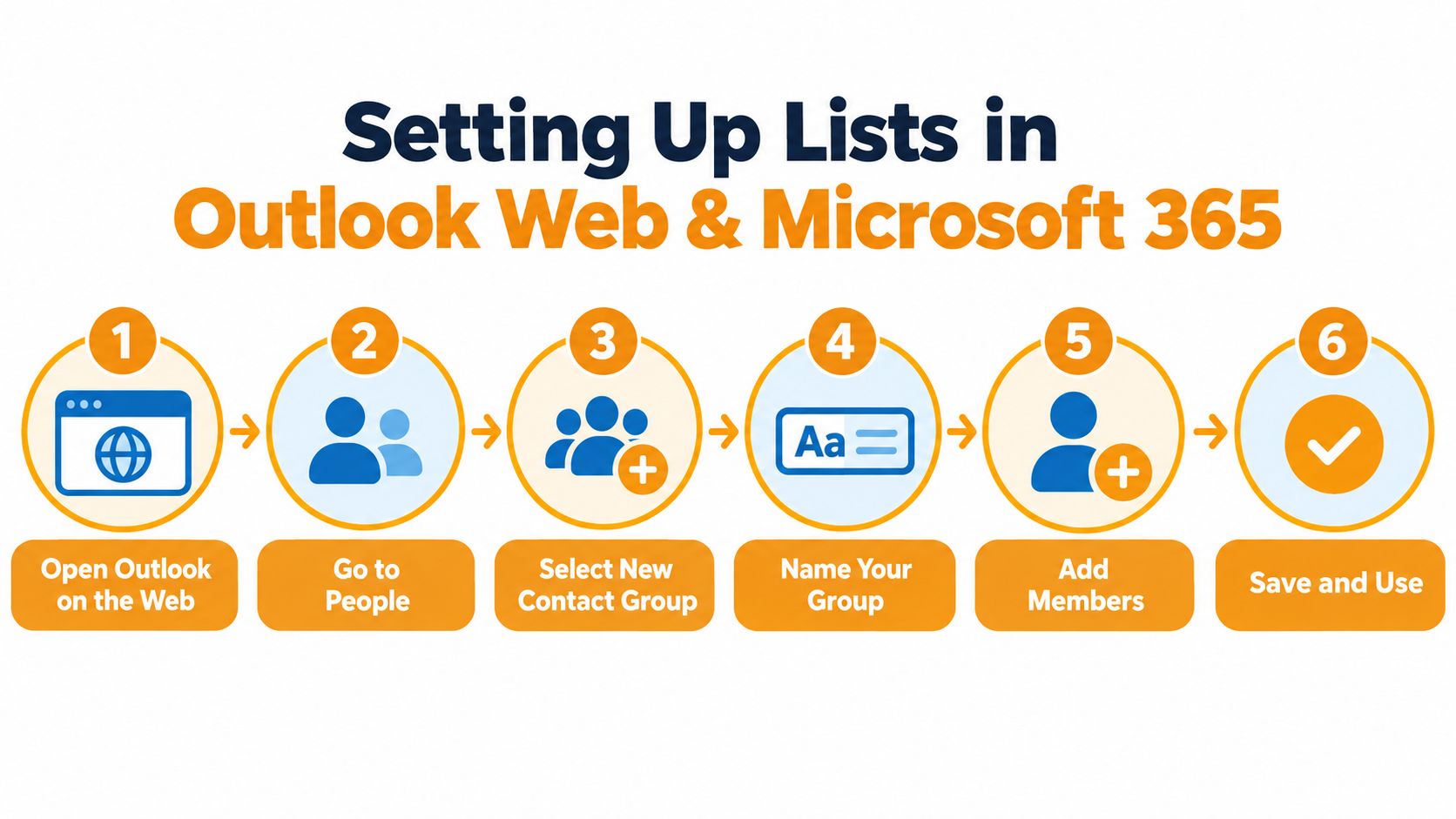
New Outlook, classic Outlook, Outlook.com, and Outlook for Mac aren't interchangeable instruction sets. If the named control isn't present, identify your application and account type before trying another workflow. Don't hunt for a classic Windows ribbon command in a browser or assume the Mac layout matches it.
Choose a Microsoft 365 Group for shared work
A Microsoft 365 Group is a different object, not a contact list with a more impressive name. Microsoft distinguishes its broader collaboration functionality from a simple collection of email addresses in the Outlook group-creation guidance.
Where your account permits it, open Groups, choose New Group, and enter the group name and description. Define the email address and privacy setting where available, select Create, and add members immediately or later.
For resident or volunteer discussions, I recommend a private group rather than making participation broadly discoverable. Ask the organization's administrator whether you're allowed to create the group and whether an organization-managed distribution group would be more appropriate.
Don't call a Microsoft 365 Group a shared mailbox when discussing setup with your administrator. Ask for the object and behavior you actually need.
Before launch, test an external sender, a member reply, and a reply-all response. Confirm the intended audience receives each message and that organizational restrictions don't block legitimate participation.
Bulk Importing Members From an Excel Spreadsheet
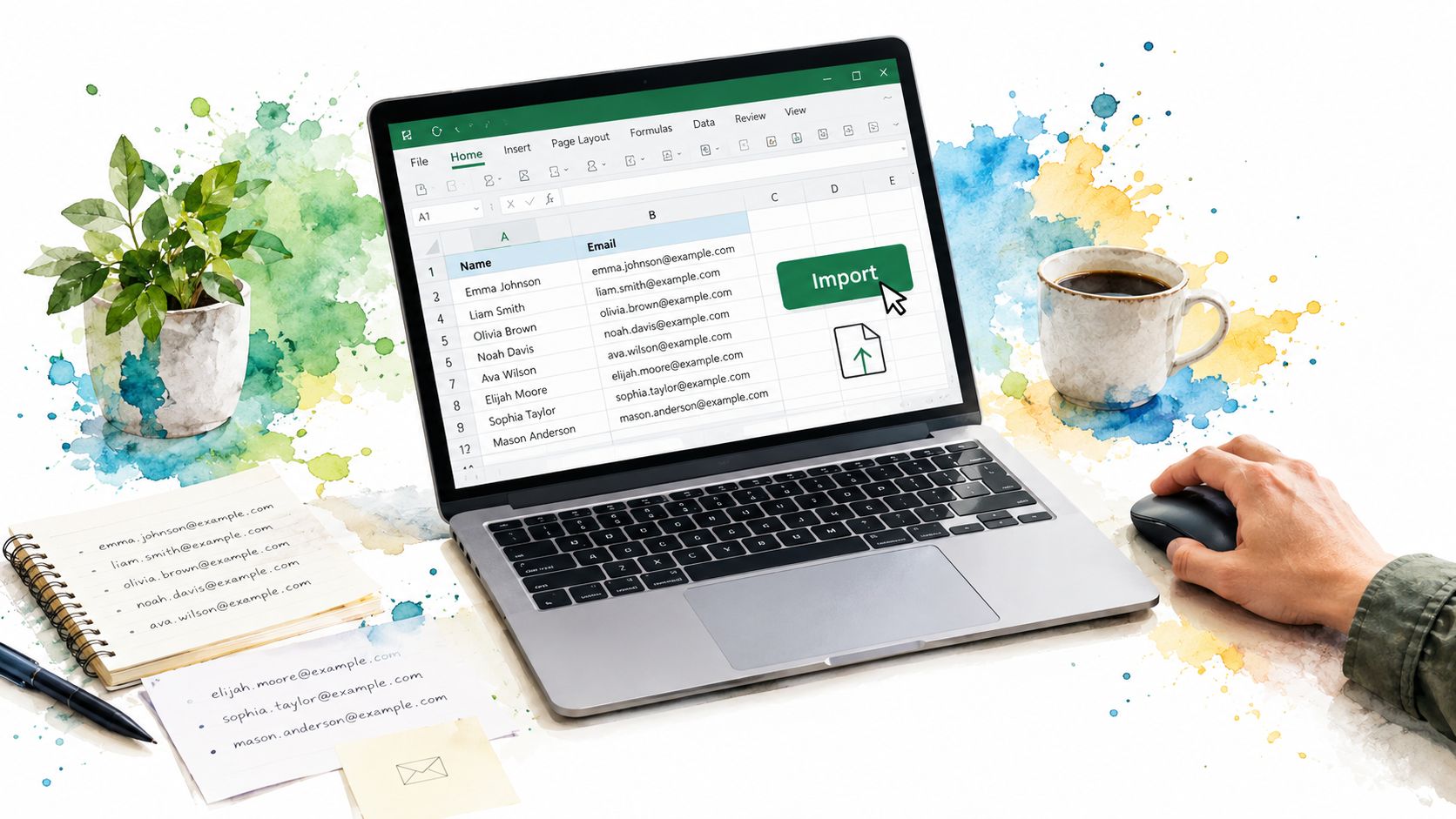
The spreadsheet from the previous secretary deserves attention before it reaches Outlook. Treat it as a proposed membership record, not unquestionable proof that every address should receive the next announcement.
I recommend preparing a clean working copy and preserving the original separately. That gives you something to compare against if a name disappears during cleanup.
Clean the membership before importing
Use a simple table with separate fields for names and email addresses. Avoid relying on colors, merged headings, or notes embedded beside an address to tell you who belongs.
- Inspect every field: Unhide columns and review whether they contain information you need.
- Sort by email address: Put matching addresses together so you can review duplicates deliberately.
- Resolve uncertainty: Ask the membership owner about conflicting addresses instead of guessing which looks newer.
- Separate administrative notes: Keep payment details, household notes, and unrelated personal information out of the import file.
Don't remove matching names automatically. Family members can share a surname, while the same person can appear under different spellings. Review the email address and intended membership together.
Keep importing and grouping separate
Prepare an Excel or CSV working file that matches the import requirements shown in your Outlook interface. If an import dialog asks you to match fields, check that the email-address column maps to the email field rather than assuming the preview is correct.
Use the import controls available in your version's contact-management area. Don't follow an old desktop wizard tutorial if you're using Outlook on the web, and don't invent a missing menu option when your account doesn't show it.
After importing, inspect the resulting contacts, then add the intended members to your contact list or group. A contact import and a finished mailing list are separate checks. Verify the saved group membership before sending.
For a spreadsheet-focused preparation walkthrough, use this guide to bulk importing members from Excel.
Before committing: Read the exported file as well as the workbook. Check that names and addresses remain in separate fields and that no administrative notes have slipped into the recipient data.
Reply Settings That Protect Every Member
Decide whether members should answer you or answer the group. Those are different jobs, and the right recipient field depends on which job you're doing.
Microsoft's contact-group training guidance supports using Bcc for privacy-sensitive announcements rather than exposing membership through To or Cc. For discussion with concealed addresses, choose a workflow designed for controlled group replies.
Reply Behavior Options for Outlook Lists
| Setup | Addresses Visible | Reply Goes To | Best For | |---|---|---|---| | Expanded group in To | Recipient addresses are visible | Reply targets the sender or configured reply address; Reply All can include visible recipients | Discussions where address sharing is agreed | | Group in Bcc | Bcc membership isn't exposed to other recipients | Normally the sender or configured reply address, not the hidden membership | One-way announcements | | Private group-email service | Can conceal personal addresses, depending on the service | The group when configured for group replies | Private ongoing discussion | | Microsoft 365 Group | Depends on membership and organizational configuration | Depends on the group's configuration and how members respond | Organization-managed collaboration |
The important distinction is between a message's Reply-To address and the list's overall conversation design. Changing a header isn't a substitute for deciding who may send, who receives responses, and whether personal addresses remain concealed.
Match the workflow to the audience
For HOA announcements, I'd use Bcc when the board wants responses sent privately to the organizer. A meeting notice doesn't need to become a neighborhood-wide debate because somebody asks about the agenda.
For a club discussion, visible recipients can be acceptable when participants knowingly agree to share addresses. Set that expectation before the first thread, and explain when members should choose Reply versus Reply All.
For family updates, choose based on the conversation you want. Bcc suits a private announcement; a private group-address workflow is a better fit when relatives should respond together without maintaining their own recipient copies.
For volunteer coordination, separate operational discussion from broad announcements where practical. The people arranging access and equipment may need a working conversation, while the wider audience only needs the final instructions.
Don't promise privacy just because you saved recipients under a group name. Send a test to accounts you control and inspect the received message, not just the compose window.
Also check where a removal request lands. A member shouldn't have to disclose their request to the entire audience just to stop receiving announcements.
When Outlook Alone Is Not Enough
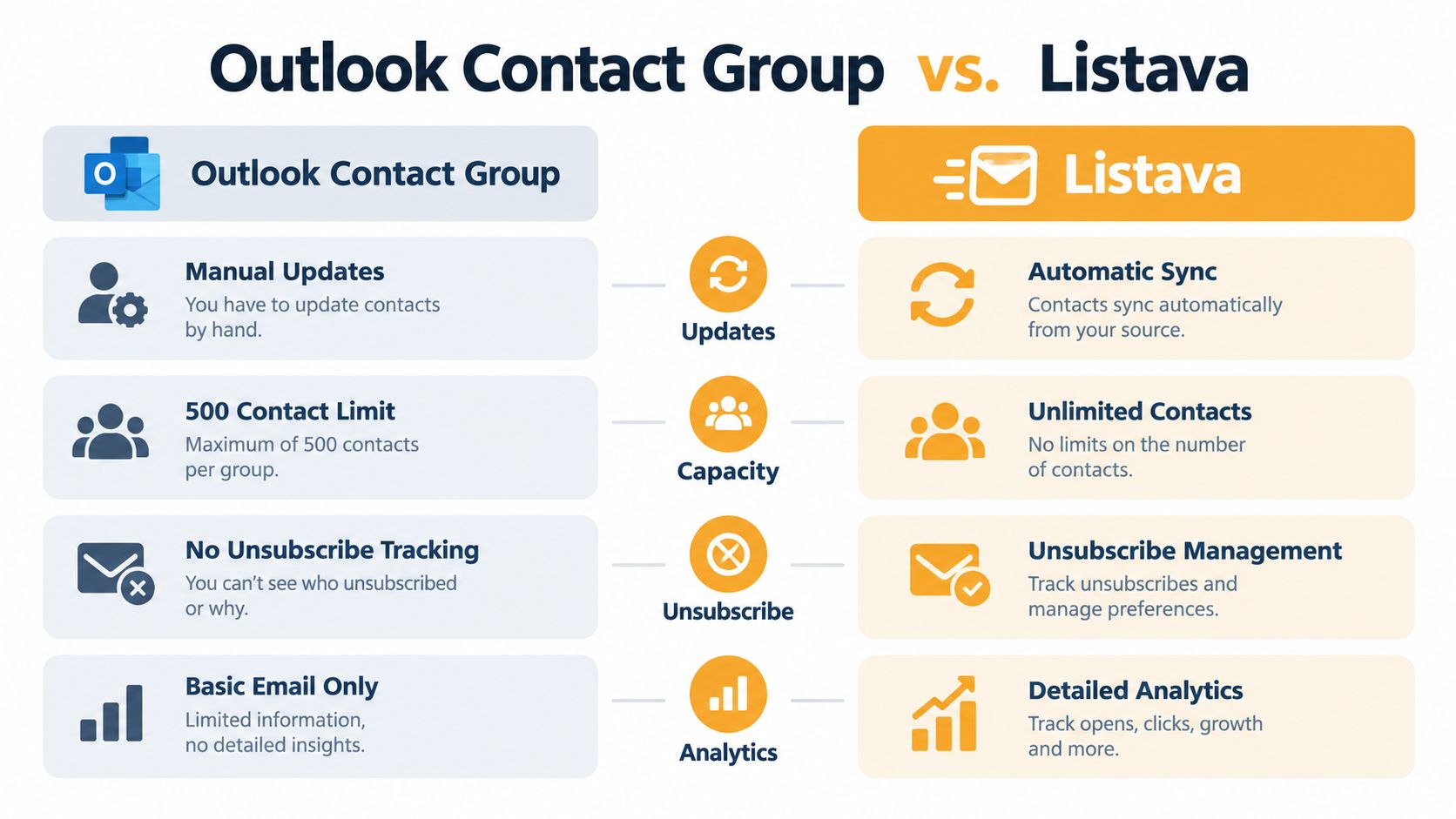
A contact group lives inside one person's mailbox. That works until the secretary resigns, a co-treasurer needs to send next week's reminder, or the membership file on someone's laptop goes stale. I'd keep Outlook for a stable audience with a dependable organizer and modest communication needs. I'd choose a shared group-address service or an organization-managed group when the list has to outlast that person's involvement.
The question is whether the arrangement stays manageable when membership changes hands, addresses drift apart across volunteers, or a second organizer needs to act without hunting through the first organizer's sent folder.
Compare the operating arrangements
| Decision | Personal Outlook contact group | Shared group-address arrangement | |---|---|---| | Continuity | Requires an explicit handover of the organizer's data | Look for ownership that can transfer independently of a personal inbox | | Membership control | The organizer edits the saved group | Look for an authoritative membership record and clear administrator access | | Privacy | Depends on the sending workflow | Verify address concealment through an actual test | | Participation | Members receive ordinary email | Prefer ordinary email participation if apps or accounts would exclude people |
Microsoft documents sending a contact group to another person, who then saves it into their own contacts. As Microsoft's contact-list and group-management guidance explains, the recipient ends up holding a copy, so each person's version can drift out of sync from that day forward.
A shared copy helps only when someone owns it. Otherwise the outgoing secretary and the incoming treasurer can each believe their version is current, and neither is.
Verify alternatives rather than trusting labels
Treat the comparison visual as a prompt for questions. Check any capacity figures or feature labels against current product documentation before you rely on them.
When evaluating email list management software options, ask each service to demonstrate member removal, administrator handover, concealed addresses, and group replies. Then check the whole experience from a member's existing email client, because that is where your volunteers will live.
My dividing line is organizational dependence, not a particular membership count. An informal club may be comfortable inside one person's Outlook, while a congregation or neighborhood association may need a shared arrangement even with a modest audience.
Your Organizer Checklist Before Going Live
Print this checklist and keep it with the handover notes. The next organizer should be able to identify the setup without searching through your sent messages.
- Outlook route: Record the application, account, and whether you created a contact list, contact group, or Microsoft 365 Group.
- Ownership: Name the owner and backup, including how the backup gets access.
- Naming: Use a descriptive label that distinguishes the audience.
- Membership source: Save the approved import file securely and record who maintains it.
- Reply decision: Document whether responses should reach the organizer or the group.
- Privacy test: Inspect a received message for exposed addresses.
- Permissions: Confirm whether your organization requires administrator approval for group creation.
- Maintenance: Schedule a quarterly membership review and an annual permissions check.
Choose the simplest arrangement that passes those checks. Don't launch with unresolved ownership or privacy questions just because the announcement is ready.
Listava offers a shared group email address, concealed member addresses, and group replies through members' existing email clients, without requiring member accounts or another app. If your Outlook list needs to survive organizer changes while supporting private discussion, visit Listava and compare that workflow with the announcement or discussion setup you've chosen.