How to Whitelist an Email Address in Any Inbox (2026)
How to whitelist an email address in Gmail, Outlook, Yahoo and iCloud, plus what to do when whitelisting doesn't stop messages from going to spam.
The HOA meeting notice was sent, but your neighbor never saw it. It landed in Spam, they missed the vote, and now the organizer is asking everyone to whitelist the group's email address. You're willing to help, but your inbox doesn't have a button labeled “whitelist.”
The setting exists under different names, including Safe senders, Never send it to Spam, and Not Junk. The useful fix is a narrow exception for the sender you trust, not permission for everything from their email provider.
Table of Contents
- What Whitelisting Actually Does
- How to Whitelist an Email Address Step by Step
- Safe Sender Settings in Gmail, Outlook, Yahoo and iCloud
- Choose the Exact Sender and Group List Address
- When Whitelisting Does Not Fix Delivery
- Keep Important Senders Out of Spam for Good
What Whitelisting Actually Does
Whitelisting tells your email provider to treat a specific sender as trusted so expected messages are more likely to reach your Inbox rather than Spam or Junk. You may also see it called allowlisting. It's a delivery preference, not a promise that every message will arrive.
Email providers filter aggressively because unwanted messages have long represented a substantial part of incoming mail. For historical context, MX Logic said spam accounted for approximately 77% of the messages it scanned in 2004, according to The Washington Post's reporting on spam traffic. That isn't a current traffic estimate, but it explains why recipients needed a way to identify wanted mail.
For the missed HOA notice, the practical question is which address the association uses. An email distribution list may send announcements through a shared identity rather than the organizer's personal mailbox.
Practical rule: Trust the smallest stable sender identity that covers the mail you expect.
Keep these expectations in mind:
- It's personal to your mailbox. Your neighbor's safe-sender entry doesn't update your account.
- It isn't a security guarantee. Providers can still check authentication, content, and sender reputation.
- Narrow approval is safer. An exact address is usually a better choice than an entire domain.
The button you need depends on whether you use Gmail, Outlook, Yahoo, AOL, or iCloud. The underlying job is the same: identify the sender, set the appropriate exception, and verify actual delivery.
How to Whitelist an Email Address Step by Step
Use your email provider's website in a desktop browser if your phone app doesn't expose the necessary controls. A mailbox-level setting is preferable to a rule that runs only while a particular desktop application is open.
The process below separates finding the right address from confirming that the change worked.
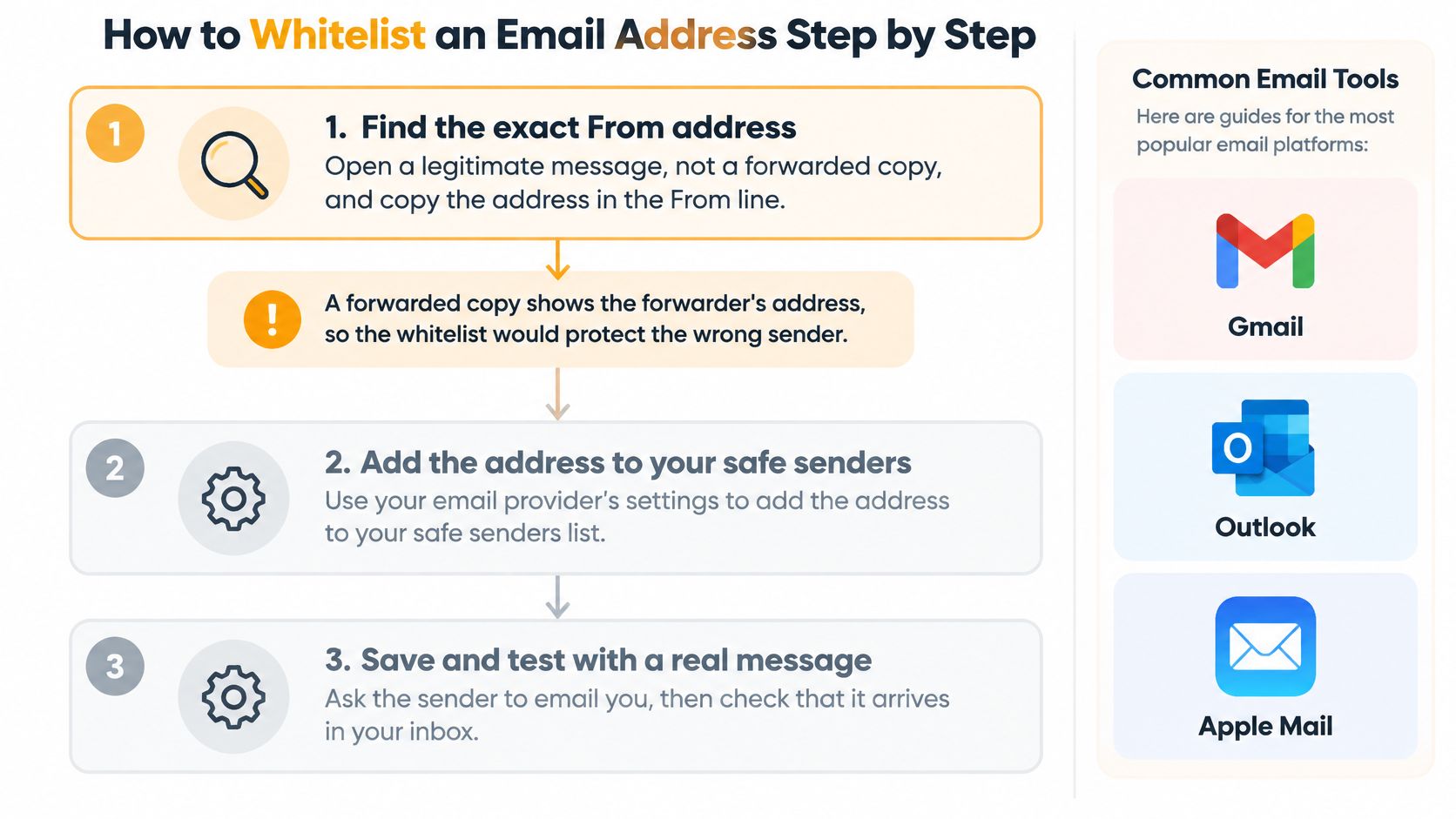
Identify the sender and create the exception
-
Find the exact From address. Open a legitimate message and expand the sender details, rather than copying only the display name. Don't copy the outer sender address from a forwarded message: that belongs to the person who forwarded it, and the Reply-To address may also differ from the list's sending address.
-
Open your provider's spam or filter settings. In Gmail, look for Filters and Blocked Addresses; in Outlook, look for Junk email; in Yahoo, open Filters. If the mobile app offers only basic message actions, switch to the provider's web interface.
-
Add the address using the appropriate control. Enter it under safe senders, or create a sender-matching filter with an action such as Never send it to Spam. The USGBC safe-sender instructions distinguish Outlook.com's Safe senders and domains from Safe mailing lists, which is useful when you're approving a group address.
Save, recover, and verify
-
Save or create the rule. Complete the final confirmation instead of closing the settings window after entering the address. Reopen the settings and confirm the entry appears, especially if you switched accounts or browser tabs during setup.
-
Recover earlier messages. Search Spam or Junk for the sender, select legitimate messages, and choose Not Spam or Not Junk. A new rule doesn't necessarily move previously filtered messages, so this step restores notices you may already have missed.
-
Test with a fresh message. Ask the organizer to send through the normal group address, then confirm that the message appears in your Inbox. A direct message from the organizer's personal account won't test the group's actual sending path.
Adding the sender to Contacts can help in Gmail and Yahoo, but treat it as a supplement rather than proof that your rule works. Likewise, starring a message, marking it important, or making someone a favorite isn't necessarily the same as changing spam treatment.
If you prefer a visual walkthrough, use this demonstration alongside your provider's current menu labels.
Success means a new message reaches the intended Inbox, not merely that you found an old message through search.
Safe Sender Settings in Gmail, Outlook, Yahoo and iCloud
Use the table to find the relevant controls. Menu labels can differ between app versions, so start with the browser version of your mailbox when a setting is missing.
Safe sender and allowlist settings by email service
| Email service | Where to set it | What to add | Watch out for | |---|---|---|---| | Gmail | Search options or Settings → See all settings → Filters and Blocked Addresses | A filter matching the sender, with Never send it to Spam; optionally add to Contacts | There's no single personal safe-sender list | | Outlook.com | Settings → Mail → Junk email | Address under Safe senders and domains; list address under Safe mailing lists, where available | Applies only to that mailbox | | Microsoft 365 / Exchange | Outlook safe senders, or administrator anti-spam policies | A user-level safe sender or narrowly scoped administrator exception | Gateway and quarantine policies can override user settings | | Yahoo Mail | Contacts and Settings → More Settings → Filters | A contact and a sender filter targeting the Inbox | An Inbox filter isn't a guaranteed spam bypass | | iCloud Mail | Mail at icloud.com → Settings → Rules | A sender rule targeting the Inbox; mark legitimate junk as Not Junk | A local Apple Mail rule isn't the same as an iCloud server rule | | AOL Mail | Contacts and filter settings | A contact and sender-based Inbox filter | Uses a filter-based approach similar to Yahoo |
Gmail and Microsoft mailboxes
Gmail: Open the search options beside the search bar, enter the address in From, and choose Create filter. Select Never send it to Spam, then Create filter again. You can also reach this through Settings → See all settings → Filters and Blocked Addresses → Create a new filter.
Don't select Skip the Inbox if your aim is to see these messages there. Also, avoiding Spam doesn't necessarily place a message in Gmail's Primary tab; check Promotions and other Inbox categories when testing.
Outlook.com: Open Settings → Mail → Junk email, find Safe senders and domains, and select Add. Enter the address and save; where Safe mailing lists is available, use that for the list address. Some Outlook versions also offer Junk → Never Block Sender on a selected message.
Microsoft 365: Try the Outlook web controls first, especially if the desktop application's menus look different. If your employer manages the mailbox, don't keep rebuilding the same entry when it appears ineffective. An administrator may need to inspect the message's disposition.
Yahoo, AOL, and Apple mailboxes
Yahoo Mail: Open Settings → More Settings → Filters → Add new filters. Give the rule a recognizable name, match the sender's full address, and select Inbox as the destination. Recover messages already in Spam separately, because ordinary folder filters may not override spam classification.
AOL Mail: Add the sender through Contacts → New Contact, then inspect Settings → More Settings → Filters for sender-routing options. Use the full address rather than a display name or loose fragment that could match unrelated senders.
iCloud Mail: Sign in to Mail at icloud.com and open Settings → Rules → Add Rule. Match messages from the intended address and choose Move to Inbox. If Apple Mail displays Gmail or Microsoft mail, change that provider's settings instead of assuming an iCloud rule applies.
The FTC Guardian whitelisting guide reinforces the important limit: Contacts and safe-sender entries don't override every security check. Even allowlisted traffic may retain a suspicious-message warning, so don't dismiss a warning just because you recognize the sender.
Choose the Exact Sender and Group List Address
Approve the exact address that sends the messages you want. That's the lowest-risk default for a newsletter, a business contact, or an association's shared list. A whole-domain exception should require a clear reason, not fewer clicks.
Broad approval has a cost. As SenderReputation's safe-sender guidance explains, overly broad allowlists can reduce scrutiny of spoofed or compromised senders, while modern filters still consider authentication, reputation, links, attachments, and other signals.
How much of a sender to whitelist
| Whitelist scope | Best for | Risk | Verdict | |---|---|---|---| | Exact sender address | Newsletters, a business contact, a group's list address | Narrowest exception, but the address can still be spoofed or compromised | Default choice | | Mailing list or group address | HOAs, clubs, and family lists using a stable sender | Low maintenance when the sending identity stays consistent | Preferred for groups | | Entire domain | An organization whose every sender you expect and trust | Broader exposure if an address is compromised or impersonated | Use only with a clear need | | Every individual member | Group mail sent directly person-to-person | Repeated upkeep as participants and addresses change | Avoid when a stable list identity is available |
Apply the rule to the HOA notice
Suppose the association sends meeting notices through a shared group address. Members should approve that sending identity, not the board chair's personal address merely because the chair wrote the announcement.
A list address and a personal alias aren't necessarily interchangeable. An email alias is an alternate address, while a group distribution setup routes mail to members. Inspect the actual From details rather than guessing from the address the organizer advertises.
With our group workflow, members receive messages sent to the group's single address, and replies go back to the group. The list also stays available when a board member moves away because it doesn't live in that person's inbox.
The organizer can send a short instruction containing the full address:
Add the group's sending address to your safe senders, then mark any legitimate copy in Junk as Not Spam or Not Junk.
Include the actual address as selectable text. A screenshot alone makes copying harder and encourages typing mistakes.
Decide when broader approval is justified
A domain-wide exception can make sense when you routinely expect messages from multiple departments at the same organization. It makes less sense for an isolated receipt or a neighborhood list hosted alongside unrelated customers.
For a small, settled group, CC or BCC may be enough. A dedicated list becomes more useful when membership changes, participants lose track of recipients, or missed announcements have already caused problems. It provides a stable identity to manage, not automatic immunity from filtering.
Review the exception when the organizer, list address, or sending provider changes. Don't automatically broaden the rule to compensate for an unexplained change. Confirm the new identity through a known contact method, update the entry, and remove the obsolete one.
When Whitelisting Does Not Fix Delivery
Start with what happened to the message. Finding it in Spam is a different problem from receiving a rejection notice, and neither proves that an employer has released it from quarantine.
The Tomba email-whitelisting guide describes the boundary: recipient-level trust settings generally act after the receiving system accepts a message. They can't reliably repair failed authentication, blocklisted sending infrastructure, hard bounces, or organization-wide gateway blocks.
Delivery symptoms, likely causes and fixes
| Symptom | Likely cause | What to do | |---|---|---| | Still lands in Spam after whitelisting | Rule mismatch, higher-priority filtering, or failed authentication | Verify the From address, mark Not Spam, and ask the sender to inspect authentication | | Message never arrives and no bounce appears | Delay, sending failure, infrastructure block, or receiving-system rejection | Ask the sender to inspect delivery logs and confirm submission | | Bounce or rejection message comes back | Invalid recipient, gateway policy, or sender reputation problem | Send the complete bounce to the sender or IT administrator | | Message held in administrator quarantine | Employer or school security policy intercepted it | Request review and a narrowly scoped exception if appropriate | | Works for some members but not others | Different mailbox settings or organizational policies | Compare affected accounts and have each recipient check their own settings |
Follow the evidence before changing more settings
Search Spam, Junk, Promotions, and all mail folders using the sender and a distinctive subject phrase. If you find a legitimate message, correct its classification and verify your safe-sender entry against its actual From address.
Next, ask whether the sender received a bounce. Forward the complete notice, including its diagnostic text, rather than summarizing it as “email doesn't work.” If there's no bounce, provide the sender with the recipient address, approximate sending time, and subject so they can locate the delivery attempt.
A sender's “sent” confirmation isn't proof that the recipient's server accepted the message or placed it in the Inbox.
Also check whether the message left the sender's application. If it's still sitting in Outbox, 247TechTeam's explanation of why Outlook keeps queuing outgoing mail addresses an earlier failure stage. Recipient safe-sender settings can't help mail that hasn't been submitted.
Escalate the right problem
Ask the sender or administrator to investigate SPF, DKIM, and DMARC when authentication is implicated. These mechanisms help receiving systems verify authorized sending and domain alignment; recipients shouldn't be expected to repair them through Contacts.
For organizational mailboxes, request a quarantine review rather than asking IT to disable filtering broadly. For organizers planning larger announcements, how to send email in bulk is a separate operational question from approving a sender in an individual inbox.
If the same group message fails for many members at once, investigate the common sending path before assigning everyone more mailbox work. That pattern warrants sender-side diagnosis, not an assumption that every recipient made the same settings mistake.
Keep Important Senders Out of Spam for Good
Treat each allowlist entry as a maintained exception, not a permanent endorsement. Keep a brief record of the address, why you approved it, and whether it still belongs to the organization you trust.
- Keep the scope narrow. Retain the exact sender or stable list address rather than expanding approval for convenience.
- Retest meaningful changes. After a sender-address or provider change, use a fresh message and inspect where it arrives.
- Correct stray classifications. Mark legitimate Spam copies appropriately, but investigate recurring failures.
- Remove stale exceptions. Delete entries for departed contacts, abandoned lists, and senders you no longer trust.
For organizers, the next useful step is consistency: publish the group's correct sending identity in welcome instructions and use it for announcements. Confirm that its sending domain is properly authenticated before inviting more members, rather than relying on recipients to compensate for configuration problems.
If a scattered CC workflow has become difficult to maintain, move to a dedicated list address that members can recognize and approve. Choose a setup that fits how your group already communicates, without implying that changing list tools alone guarantees inbox placement.
Allowlist narrowly, authenticate properly, and review each exception periodically.
Listava gives your group a shared email address that members can receive from and reply to without creating accounts. Visit Listava to create a free account with one active list, then give members the stable sending address to add to their safe senders.