Why My Emails Go to Spam and How to Fix It
Wondering why my emails go to spam? Check authentication, complaint rates and stale addresses, then fix each cause for individual and group email.
The pool gate code changes on Saturday. You send the notice to 84 households from the group address that has worked all year, the way it always has. Three people reply, the week passes, and then a neighbor mentions at the board meeting that she never saw it. Another found it in his junk folder, sitting between a fake delivery notice and a lottery win.
Nothing was wrong with the message. That's the part that makes spam placement so maddening: it usually has nothing to do with your wording. It's a reputation question that builds and erodes over months, judged separately by each mailbox provider, and shaped as much by who is on your list and how long they've been there as by how your domain is set up.
Table of Contents
- Find Out Which Spam Problem You Have
- Why Recipients Get Different Results
- How to Check Authentication Step by Step
- Clean Your List and Cut Complaint Rates
- Why Small Groups Get Filtered at Low Volume
- Keep Delivery Steady When Leadership Changes
- Confirm Delivery Before Your Next Announcement
Find Out Which Spam Problem You Have
Start by naming the symptom. "My emails go to spam" covers five different failures, and each one has a different first move. Find your row before you touch anything.
| Symptom | Likely cause | First check | | --- | --- | --- | | Only some recipients miss mail | Provider-specific filtering or stale addresses | Ask which provider they use and whether they found the message in spam | | Everyone sees it in spam | Sender reputation, authentication or content | Read the SPF, DKIM and DMARC results in the message headers | | Some messages never arrive | Blocked or rejected by the receiving server | Check bounce notices and delivery logs | | Spam only after months of working | Rising complaints or an outdated list | Compare last month's complaints and bounces against the member list | | Replies go nowhere | Reply-To or From address misconfigured | Send a test message and reply to it from a second account |
A message can fail in three ways, and only one of them is a spam problem.
- Placement failure. The receiving server accepts the message and files it in the junk folder. Your address is valid, your list is fine, and the content reached a mailbox but never reached a person.
- Delivery failure. The message is accepted and then dropped or quarantined, so it shows up in neither the inbox nor the spam folder. Corporate security gateways do this routinely and the recipient sees nothing at all.
- Refusal. The receiving server rejects the message during the conversation and you get a bounce notice with a status code. Refusals always talk back. Silence never does.
Baselines help here. The 2022 Validity deliverability benchmark found that 84.8% of permission-based messages reached the inbox, 6.1% landed in spam and 9.1% were classified as missing. In plain terms, roughly one in 16 legitimate messages went straight to spam, and nearly one in nine never appeared in either folder. This happens to mail that people asked for.
Working rule: Diagnose before you edit. Rewriting the subject line of a message that failed authentication wastes a week and teaches you nothing.
The cheapest test is also the most useful. Send one real announcement from your group address to a Gmail address, an Outlook address and a Yahoo address you control, then record where each copy lands. If you want the sender-side view of how filters weigh reputation and engagement, this breakdown of cold outbound deliverability fixes walks through the same mechanics that catch a neighborhood notice.
From there, follow the pattern. Only some recipients affected points to provider-level filtering, covered in Why Recipients Get Different Results below. Everyone affected points to the authentication checks in How to Check Authentication Step by Step.
Why Recipients Get Different Results
One send does not produce one outcome. The 2025 Validity benchmark measured the same kind of legitimate, permission-based mail across providers and found placement rates that diverge sharply by mailbox host.
| Provider | Inbox placement | Spam placement | Missing | | --- | --- | --- | --- | | Gmail (48.5% of measured mailboxes) | 87.2% | 6.8% | 6.0% | | Microsoft, including Outlook and Hotmail (16.8% of measured mailboxes) | 75.6% | 14.6% | 9.8% | | Yahoo/AOL | 86.0% | 4.8% | 9.2% | | Apple | 76.3% | 14.3% | 9.4% | | Global average | 84.8% | 6.8% | 8.4% |
Read the Microsoft row twice. Inbox placement of 75.6% against Gmail's 87.2% is an 11.6 percentage point gap between two providers handling the same message from the same sender. Apple's spam rate of 14.3% is more than double Yahoo/AOL's 4.8%. If your members are spread across three or four providers, a single announcement can be in the inbox for one household and in the junk folder for the house next door.
That's why the complaint "it went to spam" needs a follow-up question. Ask which provider they use, and whether they found the message in junk or never found it at all.
Practical rule: When Microsoft-hosted members are the only ones reporting junk, the message text is a poor suspect. Junk complaints and list accuracy are the better ones.
Content is rarely the shared cause across an entire provider, because content is identical for every recipient. What varies is how that provider's users have treated your mail over time. Microsoft weighs complaint history and list accuracy heavily, so a cluster of Outlook complaints in one month does more damage there than elsewhere.
Keep a small spreadsheet with a column for each member's likely provider, filled in from the domain of the address they gave you. When the next complaint arrives, you'll know within seconds whether it's an outlier or part of a pattern, and whether to look at your list or your settings.
How to Check Authentication Step by Step
A group announcement can pass authentication at one provider and still go to spam at another. Check one message's authentication first, then compare results by provider before changing the content or sending pattern.
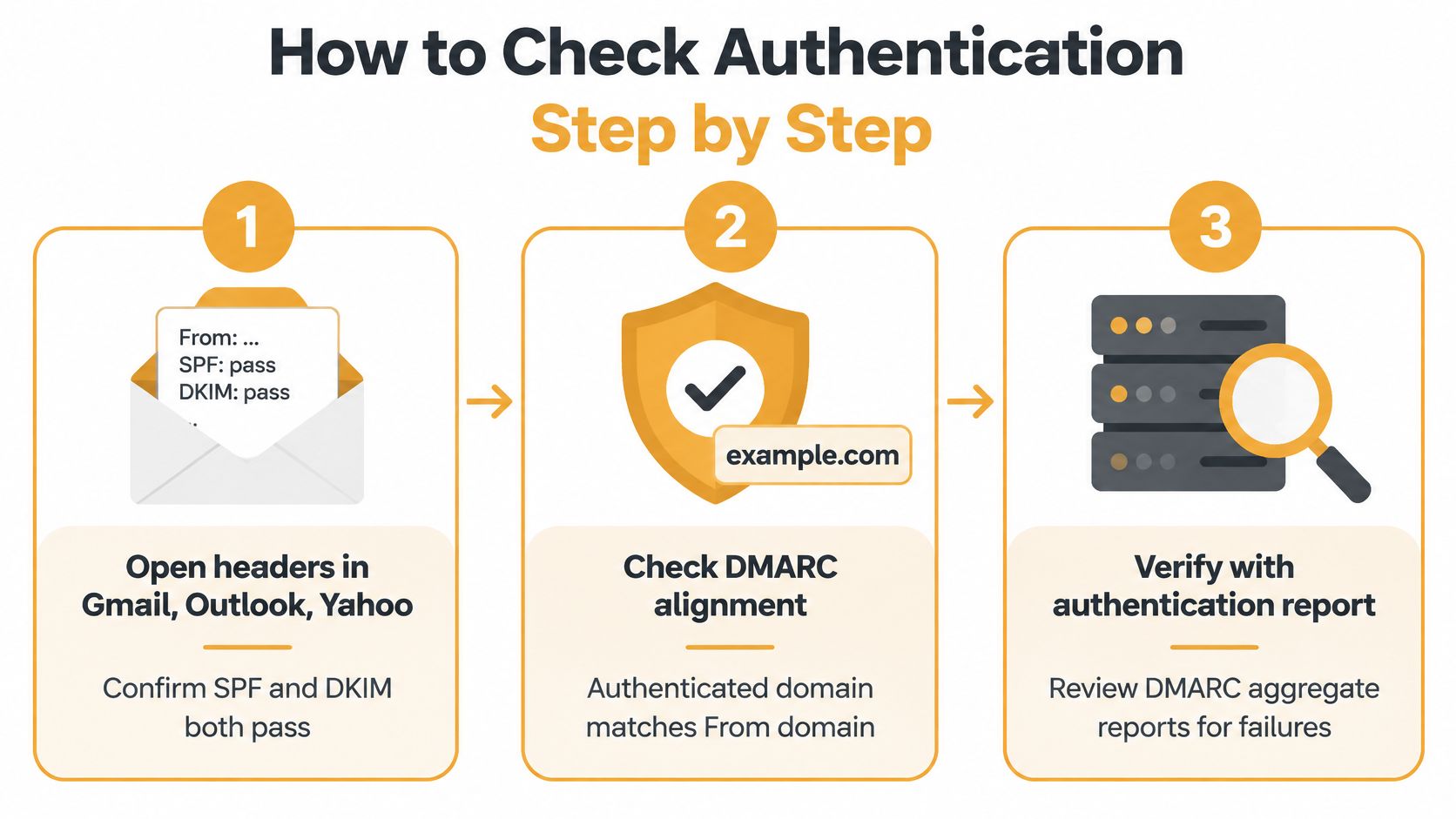
- Open the message headers. In Gmail, choose “Show original.” In Outlook, open the message source or internet headers. In Yahoo Mail, view the full headers. Find the
spf=,dkim=anddmarc=results. Confirm that SPF and DKIM pass, and read the authentication block added by the receiving server, often lower in the headers. - Check DMARC alignment. A passing SPF result alone is not enough. The authenticated domain must match the visible From domain. Forwarding or header rewriting can make SPF pass while leaving the From domain misaligned, a common risk for messages sent from group addresses.
- Review the sending setup. Check forward and reverse DNS, TLS delivery, RFC 5322-compliant formatting, and whether the From or Reply-To address can receive replies. Gmail sender guidelines identify authentication failures, missing DNS or TLS, malformed headers and misaligned From authentication as possible causes of delivery failures or spam placement.
- Compare results by provider. Look separately at Gmail, Microsoft, Yahoo and Apple. Blending results into one figure can hide a problem affecting only one provider.
- Change one setting at a time, then retest. If you change several things before sending again, you will not know which fix helped.
Providers assess reputation over time, and their judgments can differ. If a domain needs to rebuild its standing after a poor stretch, Lead Printer on email warm-up covers warm-up practices that also apply to small senders.
Gmail calculates its reported spam rate daily. Keep it below 0.1% and avoid letting it reach 0.3%, as described in the Gmail sender guidelines. A group sending a few hundred messages a month can cross that line after two or three complaints. At low volume, a small number of recipients can change the reported rate quickly.
A healthy setup has SPF and DKIM passing, DMARC aligned with the visible From domain, and consistent placement across test mailboxes after a retest. Track the spam rate in Gmail Postmaster Tools for the sending domain, rather than relying only on member reports. Authentication is a check you can complete; reputation and filtering decisions remain provider-specific.
Clean Your List and Cut Complaint Rates
An HOA notice can miss a neighbor's inbox even when the message is ordinary. Addresses copied by hand from a spreadsheet may be outdated or mistyped, while complaints from a few recipients can weaken a group's reputation with their providers. Microsoft's Outlook sender support lists sending IP, domain, authentication, list accuracy, complaint rates and content as factors in Outlook filtering, and identifies junk-mail complaints as a principal driver of sender reputation.
List upkeep matters alongside authentication. A small group's reputation builds from how members respond over time, and provider-specific results can differ. Use this routine to reduce avoidable complaints and keep the list accurate.
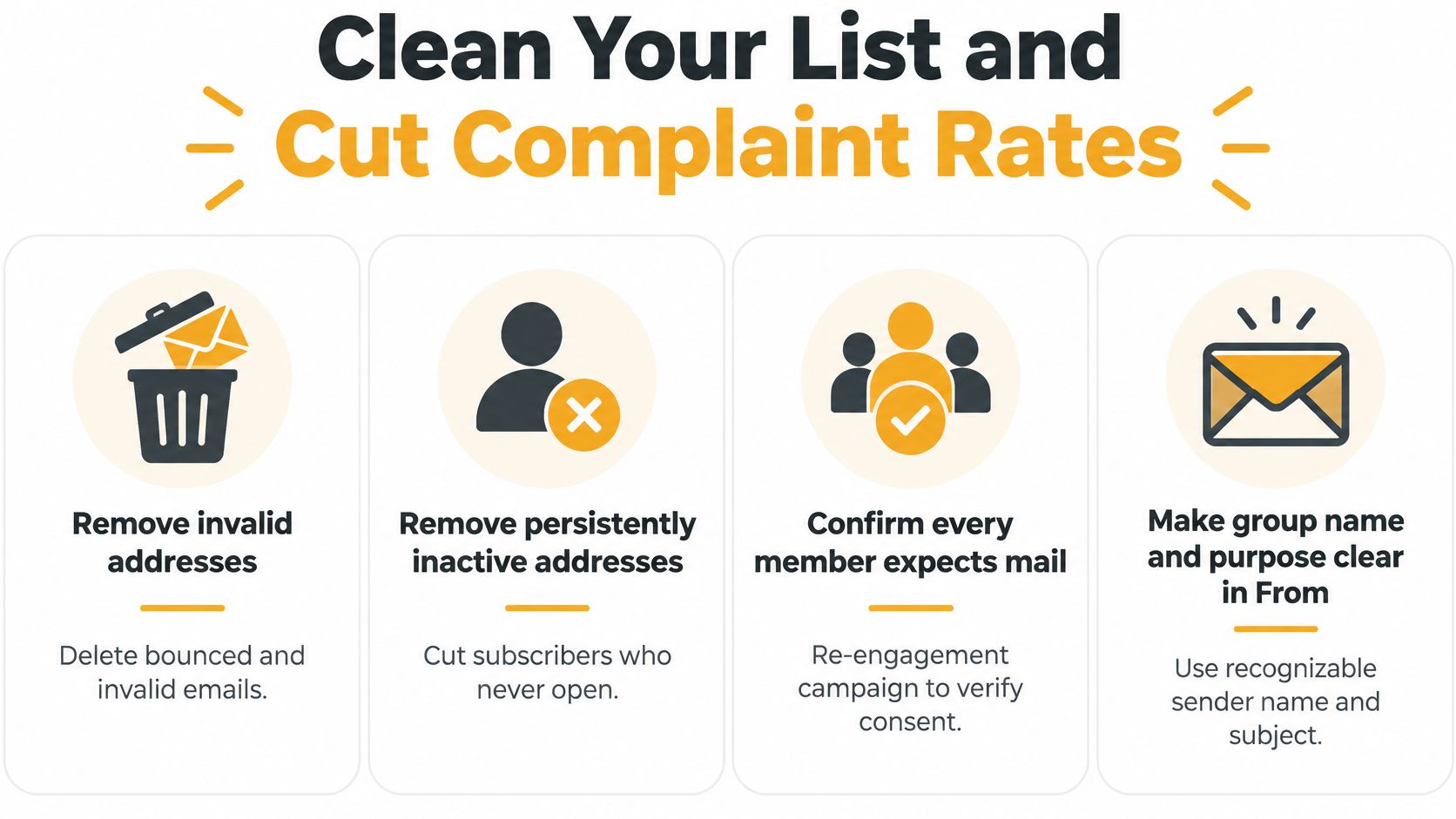
- Remove invalid and persistently inactive addresses. Repeated bounces signal poor list upkeep and can affect delivery to members who still want the messages.
- Confirm that each member expects email from the group address. People move, retire or change roles. Ask for renewed confirmation when membership or responsibilities change.
- Make the group name and purpose clear in the From name and subject. Members who recognize the sender are less likely to mistake an expected notice for unwanted mail.
- Keep replies working and directed to the group. If members cannot reply, discussion fragments; if replies reach the whole group, unnecessary volume can prompt complaints.
- Separate administrative announcements from busy discussions. Members who want meeting minutes may not want every reply about parking.
- Review complaints and bounces by provider. Trends help identify where delivery is weakening, instead of masking differences in one combined result.
Every recipient must have explicitly consented to receive messages sent through Listava, and each message must include clear unsubscribe instructions. Make those instructions easy to find and honor requests promptly. A quiet way to leave gives a member an alternative to reporting a message as junk.
Audit the list without exposing members' addresses. Remove addresses that have bounced repeatedly, then send a short confirmation request. If someone does not respond, invite them to confirm before sending further messages rather than continuing indefinitely. The guide to email list management explains consent records and removal workflows. Keep a record of confirmations so organizers can maintain the list when responsibilities change.
Why Small Groups Get Filtered at Low Volume
The bulk-sender rules dominate the conversation, and they mislead small groups. The commonly cited 5,000-message threshold applies to bulk senders, according to this guide to email sender requirements, yet an association sending four announcements a month can still be filtered through recipient-level signals, inconsistent forwarding, old addresses and members who mark one message as spam.
Meeting the formal complaint ceiling doesn't prove your placement is healthy either. The same Courier analysis notes that benchmark evidence points to a stricter target, and that only 25% of senders reached it.
Say the pool-gate notice goes out on a Thursday and a reply thread turns heated. Two households report the thread, one member forwards the announcement to a neighbor whose address was never on the list, and by the following week the next notice lands in junk for a handful of families. Nothing about the sender changed. The list did.
When this happens, check three things before you rewrite anything.
- Are forwarded copies being judged as unwanted? A copy that arrives from an unfamiliar sender with your group's text inside looks like a forgery to a filter.
- Did replies go to the whole list? A heated thread that hits 60 inboxes generates complaints far faster than an announcement does.
- Has a member reported the list before? One report is a signal. Three in a month is a trend.
The test that answers the question: compare where your last three announcements landed, member by member, by provider. If spam placement rose only after a discussion-heavy week, complaints are your cause. If it rose across every provider at once, look at authentication first. This is the ordinary shape of an HOA email list problem, where messages going to spam, a neighbor missing a meeting notice and addresses copied by hand from a spreadsheet all arrive in the same month.
Keep Delivery Steady When Leadership Changes
The question generic advice never answers is why a working group address suddenly fails after eight good months. Reputation is cumulative and it follows behavior, so the answer is usually operational rather than technical.
Volunteer groups fail in predictable ways. A former member stays subscribed for two years. An abandoned mailbox bounces every send. A new organizer switches the From address to their personal one, discarding the identity that had built trust. A burst of emotional replies draws a handful of complaints in a single week. Survey-based reporting cited by DMARC Report's analysis of authentication and inbox placement found that 38.7% of senders rarely or never practice list hygiene, and plenty of organizations publish DMARC at the monitoring level and never read the reports that would reveal a problem early.
Handover rule: The sending address is an asset, not a preference. Change organizers, not domains.
So make the handover boring. Keep the From address identical across terms. Move the list onto a group address rather than one person's inbox, which is exactly why a list that doesn't live in anyone's inbox survives a board member moving away. Review the bounce list before the new organizer's first send, and read the past month of DMARC reports, even if that only means skimming the failures.
When something goes missing, use the three outcomes from the opening section to classify it. In the junk folder is a placement problem and usually a reputation one. Nothing anywhere is a delivery problem. A bounce notice is a refusal, and it names the address to remove.
Write a one-page note that names the list owner, the sending address and the monthly review date, and hand it over with the password. For more on volunteer communication across leadership changes, that continuity is the part worth protecting.
Confirm Delivery Before Your Next Announcement
Before the next group-wide message goes out, test the finished draft. Send the actual announcement to one address at each provider your members use, check the headers on each copy, and confirm it landed in the inbox. Then send to the full list. It costs ten minutes and it converts guesswork into evidence.
The honest limit: no service can overrule a provider's filtering decision. If nobody on the team can read headers or DMARC reports, a managed group service keeps one authenticated sending identity stable and removes a whole class of self-inflicted failures, but it doesn't buy placement. A very small group may be perfectly served by Google Groups or a plain CC list, and that's a reasonable answer when the group is ten people and the stakes are low. If you do want members to add the group address to their contacts, this guide to whitelisting an email address has the steps for each provider.
Run the three-mailbox test this week, before the next announcement, and record where each copy landed and which provider hosted it. That record becomes your baseline, and the next time someone says your message went missing, you'll know in one line whether it's the settings, the list or the recipient.
Listava gives a group one address that reaches every member, with replies that go back to the group and personal addresses kept private. Nobody needs an account: members read and reply from the inbox they already use, and the list keeps working when the person who ran it steps down. If your notices keep landing in the junk folder, start with a single address that stays consistent, and visit Listava to see how it works for a group your size.