Listserv Commands for Organizers in Plain English
Listserv commands in plain English: syntax for subscribe, digest, add, and owner tasks, plus fixes when the server ignores your email.
You've volunteered to manage the neighborhood board's email list, and someone tells you to email the list server, not the group. You have a neighbor to add, another who wants fewer messages, and a meeting notice that must reach the officers promptly. The instructions look like computer code, but you're just trying to send the right email.
LISTSERV commands are short instructions sent to an automated mailbox. Once you separate membership changes from personal delivery preferences and list-wide rules, they become much easier to use. The important question isn't only whether the server accepts your command. It's whether the people who need an urgent note will still see it.
Table of Contents
- Everyday Listserv Commands at a Glance
- How a Listserv Command Reaches the Server
- Four Command Families and When Each Applies
- Membership Commands with Copy-Ready Examples
- Confirming a Subscription and Reading Server Replies
- Delivery Settings That Still Reach Everyone
- Owner Controls for Posting Privacy and Replies
- When the Server Ignores or Mishandles a Command
- Decide Whether Your Group Still Needs Commands
Everyday Listserv Commands at a Glance
Send commands to the server's LISTSERV address, not the discussion address. Use a plain-text message, leave the subject blank or unimportant, and put each command on its own line in the body. A subject that says SIGNOFF OAKHOA won't substitute for a command in the message body.
The server address usually begins with listserv@, followed by the organization's host name. Get the actual address from your welcome message or list administrator. Don't guess it from the group's name.
Common LISTSERV commands and what they change
| Command in the message body | Who sends it | What changes |
|---|---|---|
| SUBSCRIBE listname First Last | Any person | Requests membership; a confirmation email usually follows |
| SIGNOFF listname | A subscriber | Removes that sender from the list |
| SET listname MAIL | A subscriber | Restores individual-message delivery; when leaving DIGEST or INDEX, request NODIGEST or NOINDEX too |
| SET listname DIGEST | A subscriber | Bundles many postings into fewer messages |
| SET listname INDEX | A subscriber | Sends subjects and retrieval information, not full posts |
| SET listname NOMAIL | A subscriber | Stops that person's copies without unsubscribing |
| HELP | Anyone | Returns the server's own command summary |
| INFO listname | Anyone | Requests public list information, when available |
| ADD listname email full name | List owner | Adds that address and a display name |
| QUIET ADD listname email full name | List owner | Adds without emailing the new member |
| DEL listname email | List owner | Removes that address; a name isn't required |
| QUIET DEL listname email | List owner | Removes without emailing the person |
| REVIEW listname | List owner | Requests the roster, including addresses, subject to list access rules |
| HOLD listname | List owner | Pauses distribution for the whole list |
| FREE listname | List owner | Resumes a list that was on hold |
| GET listname (HEADER | List owner | Returns the list header settings |
Replace the placeholders before sending
listname means the server's short identifier for the list, such as OAKHOA, not its friendly display title. email means the affected person's complete email address. First Last or full name means the subscriber's name, with spaces between the words.
The parentheses in GET listname (HEADER are different: the opening parenthesis is actual command syntax. Keep it. You don't need to add a matching closing parenthesis just because the line looks unfinished.
Practical rule: Copy the command, replace its placeholders, and remove everything else from the message body.
A personal command normally applies to the address in your message's From field. If you receive group mail at a neighborhood volunteering address but send SIGNOFF from your personal account, the server may not find the membership you intended to remove.
Owner commands need more care because they affect other people. Before changing a neighbor's membership, check both the list name and their address against the request they gave you. Don't use a roster command merely to satisfy someone's curiosity about who belongs.
Start with a harmless request such as HELP, which returns information to you without changing membership. For an actual membership test, use an address you control and are authorized to add, then inspect the server's response before working through anyone else's changes.
How a Listserv Command Reaches the Server
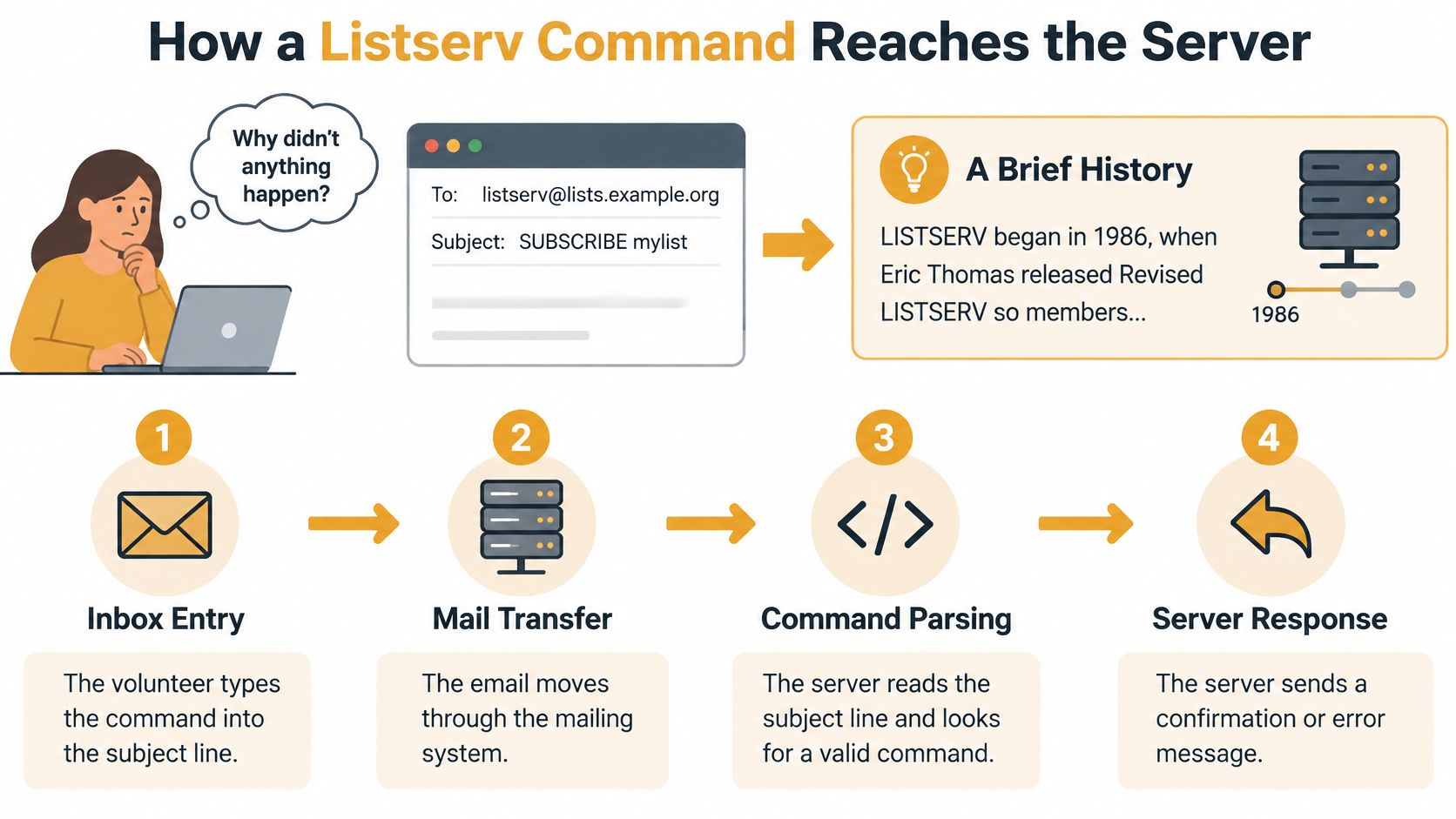
A volunteer pastes SIGNOFF OAKHOA into the subject, presses Send, and keeps receiving group mail. The missing piece is the message body: that's where the server expects the instruction.
The email-as-control-panel design dates to June 1986, when Éric Thomas released Revised LISTSERV to automate administrative requests sent by email, according to Wikipedia's LISTSERV history.
The correct path through your mail client
- Choose the server mailbox. Put the organization's LISTSERV address in To. A group email address distributes discussion messages; the server mailbox processes administrative instructions.
- Leave the subject blank. If your mail client insists on a subject, use a simple label, but keep the command in the body.
- Write plain text. Enter
SIGNOFF OAKHOAwithout bold formatting, a logo, quoted correspondence, or an automatic signature. Extra lines may produce additional errors. - Check From. Use the subscribed mailbox for a personal change or an authorized owner mailbox for an administrative change.
- Read the acknowledgement. Don't tell someone their membership changed until the server reports success.
Keep administrative mail out of the discussion
Sending a command to the discussion address can expose it to members instead of changing the list. Posting restrictions might block it, but don't rely on that protection, especially when a command contains someone's address.
Use a fresh message rather than replying to a group conversation. That makes it easier to inspect the recipient, remove quoted text, and confirm that the only body content is the instruction you intend the server to run.
Four Command Families and When Each Applies
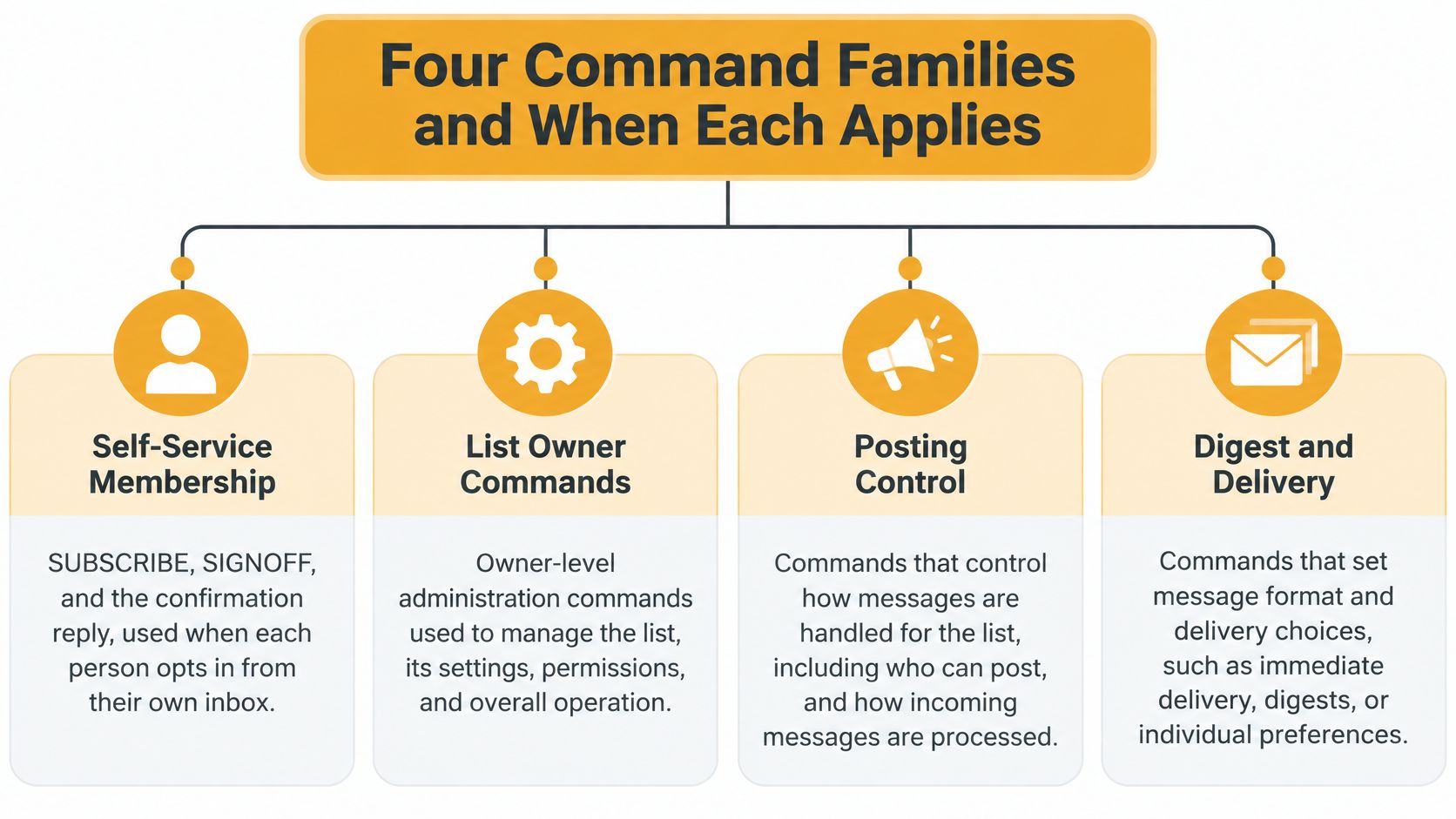
Think of LISTSERV commands as membership, delivery, information, and owner administration. These categories help you choose an action before worrying about its spelling.
The distinction matters because LISTSERV isn't only a redistribution mailbox. L-Soft's LISTSERV anniversary account describes a command-driven system supporting membership management, information retrieval, and owner administration.
Match the action to the situation
- Self-service membership. A book-club reader sends
SUBSCRIBE, completes any requested confirmation, and eventually usesSIGNOFFto leave. The person acts from their own inbox. - Personal delivery. A busy discussion participant uses
SEToptions such asDIGEST,INDEX, orNOMAIL. These control that subscriber's copies, not everyone's experience. - Information requests.
HELPasks how the server works. List-information requests describe the group, while an authorized owner'sREVIEWrequest inspects membership. - Owner administration. A board secretary uses
ADDafter recording a neighbor's agreement to join.DEL,HOLD,FREE, and header operations address administrative responsibilities.
Separate permission from convenience
A useful first question is: Whose mailbox or membership will change? Personal settings generally belong to the subscriber; changes to another person or the whole list require owner authority. Information access has its own restrictions, so a command that only reads something isn't automatically public.
For a book club, self-service membership and delivery choices may handle most routine needs. A board enrolling residents who agreed by phone needs an authorized owner and a record of those requests.
Don't circulate owner instructions as if everyone should try them. A roster contains private contact details, and a header edit can reroute replies for the entire group. Keep those responsibilities with the people appointed to manage them.
Membership Commands with Copy-Ready Examples
The easiest membership mistakes happen when you include the wrong fields. A subscriber joins using a name, an owner adds using an address and name, and an owner deletes using the address alone.
Clemson University's LISTSERV administration guide documents ADD, DEL, QUIET, and REVIEW, including the requirement to place plain-text commands in the email body.
When Jane manages her own membership
Suppose Jane wants to join a neighborhood list whose identifier is OAKHOA. She starts a new plain-text email with these fields:
From: Jane's own email address
To: The organization's LISTSERV address
Subject:

SUBSCRIBE OAKHOA Jane Doe
The From and To descriptions above are instructions to you, not literal addresses to paste. Replace them with the correct mailboxes in your email client. The actual message body is only the SUBSCRIBE line.
To leave, Jane sends a separate message:
From: Jane's subscribed email address
To: The organization's LISTSERV address
Subject:

SIGNOFF OAKHOA
She shouldn't add her name after SIGNOFF to help the server identify her. The sender address supplies the relevant identity. If she no longer controls that mailbox, the owner needs to handle the removal.
When an owner adds or removes Jane
Say Jane agreed by phone to receive neighborhood messages. An authorized owner sends:
From: The authorized owner's email address
To: The organization's LISTSERV address
Subject:

ADD OAKHOA [email protected] Jane Doe
For removal, the full example becomes:
From: The authorized owner's email address
To: The organization's LISTSERV address
Subject:

DEL OAKHOA [email protected]
Don't paste Jane's display name after the address in the deletion request. Don't substitute an old address because it appears in your contacts, either. Match the address to the membership record or the request you're fulfilling.
If Jane already received the necessary explanation elsewhere, the owner can suppress the server's notification:
From: The authorized owner's email address
To: The organization's LISTSERV address
Subject:

QUIET ADD OAKHOA [email protected] Jane Doe
For a quiet removal, use the same envelope fields and this body:
QUIET DEL OAKHOA [email protected]
QUIET suppresses a notification. It doesn't conceal membership, erase administrative records, or replace someone's agreement to join.
Inspect the result without sharing the roster
After the server acknowledges a change, request the roster privately:
From: The authorized owner's email address
To: The organization's LISTSERV address
Subject:

REVIEW OAKHOA
Treat the returned names and addresses like a private contact spreadsheet. Don't forward the reply to the discussion list, and avoid retaining it in a mailbox that unrelated volunteers can access. Use your organization's approved private storage if an operational record is necessary.
For routine display names, given name and surname are easiest to check. Titles, commas, and material copied from formatted contact cards can introduce ambiguity or unwanted characters, so simplify rather than improvising extra syntax.
Bulk work needs preparation, not faster pasting:
- Check consent and addresses. Reconcile the proposed changes with the actual requests.
- Build command lines. Use a complete
ADDorDELinstruction on each line, not spreadsheet columns. - Protect formatting. Don't forward the commands through a tool that wraps lines or converts them into HTML.
- Restrict authorization. Keep owner access with designated people, using a documented distribution list management process.
Finally, compare the returned roster with the intended change. For an individual addition or deletion, verify that the intended address changed and that you didn't accidentally alter another membership.
Confirming a Subscription and Reading Server Replies
Sending a subscription request doesn't always complete enrollment. The server may require confirmation, owner approval, or both, depending on the list's rules.
Treat a server reply as an instruction to read, not a receipt to discard. Its wording tells you whether the request succeeded, remains pending, or needs another action.
Finish the request from the right mailbox
- Find the confirmation message. Look for mail from the LISTSERV service rather than a discussion post from the group. Inspect spam or junk folders if the expected reply isn't visible.
- Follow its exact instructions. The message may specify a reply, command, or confirmation link. Use that method rather than guessing that any reply containing “yes” will work.
- Keep the same identity. Confirm using the address that requested membership. A mail client that switches to your default account can interrupt the process.
- Ignore an unsolicited request. If you didn't ask to join, don't approve the confirmation. For a confirmation-protected request, leaving it unconfirmed prevents that request from completing.
- Save the welcome message. Keep its list name, departure instructions, delivery options, and owner contact information somewhere searchable.
Distinguish approval from actual participation
A welcome message establishes what the server accepted, but a quiet group might not send a discussion message immediately. Don't assume silence means failure, and don't send a test greeting to everyone merely to check your mailbox.
Owners can confirm enrollment through their authorized membership check. Members who remain uncertain can contact the owner privately, describing which server reply they received without forwarding confirmation tokens to the whole group.
Good new member onboarding also explains what happens next: who normally posts, how replies behave, and which channel carries urgent changes. That prevents a successfully subscribed person from misunderstanding how the group communicates.
Delivery Settings That Still Reach Everyone
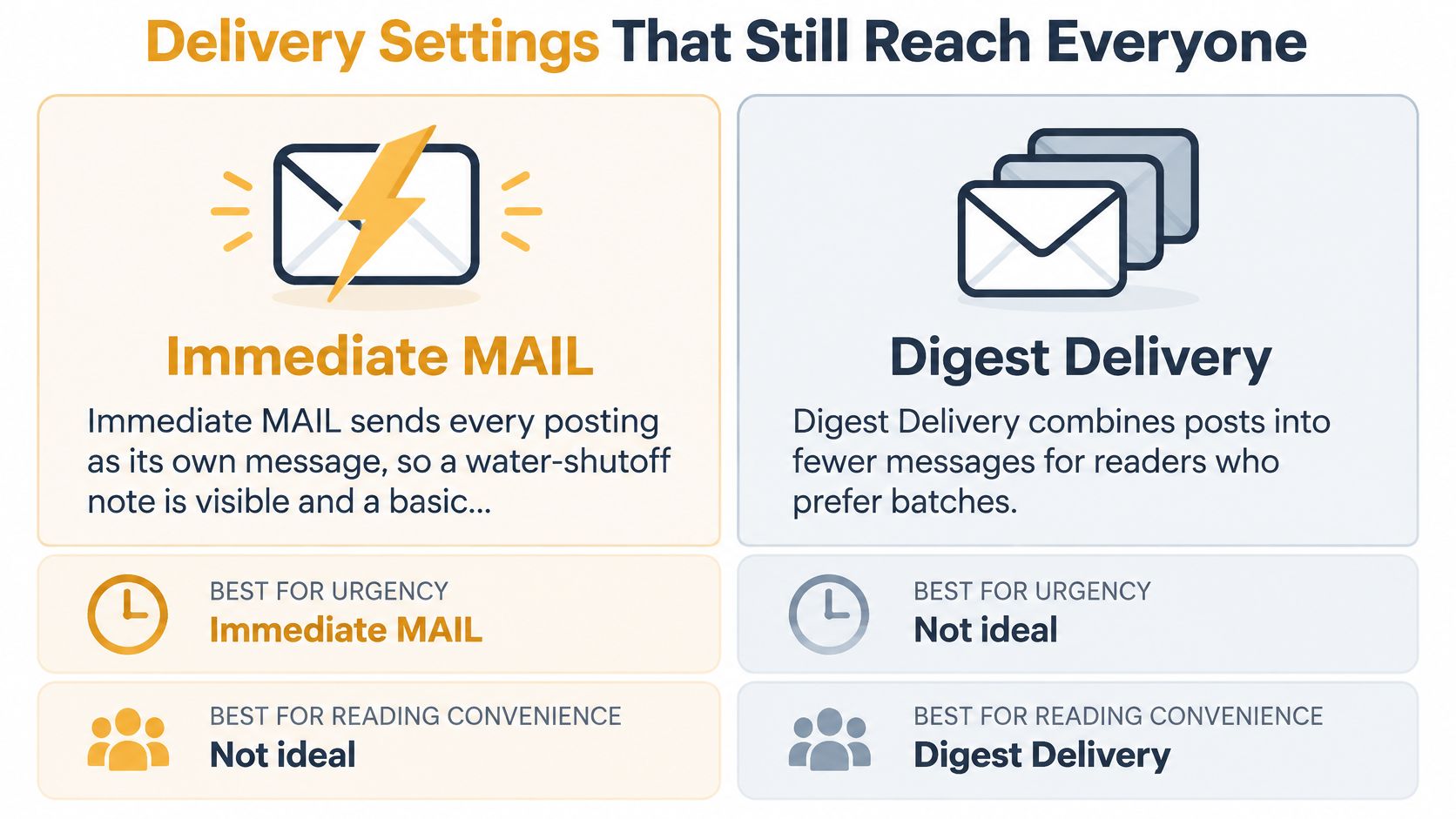
Choose delivery settings by asking who must notice a time-sensitive message, not who dislikes a crowded inbox. A water-shutoff notice and an optional hobby discussion don't need the same delivery arrangement.
The L-Soft list subscription command manual documents digest, index, and topic options. Choosing among them requires attention to the member's mail client, reading habits, and role in the group.
Which delivery mode fits the group
| Setting | What arrives | Best fit | Access risk |
|---|---|---|---|
| SET listname MAIL | Individual postings when digest and index modes are off | Shutoffs, meetings, small discussion groups | Higher volume, but easier to reply to a particular note |
| SET listname DIGEST | Many posts packed into fewer messages | High-volume optional discussion | Harder to isolate a note on basic or assistive clients |
| SET listname INDEX | A list of subjects and retrieval information, not full posts | People who choose what to retrieve | Extra step; urgent items are easy to miss |
| SET listname NOMAIL | No list postings until delivery is restored | Short personal pause | That person misses every announcement |
| Topic subscription | Only chosen topics | Mixed-interest clubs | Ineffective if the owner hasn't defined usable topics |
Digest isn't automatically the accessible choice
A digest can reduce interruptions for someone who likes reading a discussion in batches. It can also leave another person searching through a long message to locate the item that matters.
MIME digests may let compatible clients separate bundled posts into individual messages. Older or simplified clients may not offer that behavior, and HTML presentation doesn't work equally well everywhere. Ask members to try the available format with their actual tools rather than assuming a richer format is easier.
A screen-reader user may prefer separate messages with clear subjects. Someone on a constrained connection may prefer selecting messages from an index instead of downloading full discussions. Let the person's workflow guide the choice.
Delivery test: Can the member find the notice, understand it, and reply to that specific message without help?
Protect the urgent path
Keep responsible coordinators on individual-message delivery during active planning. When returning from DIGEST or INDEX, request the relevant reset as well as MAIL; for example:
SET OAKHOA NODIGEST
SET OAKHOA NOINDEX
SET OAKHOA MAIL
Read the server's response to confirm the resulting settings. MAIL restores delivery after NOMAIL, but it shouldn't be treated as a universal reset for every delivery preference.
For an HOA or faith community, make announcement expectations explicit in the welcome message. A high-volume hobby list can offer digest as a voluntary choice, while a mixed-interest club can use properly defined topics to separate tournament planning from social conversation.
INDEX suits readers who deliberately retrieve selected posts. NOMAIL suits a pause, provided another active coordinator covers the person's responsibilities. Neither is a dependable arrangement for someone expected to act on every announcement.
When planning a fallback for cancellations or location changes, Vanta Sports' guide to team notification system features offers a useful comparison checklist. Evaluate how people will acknowledge or receive urgent updates, rather than assuming ordinary email delivery proves they've read them.
Owner Controls for Posting Privacy and Replies
Personal delivery preferences don't decide who may post or where everyone's replies go. Those rules live in the list header, the configuration maintained by the owner.
Fermilab's LISTSERV owner guide gives a private-list configuration using posting, subscription, validation, error-routing, and reply settings. Treat it as a configuration to understand and adapt, not a block to paste blindly into an established list.
A private-list configuration checklist
Send= Privateallows subscribers to post. It doesn't, by itself, promise private archives or hide every membership detail.Subscription= By_Ownerroutes subscription requests to the owner rather than allowing unrestricted self-enrollment.Validate= Yes,Confirmprovides confirmation-based validation for applicable requests. Read the resulting server instructions carefully.Errors-To= Ownersdirects delivery errors to the people responsible for fixing them.Default-Options= Reprogives posters a copy of their own message by default. Don't assume changing a default rewrites every existing member's settings.Reply-To= Senderdirects ordinary replies toward the original writer, subject to the complete header configuration and mail-client behavior.
For announcements, replying to the writer can reduce unintended group conversations. A discussion club may instead want replies directed to the list. Choose deliberately and test both Reply and Reply All in the clients your officers use.
Don't confuse subscriber-only posting with owner-only posting. If every subscriber may post, a neighbor can still send a message to the entire list. A tightly controlled announcement list needs posting rules that match that intention.
Retrieve and return the header carefully
Request the current settings with:
GET OAKHOA (HEADER
Save a dated, private copy before editing. Review the existing keywords, preserve settings you don't intend to change, and compare the revised version with the original.
The documented return command has this form:
PUT OAKHOA LIST password
That line belongs with the correctly formatted revised header, not as an isolated instruction to change settings. Use the authentication method supported by your installation. Never include credentials in a message addressed or copied to the discussion list.
For an operational pause, an authorized owner can send HOLD OAKHOA; FREE OAKHOA releases the hold. Record who paused the list and why, so another owner doesn't mistake an intentional suspension for a delivery failure.
Keep each control in its proper role
These settings don't substitute for membership or delivery commands:
- Posting permission versus reading mode. DIGEST doesn't override
Send= Private. - Approval versus notification. QUIET changes notices, not the list's subscription policy or the owner's responsibility to obtain consent.
- Roster versus configuration. REVIEW inspects membership; GET retrieves header settings.
- Departure versus routing. A member's SIGNOFF request doesn't change Reply-To for those who remain.
Test proposed changes with an authorized test group before applying them to a working community list. Check who can post, where replies land, and who receives errors. Header edits are global, so a small typing mistake can affect privacy or routing for every member.
When the Server Ignores or Mishandles a Command
The familiar failure is silence after sending a command in the subject, leaving only a signature in the body, or composing a formatted message. Start with a fresh plain-text email containing only the intended instruction.
Silence isn't proof that the server rejected the request. Its reply could be filtered, delayed, or sent to a different mailbox, so inspect the original message and your mail folders before repeating an action that changes membership.
Command problems and the fix to send next
| What you see | Likely cause | What to do next |
|---|---|---|
| No acknowledgement | Command was in the subject or the body wasn't clean plain text | Resend plain text with the command only in the body |
| You are not authorized | From address isn't the member or an authorized owner | Resend from the allowed mailbox |
| Unknown command | Wrapped line, fancy quotes, or a signature | Retype a short command line without extra text |
| Member still got a notice after QUIET | QUIET wasn't the first word, or a different process sent the notice | Check the acknowledgement; use QUIET ADD or QUIET DEL on a single line for the next intended change |
| The whole group saw the command | It was mailed to the discussion address | Resend to LISTSERV; apologize privately or appropriately if addresses were exposed |
| Posts vanish but commands work | The list may be on HOLD | An owner checks the hold state and sends FREE listname if appropriate |
| Urgent note buried | Reader uses DIGEST or INDEX | Restore the coordinator's individual-message settings |
| Roster reply is sitting in a shared inbox | REVIEW returned private addresses | Use it privately, then remove the unnecessary shared copy |
Diagnose before repeating a change
An authorization error is about the account that sent the message. Don't try to fix it by inventing a password in the subject or adding an owner's name to the body. Select the correct From account, or ask an existing owner to update authorization through the proper procedure.
An unknown-command reply often identifies the offending line. If it points to your job title, phone number, or a sentence from the forwarded conversation, the server is reading material you didn't intend as instructions. Remove that material rather than changing the valid command.
A QUIET problem needs special care. Don't delete and re-add a person just to test notification behavior, because that creates additional changes and may discard personal options. Inspect the server's response first and distinguish its notification from an independently sent welcome message.
Retest privately and close the loop
Delivery errors belong with the responsible owners, not in a Reply All conversation. Share only the details needed to identify the affected membership, and keep private addresses out of a public troubleshooting thread.
For a controlled retest, use an authorized test address, read the acknowledgement, and inspect the resulting roster privately. Confirm the intended state before announcing success. If the symptom is still unexplained, preserve the exact error text for the administrator rather than repeatedly resending the same change.
Decide Whether Your Group Still Needs Commands
Stay with LISTSERV when your organization already supports it, needs its established archives or administration, and has someone willing to own the configuration. A campus list, agency discussion, or long-running club can benefit from keeping familiar infrastructure and a clear operating record.
Choose a simpler shared address when members mainly need to send and receive ordinary email, and nobody wants to manage command syntax or interpret server replies. Copying recipients can be adequate for a small, familiar circle, but it becomes awkward when privacy, membership turnover, and consistent replies matter.
Choose the work your volunteers can sustain
- If you stay. Keep the command catalog available, store a dated header copy privately, and document the matching FREE instruction before testing HOLD.
- If you switch. Create the shared address, add only people who agreed to participate, and send a welcome message explaining replies and departure instructions.
At Listava, members receive messages sent to the group's single address, and replies go back to the group. They don't need member accounts and use email as they normally do. The list also remains available when a board member moves away because it doesn't live in that person's inbox.
The right choice is the arrangement your next volunteer can manage safely. Preserve a dependable urgent-message path whichever system you use.
Listava offers a shared group email address for people who want ordinary email participation without learning LISTSERV commands. Visit Listava if your board, club, or congregation needs group-wide replies and a list that can outlast the current organizer's term.